










Managing bills of exchange in Microsoft Business Central (French localization)
Index 
In the previous article, a detailed analysis of the accounting aspects of bills of exchange has been presented. It is now necessary to delve deeper into the operational implementation within Microsoft Business Central. This article focuses on settings specific to the French localization and details the system processes that streamline the management of payment slips.
Prerequisite configuration
The reliability of the trade bill flow depends on rigorous configuration of the master tables. Each configured element automates the posting of entries between the customer account, the portfolio, and the bank.
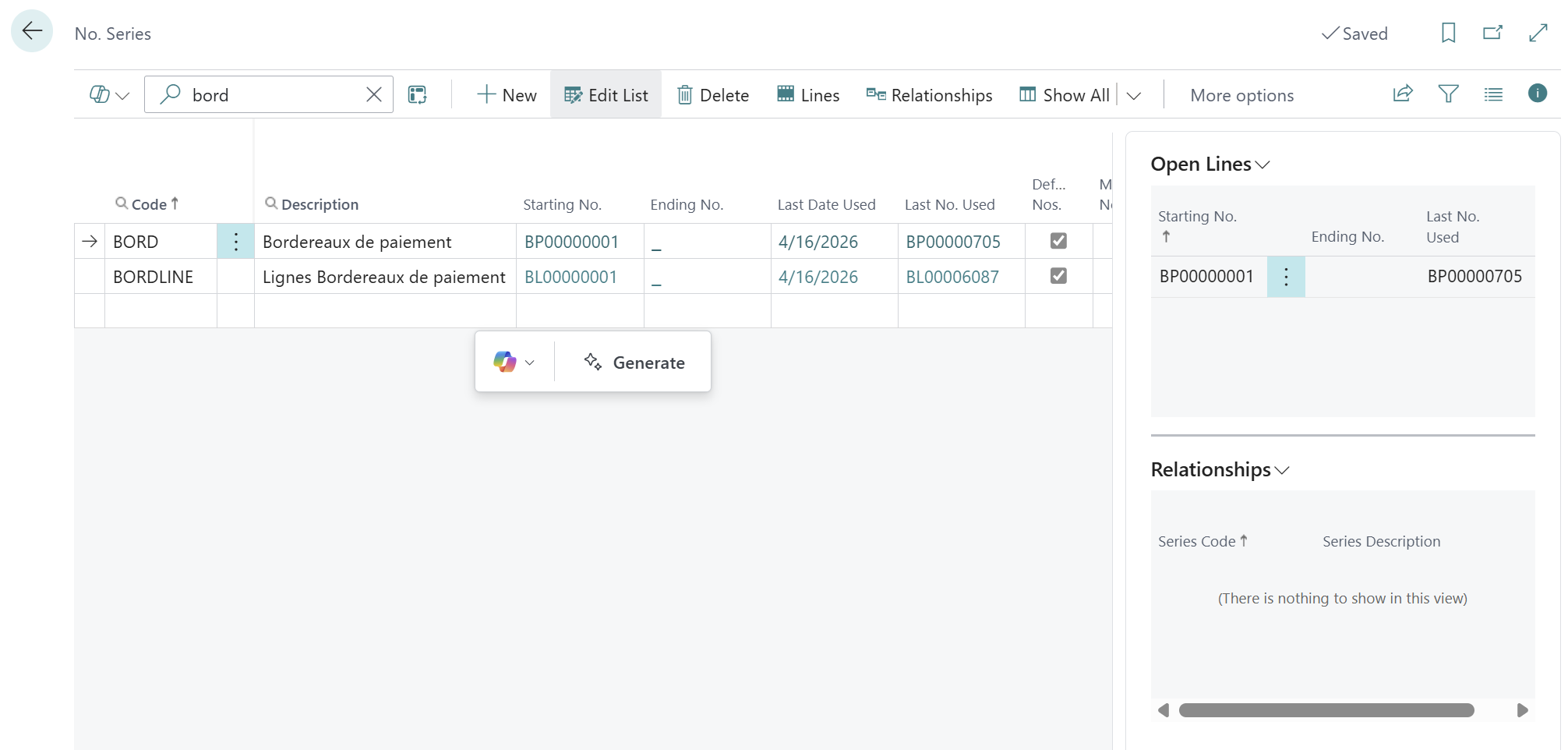
Numbering series
To ensure a clear audit trail, distinct chronological sequences are necessary.
- Payment slips:A specific stub is assigned to the slips to uniquely identify each bank deposit.
- Slip lines: A specific numbering series is assigned to the slip lines, allowing the unique identification of each item intended for bank presentation.
Bank Fact Sheets
Each bank account used for remittances must be configured with its full details (IBAN and BIC). In the "Funds Transfer" tab, information regarding data export formats is entered to ensure compatibility with the protocol.ETABAC or the applicable SEPA standards.
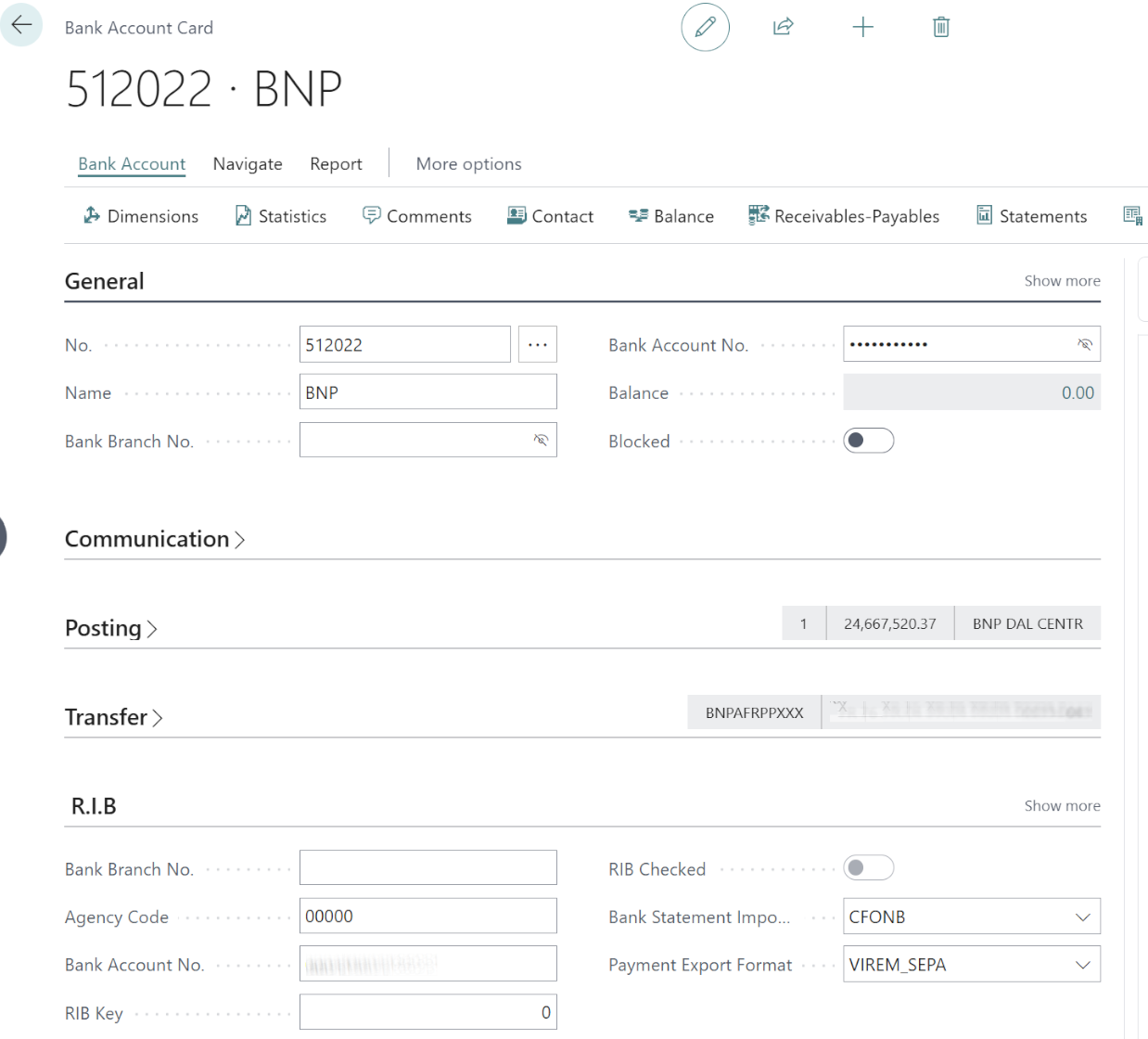
Bills of Exchange Flow Diagram
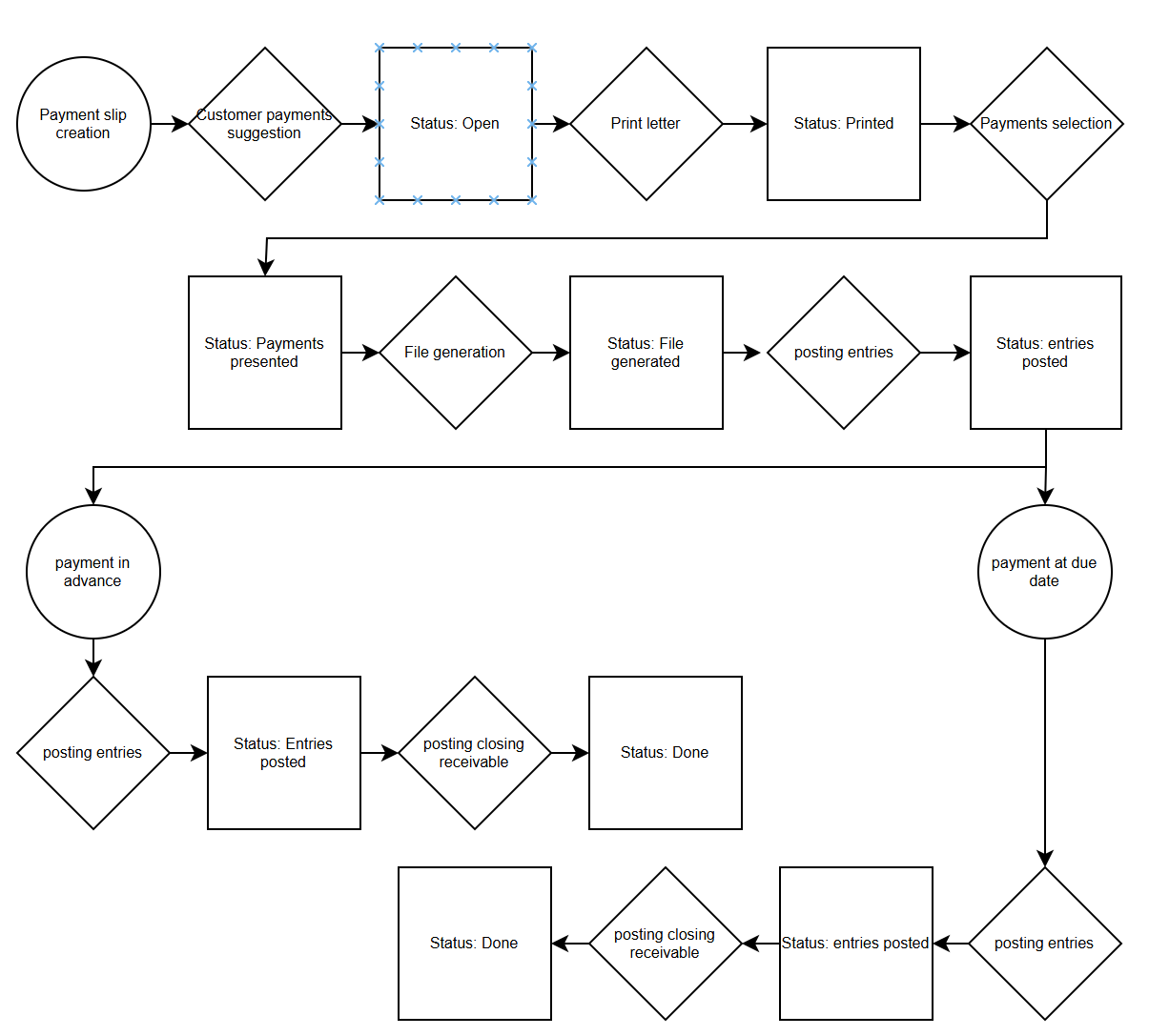
Before discussing the configuration of French bill of exchange type payment slips, the lifecycle flow is shown below:
Payment Slip Settings
The operation of bills of exchange relies on the definition of specific models that structure the nature of the transactions. This article does not aim to provide an exhaustive list of the functionalities offered by bills of exchange, but focuses exclusively on the configuration required for by them.
It is within this model (payment types or payment slip parameters) that the link between the two numbering sequences is established: one for the slip header and the other for the lines. Regarding the management of bills of exchange, the “proposal type” is set to Customers. The field relating to the SEPA transfer type must remain empty in order to maintain the specific formatting required for bills of exchange.

The main configuration is based on the definition of statuses, which precisely identify the workflow of each slip for a given type.
e statuses are associated with specific steps, which constitute the transition mechanisms allowing the user to move from one status to the next. This sequencing ensures the rigor of the process, from the initial creation of the slip to its final accounting, by guiding each user interaction.
The statutes
The statutes are the driving force behind the bills of exchange workflow. They allow for the segmentation of each phase of the process, from initial entry to the closing of the receivable, while controlling the actions authorized for the user.
The sequencing for managing bills of exchange is organized around the following statuses:
- Open: Writing creation and selection phase.
- Printed: Validation of the physical editing of the effects.
- Customer regulations: Transition stage for account reconciliation.
- ETABAC File Created: Generation of the magnetic support for the bank.
- Accounted portfolio items: Accounting entry for the transfer to the effects account.
- Effect upon collection / discounting: Distinguishing the type of discount desired.
- Effect on collection / discount recorded: Validation of the accounting entry.
- Bank loan to be closed: Final phase of waiting for the outcome of the effect.
- Bank deposit made: Confirmation of receipt by the financial institution.
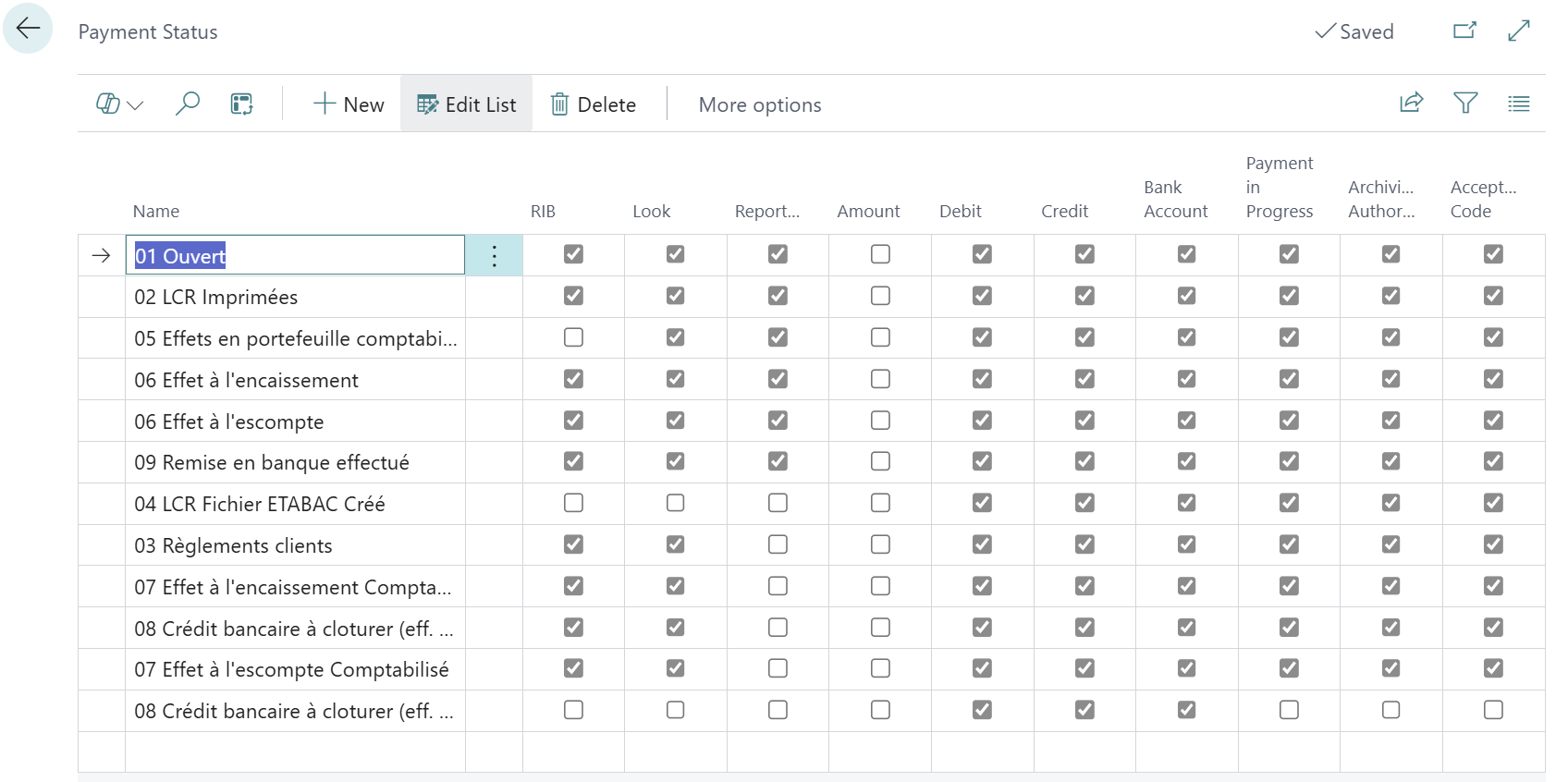
Each status must be configured in such a way as to condition the system:
- RIB: Allows or disallows the modification of bank details on the lines.
- Consultation: Allows the display of slip details in the history.
- ReportMenu: Enables the visibility of the slip in specific reporting menus.
- Amount: Allows modification of the amount of the bill (usually locked after issuance).
- Debit / Credit: Defines whether the financial flow columns are editable.
- Bank account: Allows you to modify the account of the receiving financial institution.
- Payment in progress: Mark the entries as being linked to an active flow to avoid duplication.
- Archiving permitted: Determines whether the slip can be transferred to the archive tables after processing.
- Acceptance code: Makes entering the acceptance code for the effect mandatory or optional.
The steps
The transitions between the different states of the slip are orchestrated by the steps. Each step defines a specific action that allows the slip to progress through the workflow, transforming its current status into the appropriate target status.
Defining the flow stages
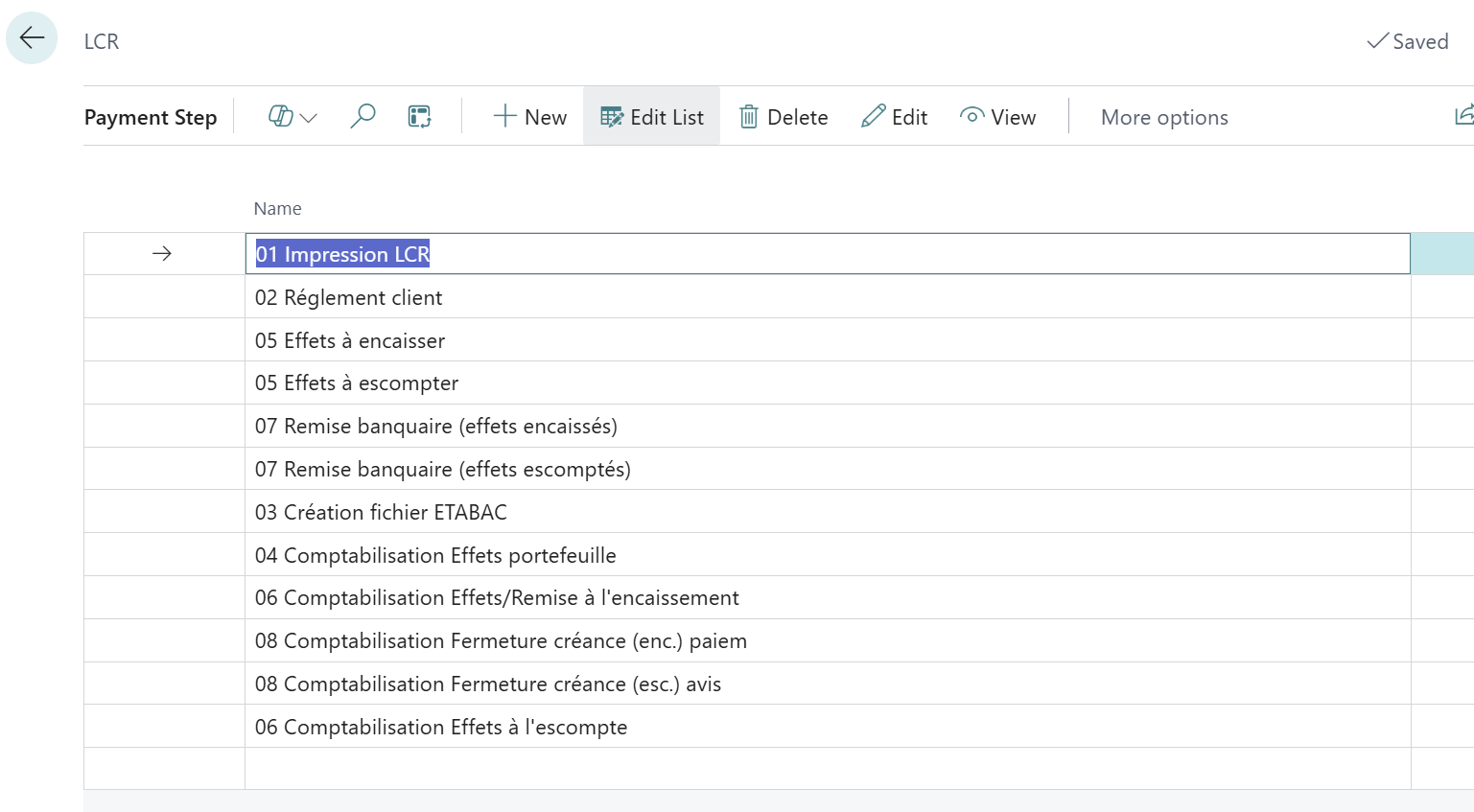
For the processing of bills of exchange, the following steps are configured to guide the documentary and accounting process:
- 01 Impression LCR: Triggers the physical editing of the effects.
- 02 Customer regulations: Prepare the lettering of the initial debt.
- 03 Creating ETABAC file: Generates the magnetic file for teletransmission.
- 04 Accounting for Portfolio Effects: Record the accounting entry to account 413.
- 05 Bills to be collected / discounted: Direct the slip to the chosen type of discount.
- 06 Accounting for Bills of Exchange/Discounting for Collection (or Discounting): Confirms the exit from the portfolio.
- 07 Bank deposit: Confirms that the files have been sent to the financial institution.
- 08 Accounting for closing the receivable: The account is definitively settled upon receipt of payment or credit advice.
Setting up the step fields
The behavior of each step is governed by critical parameters that ensure the consistency of the system:
- Type of payment: Identifies the payment method concerned (Bill of exchange).
- Line / Name: Defines the order of the step and its descriptive title.
- Previous status / Previous state name: Specifies the starting condition necessary to execute the action.
- Next status / Next status name: Determines the new state of the slip after the action is successful.
- Type action: Specifies the nature of the operation (Printing, File Creation, or Accounting).
- ID status: References the technical object (Report) used for printing or processing.
- Type exportation: Defines the output format for banking transactions, enabling the generation of the expected data flows.
The printing stage
To configure the printing of the effect's content, allowing the status to change from "Open" to "Printed", the previous and following statuses must be explicitly defined. The action type is set to "Report", and the standard state ID 10865 is used to generate the document.
The extraction steps
The extraction stages are the phase where the system suggests eligible entries based on the progress of the transaction. For each stage, an automatic suggestion function filters the accounting lines that meet the criteria required for the status change.
In this flow, the extractions are broken down as follows:
- 02 Customer regulations: The system identifies unpaid sales invoices where the payment method is "Bill of Exchange" and imports them into the slip.
- 05 Bills to be collected / discounted: Once the effects are created, the system extracts those whose due date coincides with the desired discount period, while separating the flows intended for simple collection from those intended for discounting.
- 07 Bank deposit (collected / discounted): This extraction groups together the lines already processed in accounting to confirm their final sending to the financial institution.
- 03 Creating ETABAC file: The system extracts all the data from the validated slip lines to generate the magnetic file structure conforming to interbank standards.[NT]To configure these transition steps, a specific setup is required regarding the nature of the operation. It is imperative to define the “type action” on "Document creation” for each of them. This setting allows the system to trigger the functions for extracting the entries necessary for the progress of the slip.
Each step ensures the logical progression of the flow by switching the slip from one specific status to another. The configuration must respect the following transitions:
- 02 Customer regulations: Allows the transition from the status “02 Printed” towards the status “03 Customer Regulations.
- 05 Effects to be collected: Ensures the transition of the status “05 Accounted Portfolio Effects” towards the status “06 Effect upon collection”.
- 05 Expected Effects: Allow to leave "05 Accounted Portfolio Effects” status to the “06 Discount effect”.
- 07 Bank deposit (collected bills): Led to the status “07 Effect on collection Recorded” towards the status “08 Bank credit to be closed (effective)”.
- 07 Bank deposit (discounted bills): Ensures the passage of the status “07 Discount effect recorded” to the status “08 Bank loan to be closed (eff. esc.)”.
[H1] Customer settlement stage, which changes the status from “Printed” to “Customer settlements”
The file stage
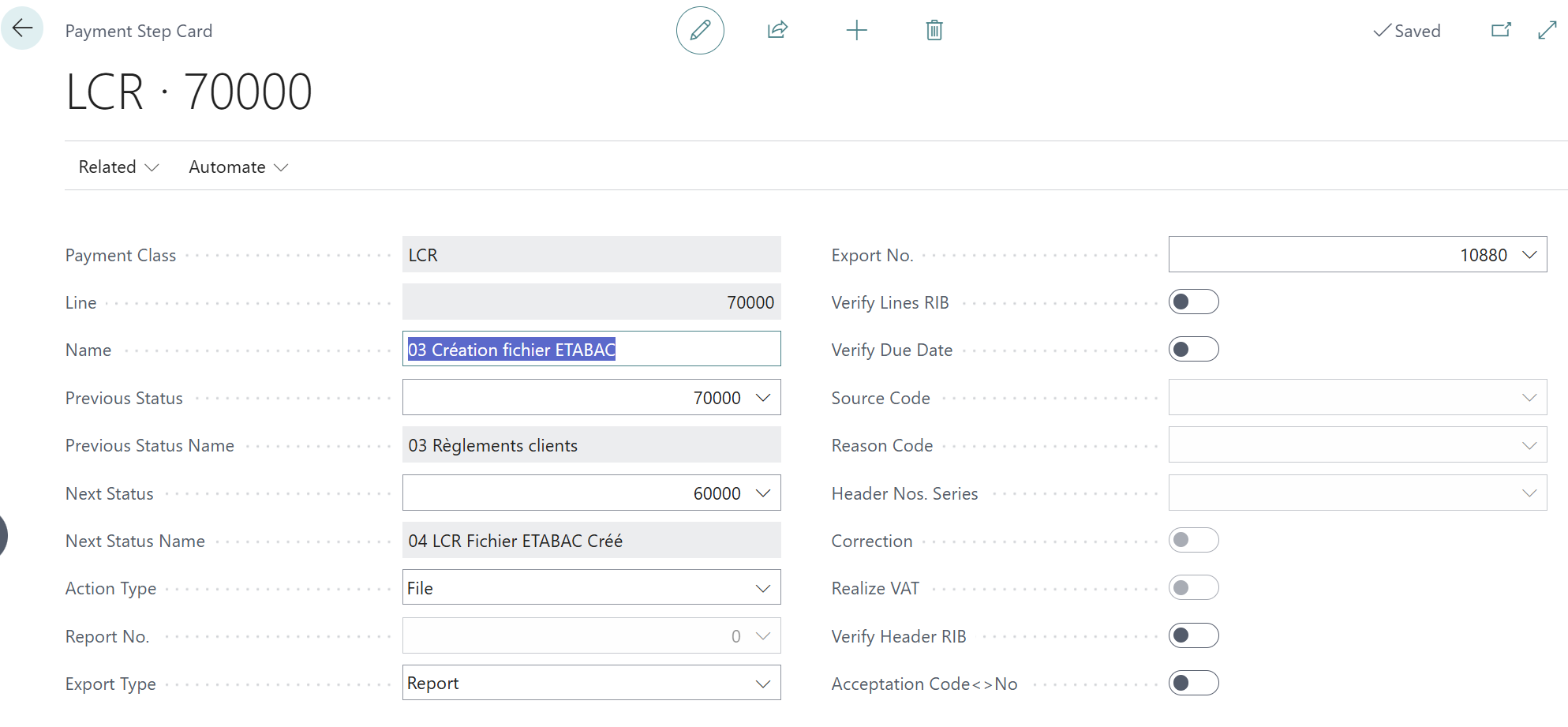
The step dedicated to exporting the file must be configured to ensure the transition of the status “03 Customer Regulations” towards the status “04 LCR ETABAC File Created”. To ensure correct data generation, the settings must specify the type of action “File" as well as an export type defined on “Report". The field “N° exportation” must be filled in with the value “10880”, corresponding to the standard file processing format for bills of exchange.
The accounting steps
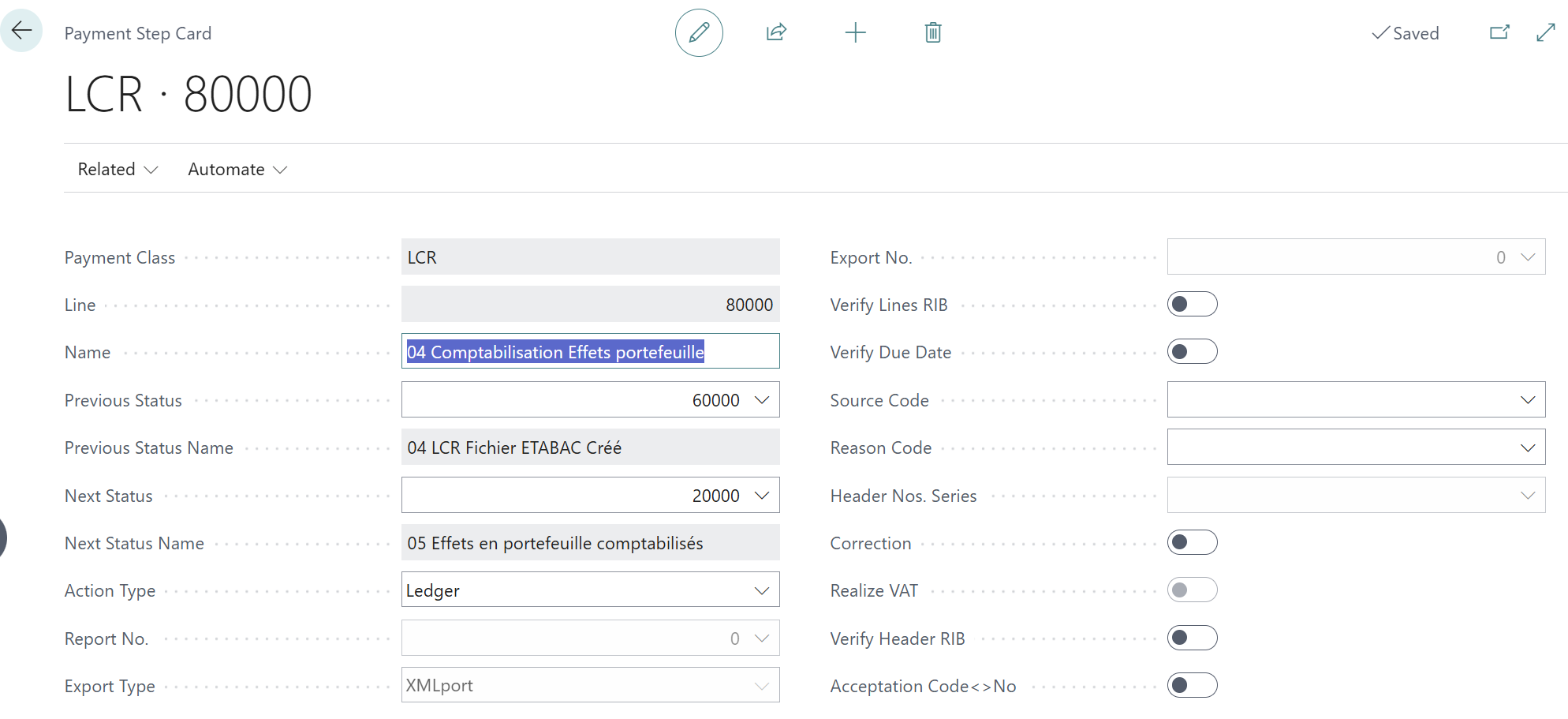
The steps dedicated to generating financial flows have a specific accounting pattern that must be rigorously configured. For each of these steps, the “type d'action”must be set to “Accounting". This allows the system to trigger the entries in the general ledgers upon validation.
The steps involved in this accounting setup are as follows:
- 04 Accounting for Portfolio Effects
- 06 Accounting for Bills of Exchange/Deposit for Collection
- 06 Accounting for Discounted Bills
- 08 Accounting for closing receivable (receipt) payment
- 08 Accounting for the closing of a receivable (esc.) notice
Accounting scheme
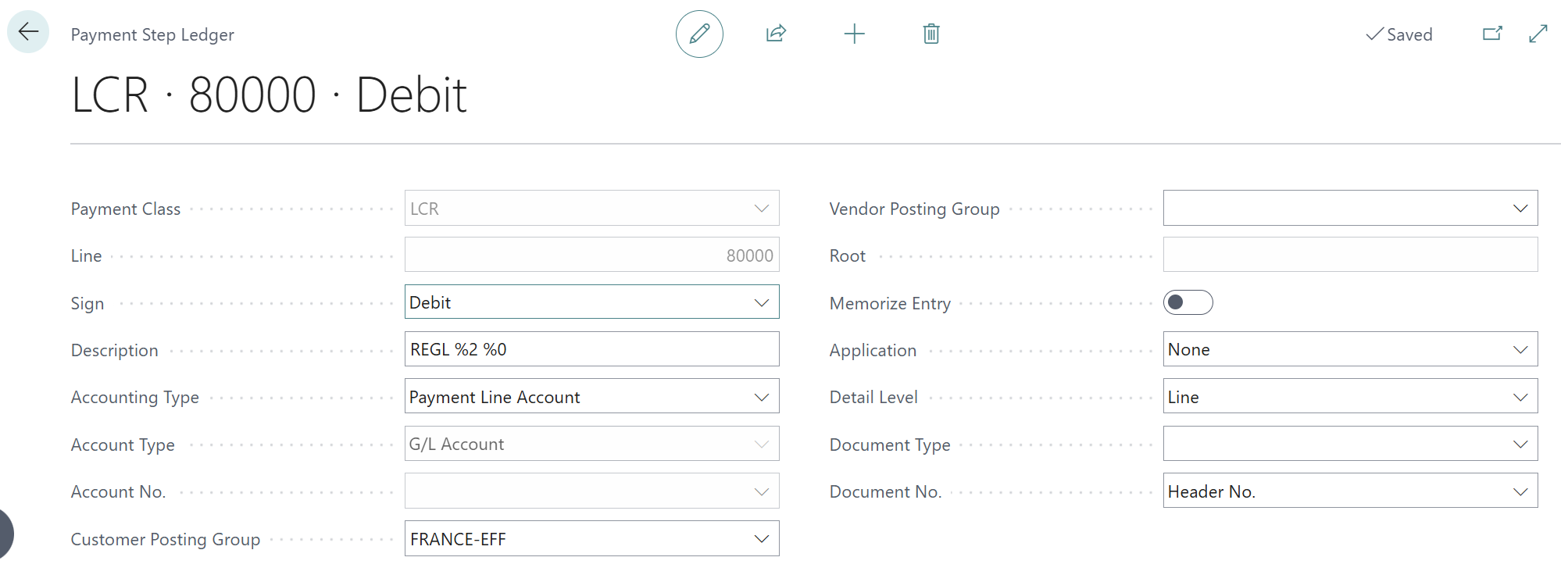
Access to the accounting entries is via the menu on the step's information page. Related > Payment Step > Accounting. The list that appears allows you to precisely define the accounting model, which is structured in this flow on two separate lines.
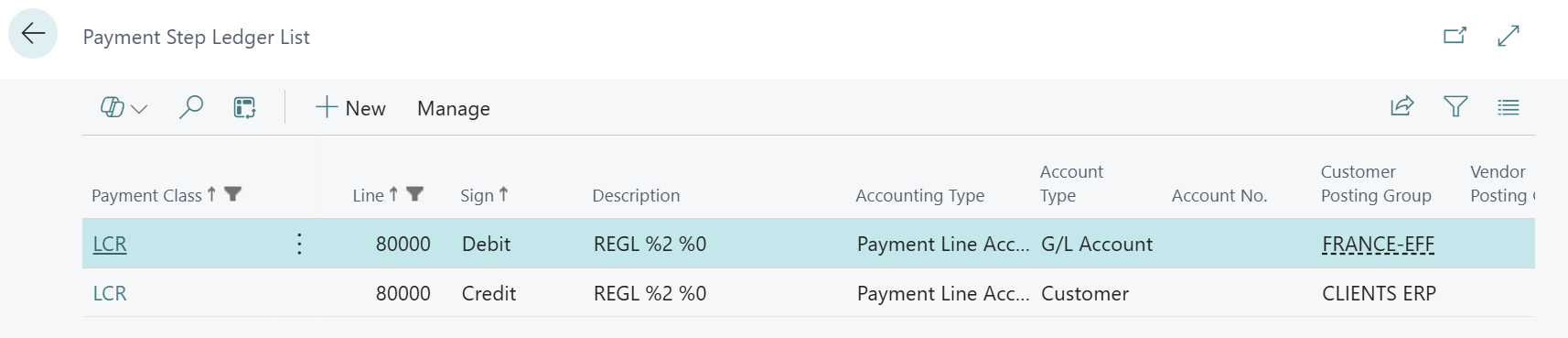
Each line of the diagram is governed by the following fields:
- Type of payment: Identifies the method of payment (Bill of exchange).
- Line / Description: Defines the order of writing and its title label.
- Sense: Determines whether the line should be recorded as a debit or a credit.Accounting type: Specifies the type of transaction and the origin of the account used. The options detailed here are limited exclusively to those I have personally used in the past. The following values can be selected:Payment line account: The system uses the third-party account present on the line, i.e., the customer account within the framework of this flow.Associated General Account: This option allows you to retrieve the collective account defined in the customer accounting group specified on the line.Account configured: The system points directly to the general ledger account number manually entered in the configuration form.Account header: The financial account is retrieved from the bank specified in the header of the slip.
- Account type / Account number: Indicates the type of account (General Account, Bank Account, Customer, Supplier) and its specific number if necessary.
- Accounts receivable/supplier group: Useful in the case of an accounting type “associated account”, defines the account to be used indirectly through an accounting group.
- Detail: Indicates whether the system should generate one entry per slip line, per account, per due date, or a single global entry.
- Lettering: Enables the automatic matching function for entries during validation.
- Memorize writing: Allows you to keep a record of the writing for later processing.
- Type document / N° document: Specify the nature of the accounting document and the numbering sequence to be applied.
Operational flow and system manipulations
The processing of bills of exchange follows a rigorous cycle, structured around data extraction and validation of accounting entries.
Initializing the flow
Creating a slip
The first phase consists of the creation of the slippayment. From the list, click on the “+” and select the payment type “LCR”.
Select invoices and print
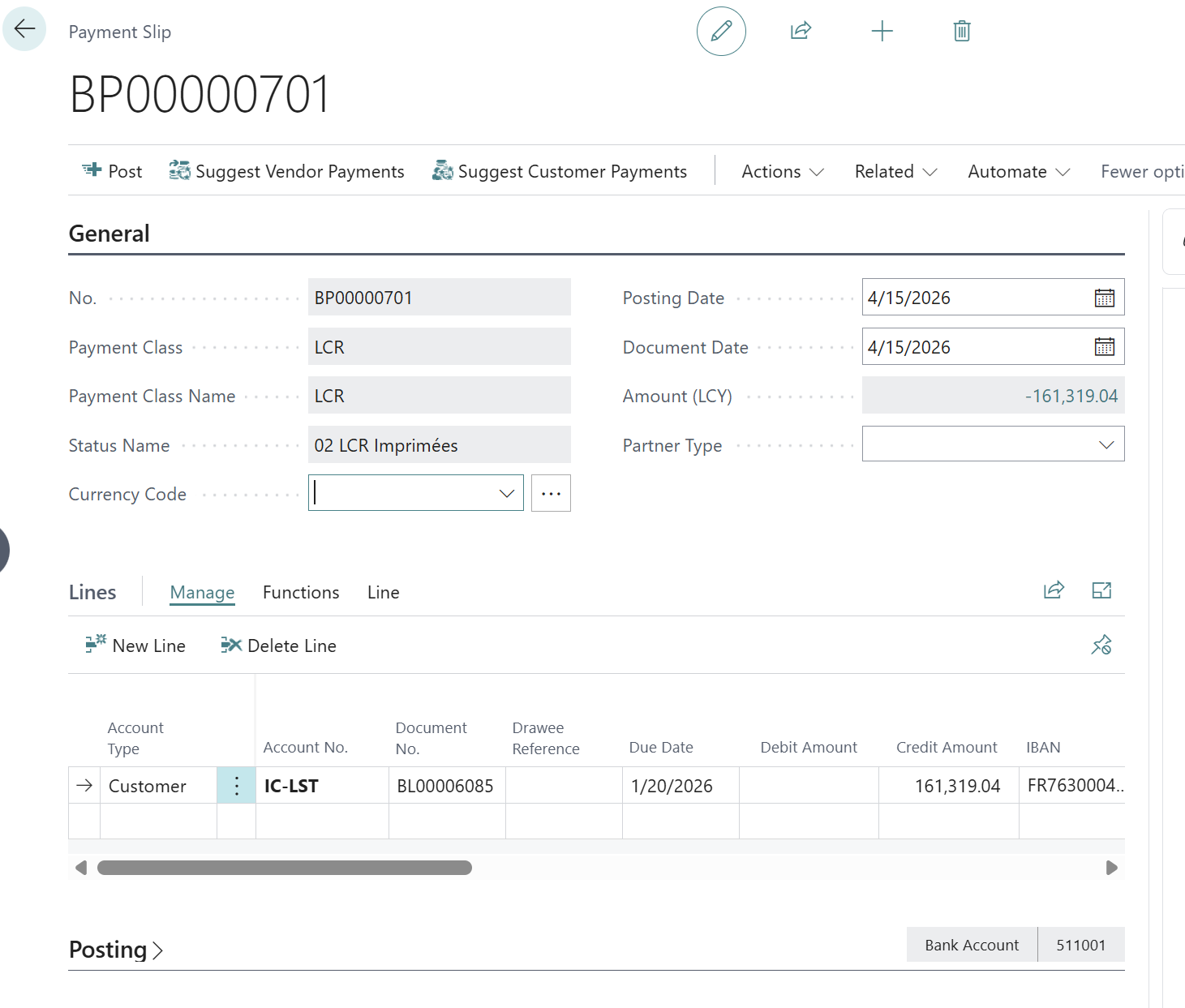
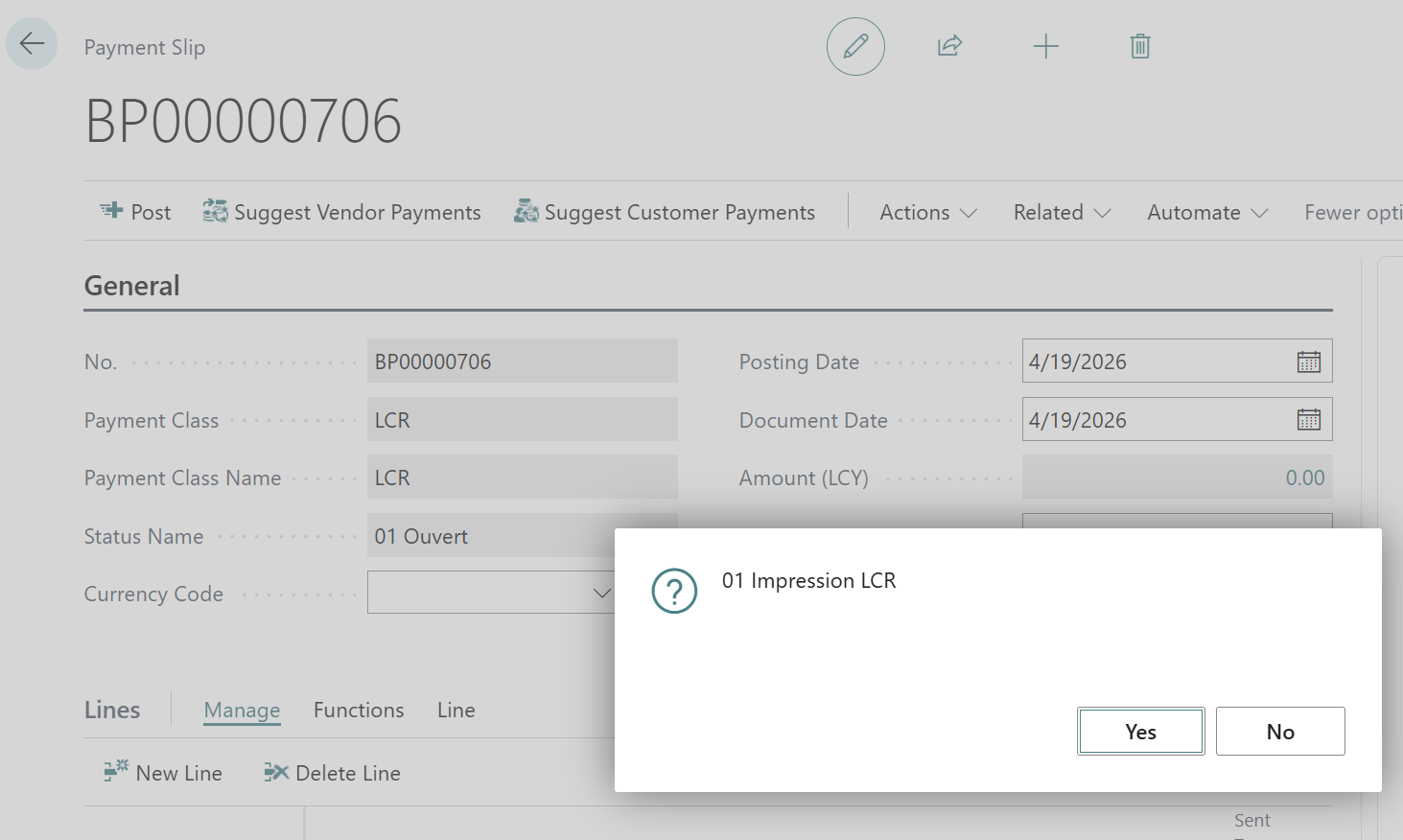
Customer invoices can then be suggested by the system based on their due date and payment method. Click on “Suggest Customer Payments” in the ribbon. Among the options, you can group invoices by customer. Once the grouping is complete, the printing of the slip. This step is necessary to keep a record of the discount's composition. Click the Print button in Actions > Validation on the ribbon.
File Creation
The next step involves creating the file to be presented to the bank and accounting for the securities in the portfolio.
Click on Actions > Validation > Generate File to select the action for generating the file that will be available for download.
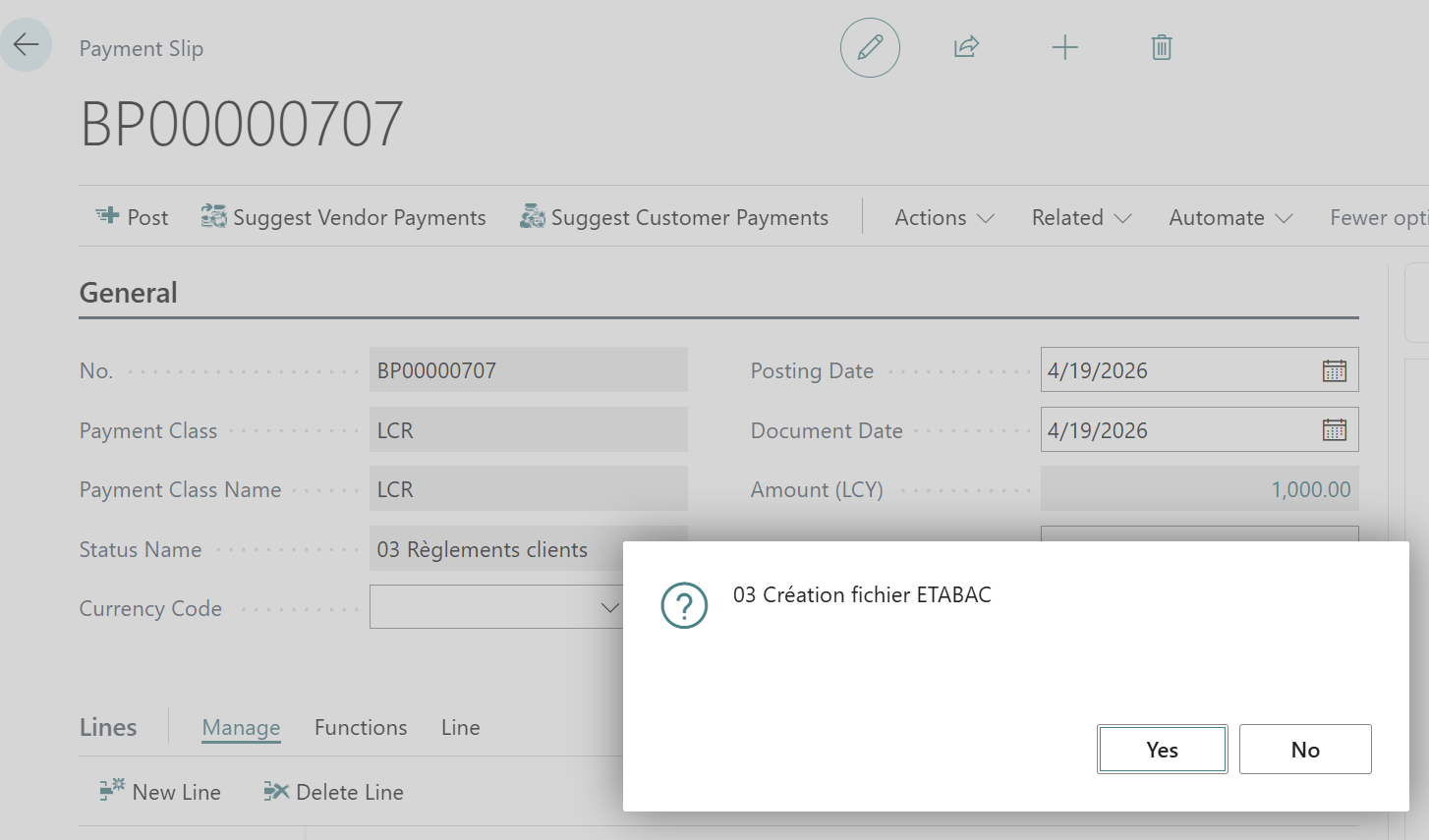
Click on Actions > Validation > Validate to record the effects in the portfolio.
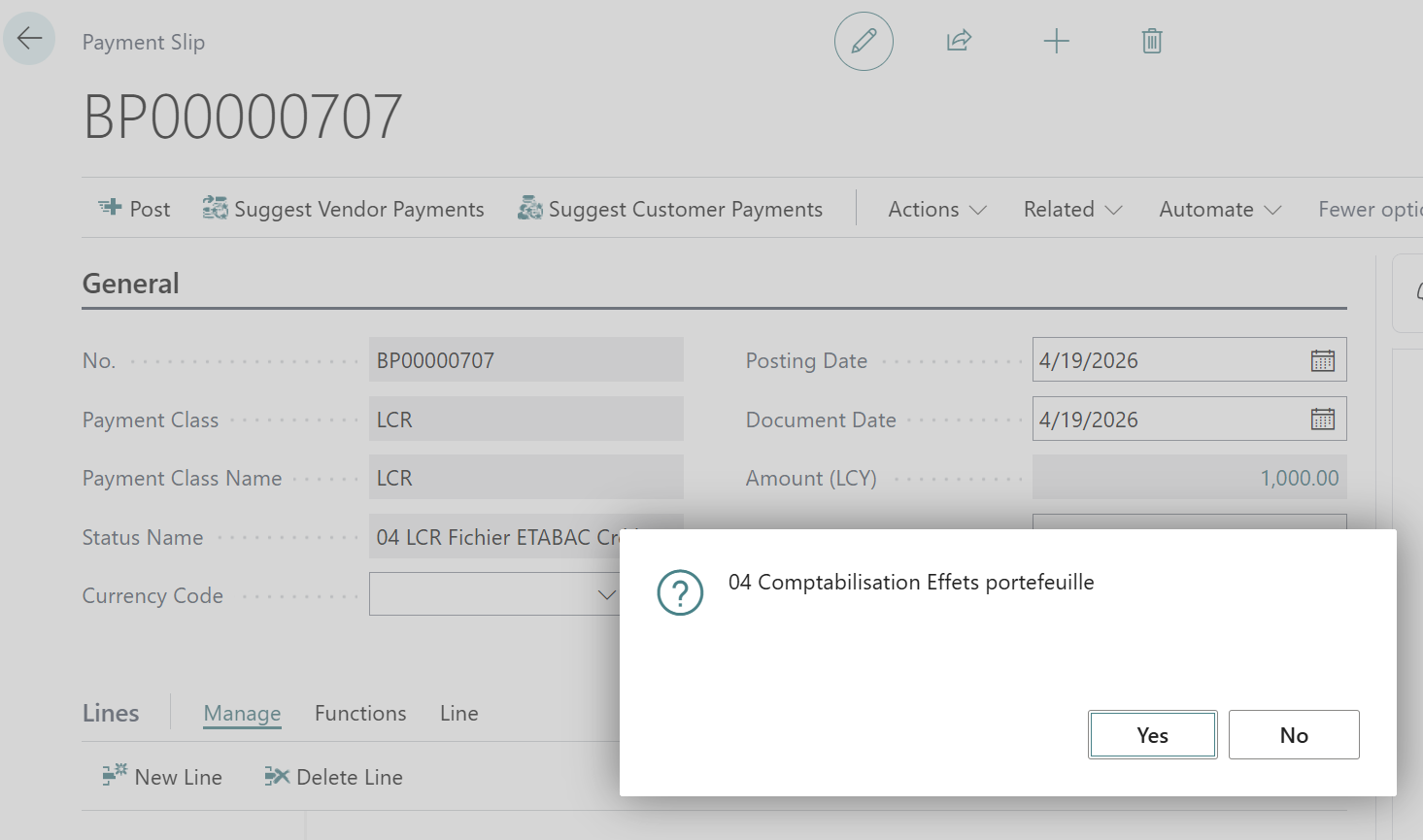
The process records the entries according to the model set in the step.

From this stage, a choice must be made between presenting the bills at their due date (for collection) or presenting them in advance (for discounting).
Management of treatment options
Since the bills to be presented may differ from those recorded in the last slip, while they must be in the portfolio, a process of extracting the recorded bills must be used in order to select those to be submitted for collection.
The purpose of the “Document Creation” option specified in the “Action Type” of the presentation step for discounting or collection is to extract the bills in the portfolio and place them in a new slip.
Options case
Periodically, the "create new slip" button from the Actions section of the slip list ribbon must be activated. The "LCR" settlement type must be selected, along with the "Bills to be collected" or "Bills to be discounted" option: this action allows the system to display the list of entries corresponding to the bills in the portfolio and to select those to be presented.
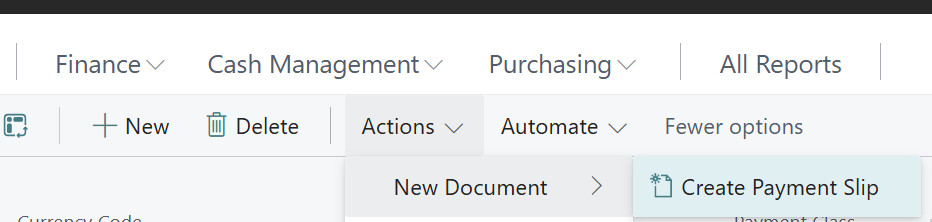
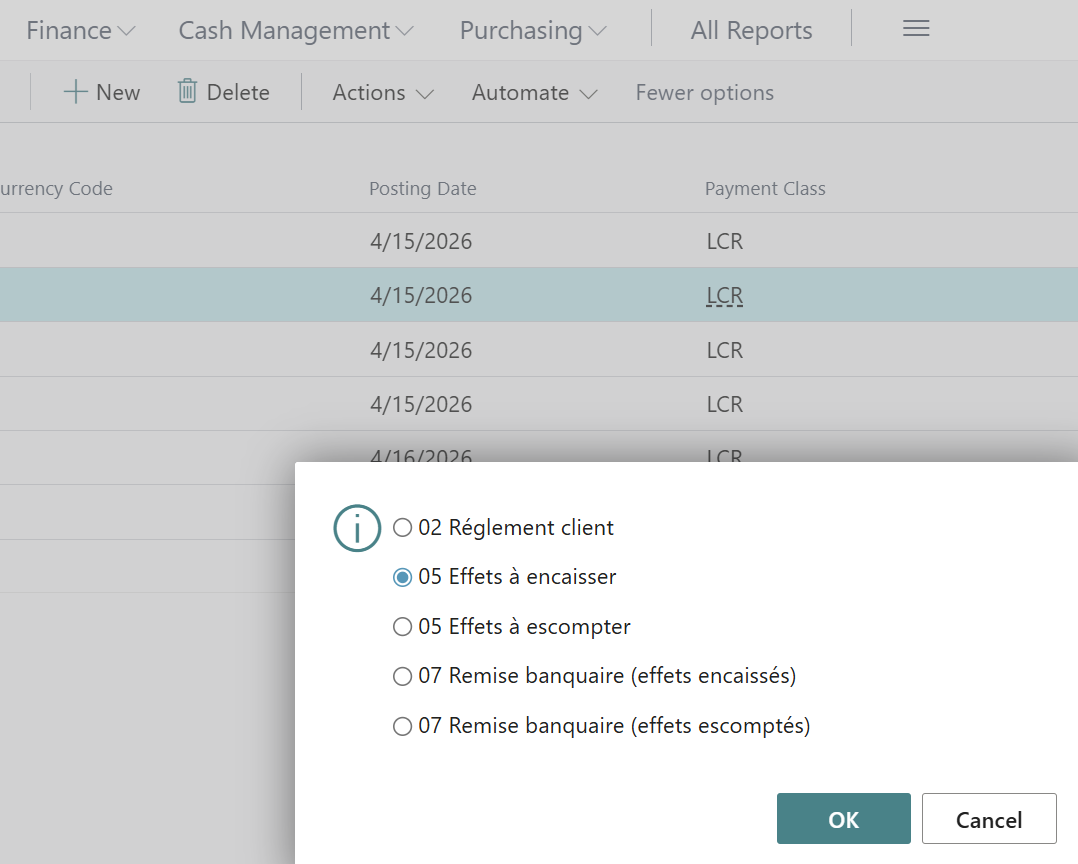
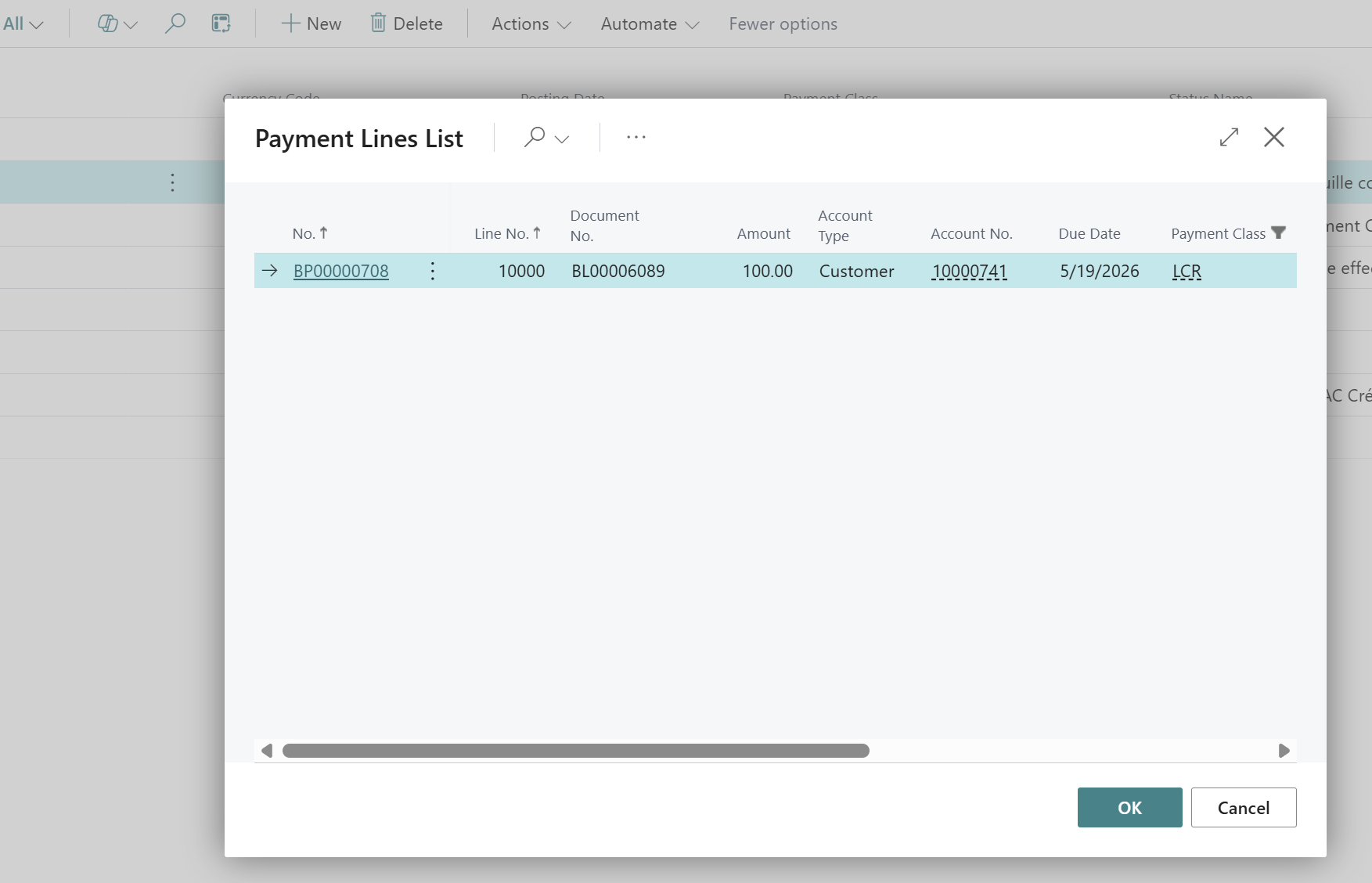
Once the new slip has been created, all that remains is to record the effects for collection by clicking on Actions > Validation > Validate.
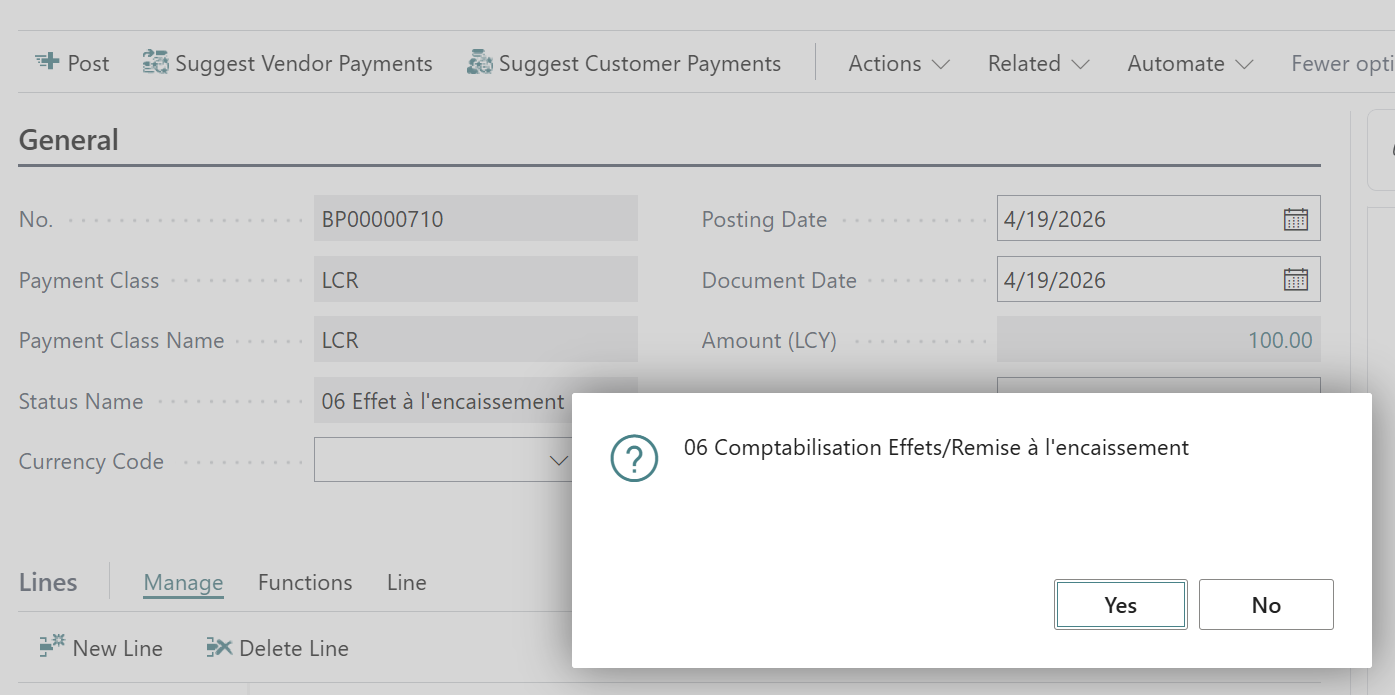
This operation will generate the accounting entries in accordance with the scheme configured in the step.

Finally, you will need to close the customer receivable by clicking on Actions > Validation > Validate.
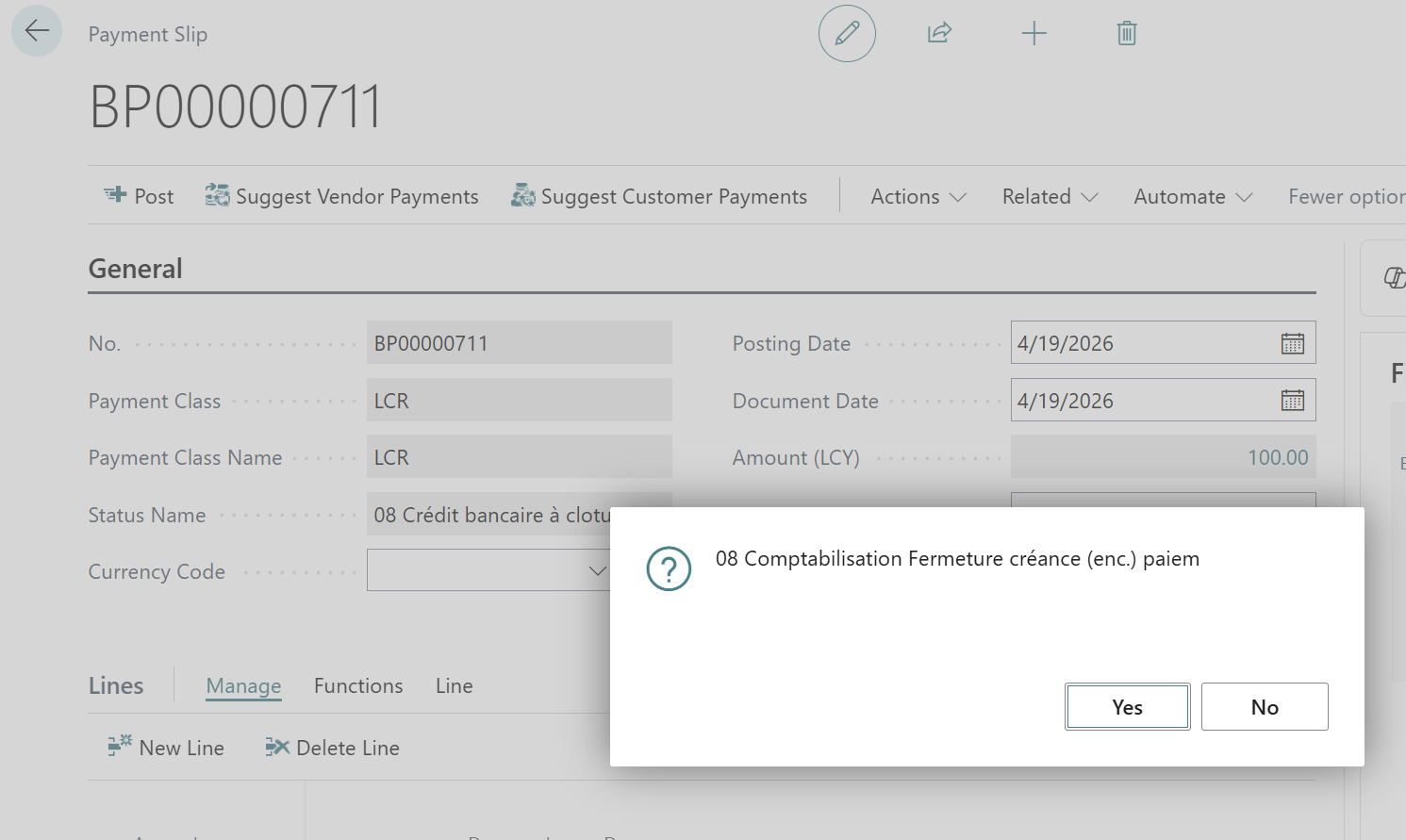
This action will generate the accounting entries.
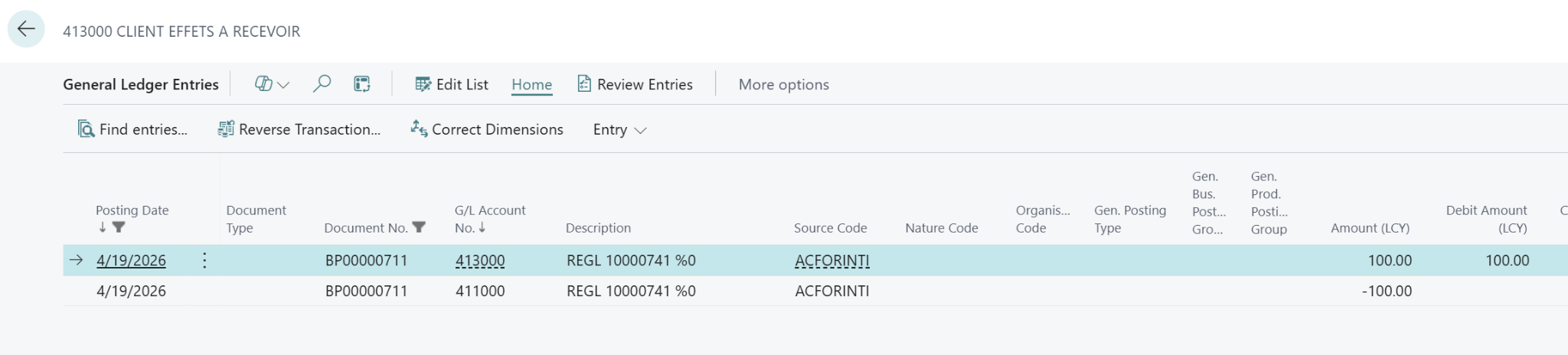
Discount option
In the case of the discount option, the steps are identical to the previous option, except for the selection of the related actions: Bills to be discounted > choose the bills in portfolio > new slip > Accounting for discounted bills > Closing customer receivable.
Conclusion
In conclusion, precise configuration allows for the implementation of the complete workflow in Business Central. The rigorous setup of accounting templates and processing steps ensures smooth management of effects, from extraction to closing, while guaranteeing the reliability of the generated accounting entries.






No comments yet.