










Manage your international liquidity with the Business Central Treasury module
Index 
In a context of export growth, cash flow visibility often becomes the bottleneck for finance departments. Moving from accrual accounting to predictive management is a technical and functional challenge. Business Central offers a Cash Flow module which, when properly configured, transforms your accounting data into a true navigation radar.
International treasury management requires juggling constantly shifting variables: heterogeneous payment terms, exchange rate risks, and intercompany flows. The aim of this article is to demonstrate how to centralize these flows to achieve a reliable liquidity trajectory.
Business central
Business Central's cash flow forecasting module is a forward-looking planning tool that predicts a company's financial solvency by anticipating its ability to meet its short-term obligations. Unlike traditional financial reports that analyze the past, this module focuses on what might happen by analyzing the future availability of funds.
The module's operation relies on generating forecast entries from the automated reading of existing accounting data. By using the "Suggest Activity Journal Lines" function in the cash flow statement, the system extracts information from general ledger, sales (receivables and orders), purchases (payables and orders), services, and fixed assets. This raw data is then transformed into cash flow entries that simulate expected cash flows based on the actual due dates of the documents.
To organize these calculations, the system uses cash flow forecast sheets that serve as the basis for each simulation. Here are their main characteristics:
- They allow you to create and save several scenarios in parallel (for example, a monthly forecast or an analysis including or not payment discounts).
- They are used to define the calculation parameters, such as the accounting budget period to be included or the dates of manual payments (rents, salaries) to be taken into account.
- A record can be configured to be displayed directly as a graph on the dashboard (Role Center) in order to track the evolution of liquidity in real time.
Cash flow accounting plan
TheCash flow accounting planThis constitutes the structural tree that allows for the segmentation and classification of all incoming and outgoing financial flows in Business Central. It acts as an analytical dashboard where each account is mapped to a specific source type (bank, sales, purchases, etc.) to automate liquidity projection.
To begin, you need to search for the Cash Chart of Accounts page using the search icon in Business Central. Then click New to create a cash account record.
Define the basic information
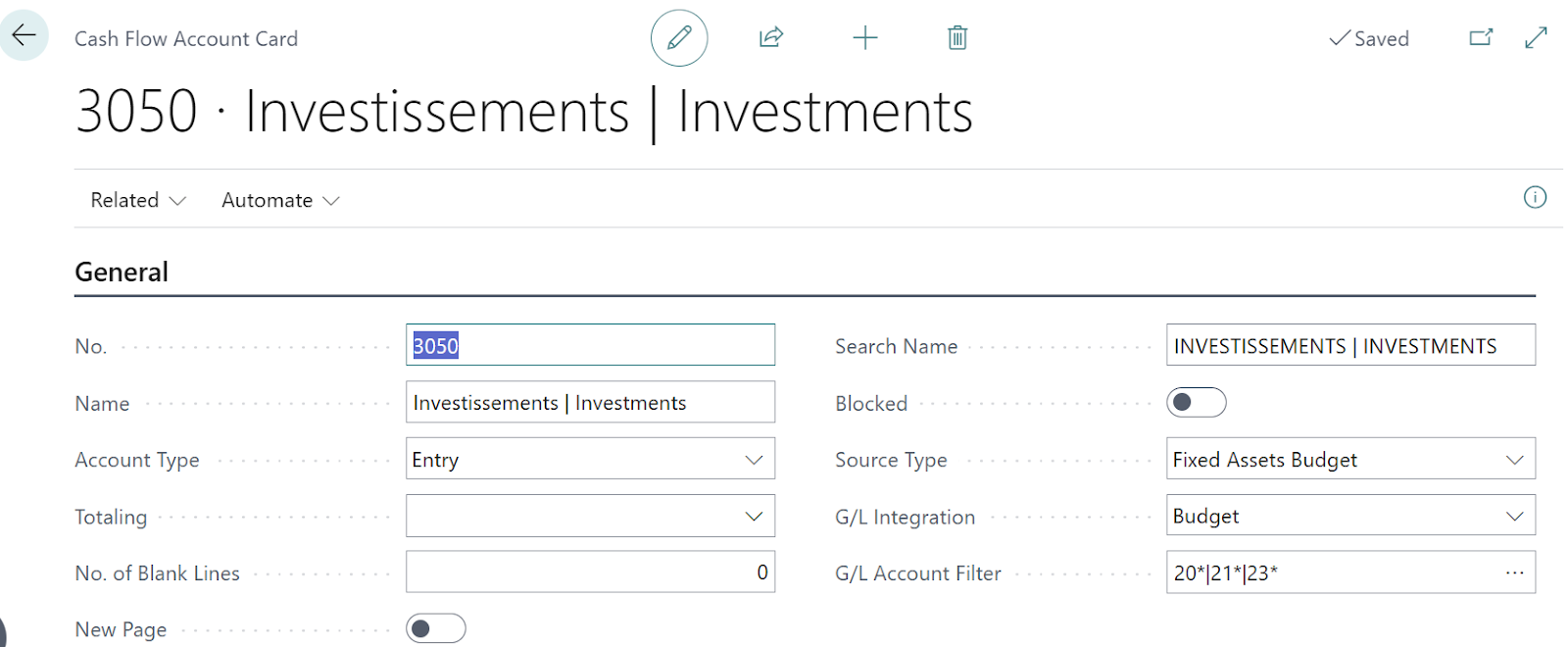
On the account details page, fill in the following fields:
- Account No.: Enter a unique number to identify the account
- Name: Give the account a descriptive title (for example: "Customer Receivables" or "Liquid Funds")
- Account Type: Choose between Entry (to record transactions), Title, Total, Total Beginning, or Total Ending to structure your plan
- Source type: It is essential to define the default source type that will be used during automatic calculation (e.g., Receivables, Payables, Sales Orders, Cash, etc.)
The Source Type field
This field determines the source of the data used to calculate the forecasts. Here is a description of each available option based on the provided sources:
- Liquid Funds: This option is used for accounts that reflect the current state of your available cash, usually based on the current balance of bank accounts or general cash accounts.
- Receivables: The program uses open entries from customer accounting (recorded sales invoices and credit notes) to calculate expected cash receipts based on their due dates.
- Debts (Payables): The system relies on open entries in accounts payable (recorded purchase invoices and credit notes) to forecast future disbursements.
- Sales Orders: This source includes all open sales orders that have not yet been fully invoiced to calculate the volume of future projected revenue.
- Purchase Orders: This takes into account the volume of current purchase orders not yet invoiced to anticipate future payments to suppliers.
- Service Orders: This option includes lines of open quotes or service orders that have not yet been invoiced.
- Fixed Assets Budget: This allows you to record the planned acquisition costs for future budgeted fixed asset purchases.
- Fixed Asset Disposal: This source records expected proceeds from the sale or planned disposal of fixed assets.
- Cash Flow Manual Revenue: Used for revenues that the system cannot calculate automatically, such as rental income, interest on financial assets, or new private capital contributions.
- Negative Cash Flow Manual Expense: Intended for predictable but non-automated outflows, such as salaries, loan interest, or specific scheduled investments.
- Accounting Budget (G/L Budget): Allows inclusion of budgeted values from general accounting (usually management/P&L accounts) to extend the forecast horizon beyond documents already entered.
- Projects / Tasks (Jobs): (In Business Central) This option extracts information from project planning lines to integrate costs and revenues related to ongoing projects or assignments.
- Taxes and Duties (Tax): Uses VAT entries or tax parameters (taxable period) to forecast future tax payments.
- Azure AI Forecast: Uses artificial intelligence to analyze historical data and predict future cash flows, providing a more comprehensive and longer-term view of cash flow.
Accounting integration options
On the details of a cash account, the Accounting Integration (G/L Integration) field allows you to define how the account extracts data from the general ledger for forecasting calculations.
This field offers three main options:
- Balance: The system uses the current balance of the selected general ledger accounts. This option is generally preferred for liquid funds to reflect the current bank position.
- Budget: The program retrieves budget entries from the general ledger. This option is often used to integrate projected elements from the profit and loss statement (P&L), such as budgeted salaries or rents.
- Both: This option combines both current balances and budgeted values for cash calculation.[NT]Once one of these options is activated, it becomes essential to fill in the General Ledger Account Filter field. This is where you specify the number or range of general ledger accounts (e.g., "10100..10300") from which values should be extracted.
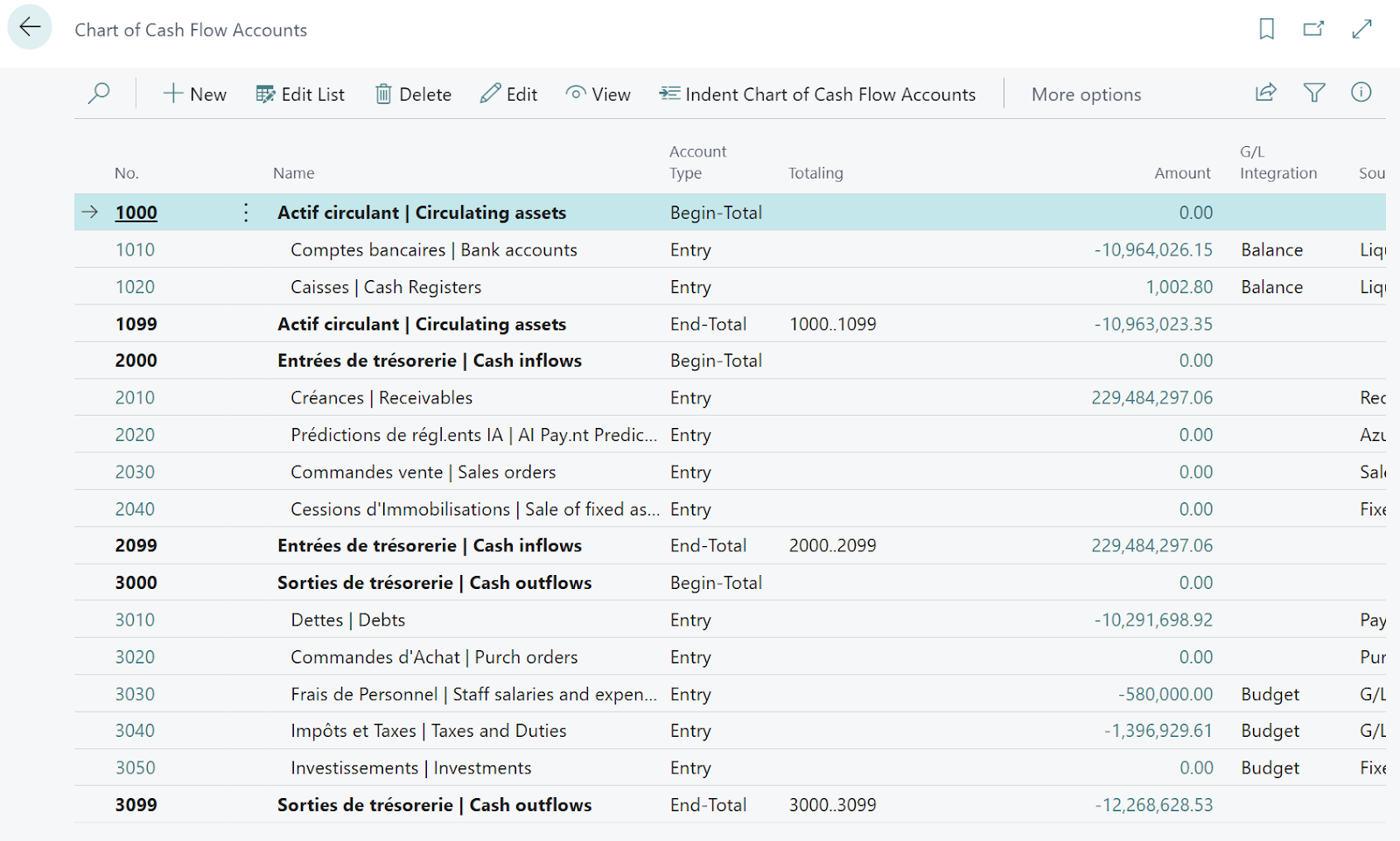
Visualizing a typical cash flow chart of accounts
ffectively structure your analysis, here is a model of a cash flow accounting plan based on the strategic flows encountered during international deployments.
- Circulating Assets (Total Start)
- Bank Accounts (Entry) - Liquid Funds - Accounting Integration: Balance - Filter: 🇫🇷 512, 🇬🇧 1200..1250, 🇮🇹 52.01
- Cash (Entry) - Liquid Funds - Accounting Integration: Trial Balance - Filter: Cash 🇫🇷 512, 🇬🇧 1260..1290, 🇮🇹 52.02
- CASH INCOMES (Total Beginning)
- Customer Regulations - Customers
- AI Payment Predictions - Azura AI
- Sales order - Sales order
- Disposals of Fixed Assets - Disposals of Fixed Assets
- CASH OUTFLOWS (Total Beginning)
- Supplier Payments - Suppliers
- Purchase order - Purchase orderPersonnel Expenses (Budget) - Budget - Budget - Filter:Salaries 🇫🇷 641, 🇬🇧 7000..7009, 🇮🇹 60.01,Social Security Charges 🇫🇷 645, 🇬🇧 7010..7019, 🇮🇹 60.02,Expense Reports 🇫🇷 625, 🇬🇧 7400..7499, 🇮🇹 60.15End-of-contract compensation 🇫🇷 6414, 🇬🇧 7020..7499, 🇮🇹 60.04
- Taxes and Fees (Budget) - Budget - Budget - Filter:Tax on profits 🇫🇷 695, 🇬🇧 8000..8010, 🇮🇹 68.01|68.02,VAT payable 🇫🇷 44551, 🇬🇧 2200..2205, 🇮🇹 45.05,Local taxes / Property tax 🇫🇷 635, 🇬🇧 7100, 🇮🇹 63.05,Payroll taxes 🇫🇷 631|633, 🇬🇧 7015, 🇮🇹 60.05Investments
- Fixed Asset Budget - Budget - Filters:Intangible Assets 🇫🇷 20, 🇬🇧 0001..0999, 🇮🇹 10.,Tangible Real Estate 🇫🇷 21, 🇬🇧 1000..1199, 🇮🇹 12.,Real estate in progress 🇫🇷 23*, 🇬🇧 1150, 🇮🇹 10.09|12.09
Cash Flow Setup
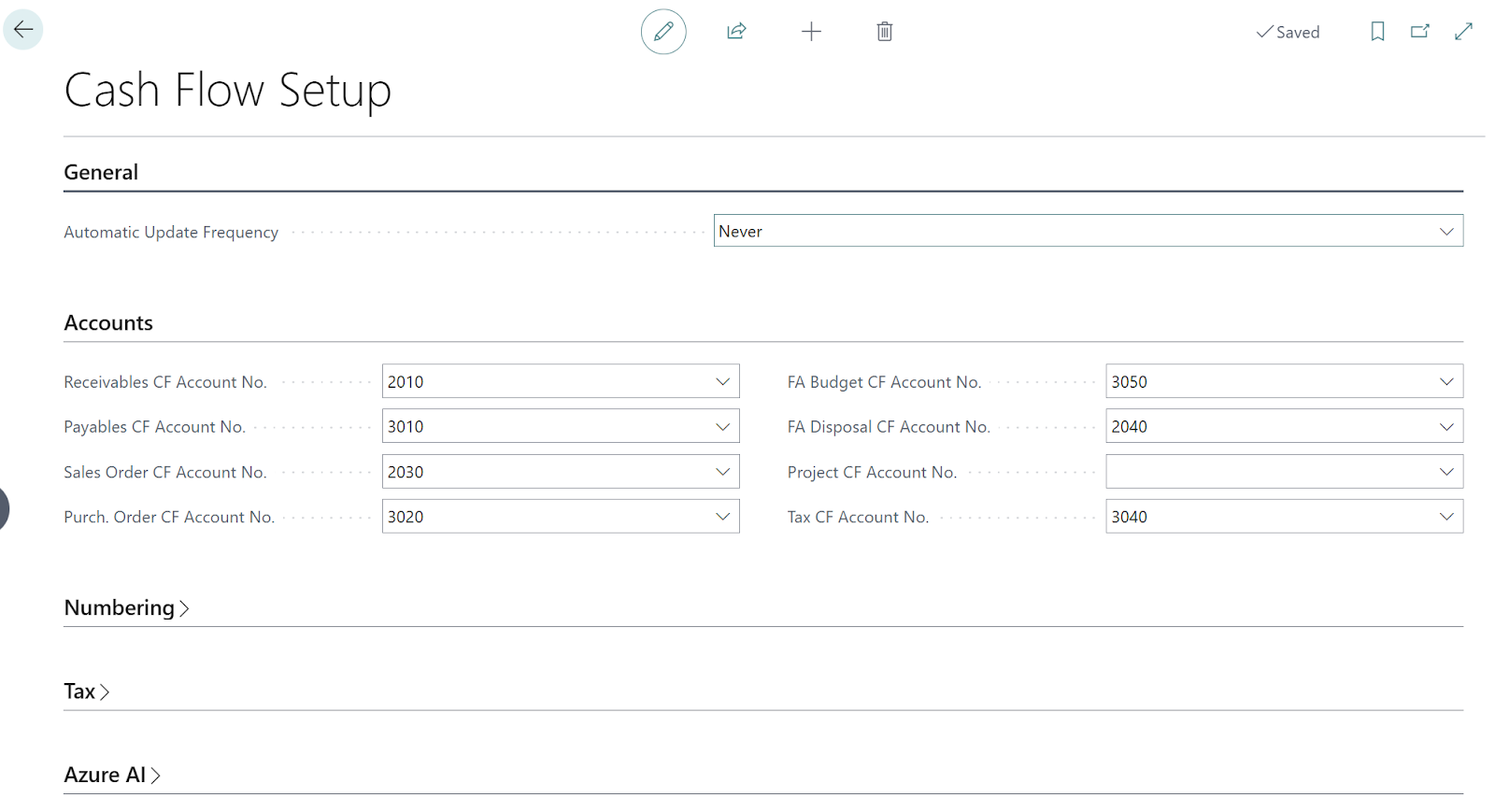
The Cash Flow Setup page is the module's configuration center, allowing the system to automate forecast calculations by directing data to the correct accounts.
Automation
It allows you to adjust the automatic update frequency (daily or weekly) so that your analyses remain up-to-date without manual intervention.

Account allocation
Here you define the specific cash accounts where the flows from receivables (customers), payables (suppliers), as well as sales, purchase, and service orders will be recorded. This is also where the accounts for investment budgets or asset disposals are linked.
Tax management
You configure the taxable period (e.g., quarterly) and the tax payment deadline to include future VAT payments in your forecasts.
- Taxable period: This field defines the frequency (monthly, quarterly, annually or per accounting period) at which tax payments are recorded in the forecast.
- Tax payment window: This setting specifies the time lag, as a date formula (e.g., "20D"), between the end of the previous tax period and the actual recording of the tax payment.
- The VAT Account Type field defines the nature of the contra account used to simulate VAT settlement in your cash flow forecasts. It offers two options:Supplier: Payment is directed to a third-party account.General Ledger Account: The payment is directed to a general ledger account. If you choose this option, you must enter the account number in the following field.
- VAT account number. This parameter allows the system to correctly integrate tax-related cash outflows into the calculation of your future solvency. Profit taxes 🇫🇷 444*, 🇬🇧 2100, 🇮🇹 4501.
Artificial intelligence
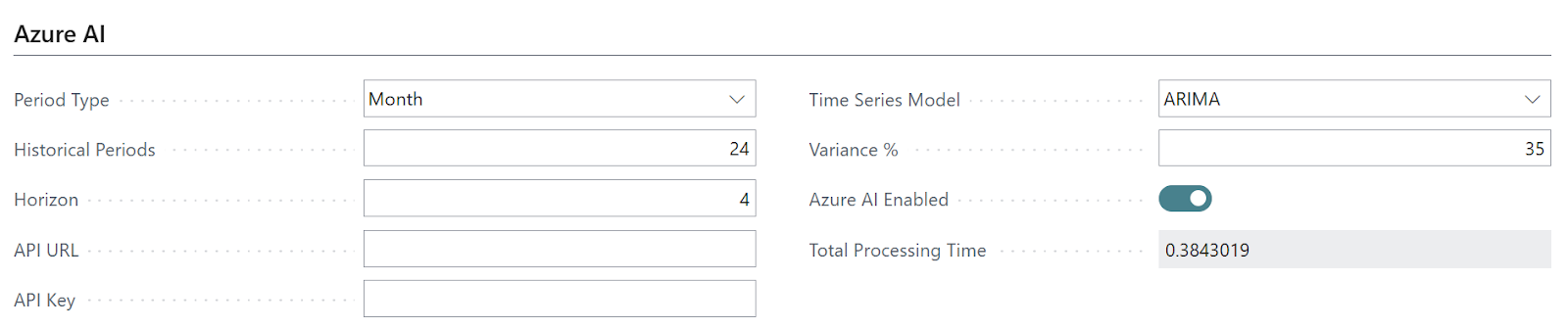
The artificial intelligence settings for treasury management in Business Central are configured in the Azure AI shortcut on the Treasury Settings page. Here are the details of the available fields:
- Azure AI enabled: This button enables or disables machine learning-based predictions to complement your cash flow forecasts.
- Period type: This field defines the unit of time (e.g., Month) on which the service bases itself to compress historical transactions and calculate predictions.
- Historical periods: Indicates the number of past periods the AI needs to analyze to find patterns. For reasonable forecast quality, it is advisable to have data covering at least two years.
- Horizon: Specifies the number of future periods for which you want the AI to generate predictions.
- Time-strain model: Allows you to choose the statistical algorithm to use, such as ARIMA, ETS, STL, or TBATS. If you choose the "All" option, Business Central will test each model and return the most relevant result, which will, however, consume more computation time.
- Variance %: Defines the acceptable range of error (plus or minus) in a forecast. This threshold generally varies between 20 and 40%; if a prediction exceeds this range, it is considered inaccurate and ignored.
- API URL and API Key: These fields are used only if you decide to create and host your own predictive web service on Azure Machine Learning instead of using the one provided by default by Microsoft.
Create Cash Flow Forecast Sheets
The cash flow forecast sheet is the central element in Business Central for capturing, saving, and analyzing cash flow simulations. It serves as a forward-looking planning tool for predicting a company's financial solvency. One of its major advantages is the ability to create multiple sheets in parallel to compare different scenarios (for example, a forecast with or without payment discounts) or to archive monthly historical data.
To create a record, you can either use the assisted setup, which automatically generates a record named "DEFAULT", or proceed manually via the "Cash Flow Forecasts" page by clicking on "New".
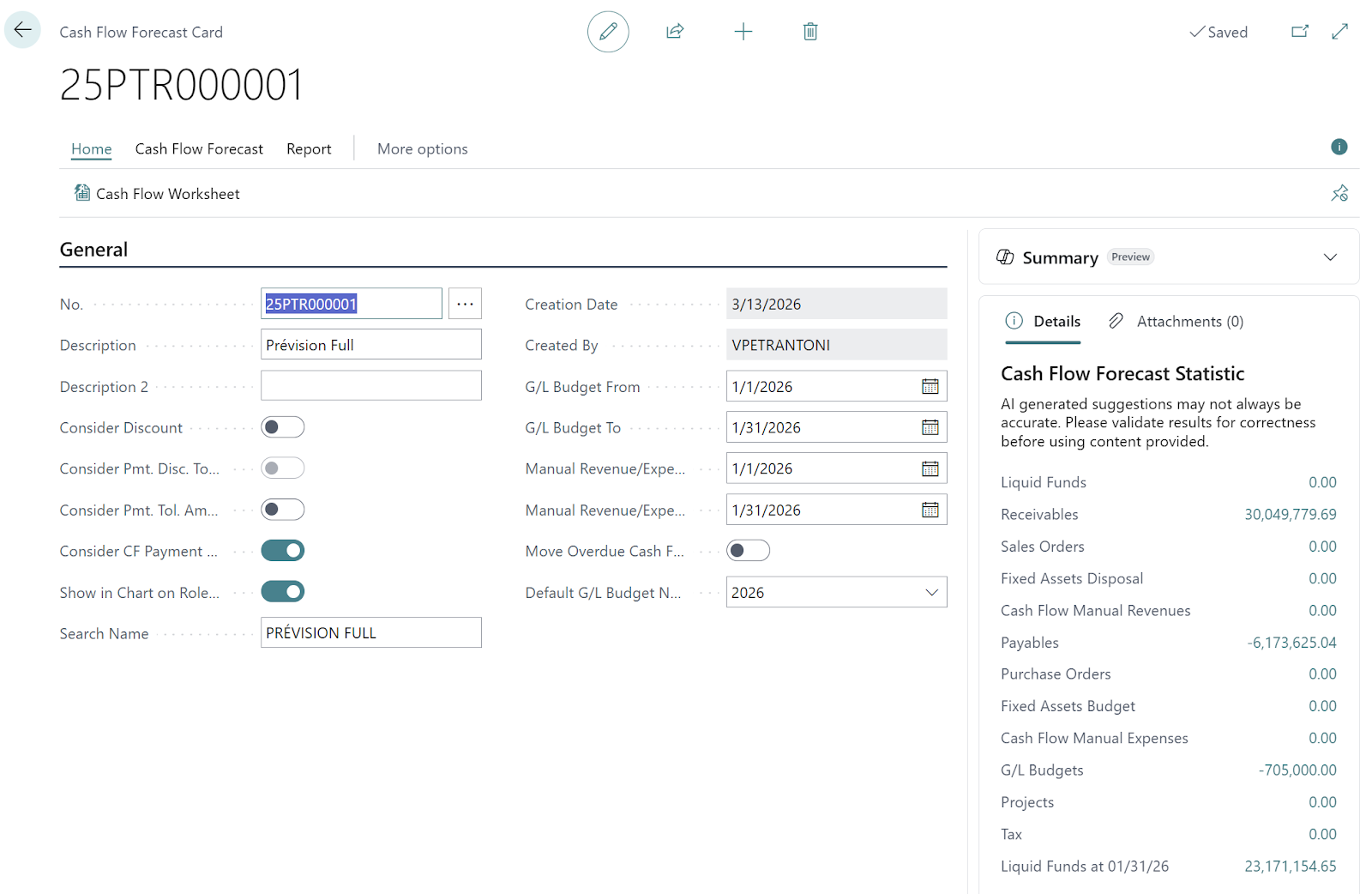
The main fields available on the form include:
- Number and Description: to identify the forecast.
- Consider Discount: to include settlement discounts in calculations.
- Consider cash payment terms: to use more "realistic" payment terms defined on customer/supplier records rather than standard terms.
- Accounting budget from / until: defines the period during which the budget entries of the general accounting are integrated.
- Miscellaneous positive transactions / expenses from / until: specifies the date range for including manually entered income and expenses.
- Display in dashboard graph: allows you to view the data from this specific record as a graph on the Role Center (accountant or manager).
- Move overdue cash dates: to automatically bring overdue cash flows back to the current working date.
- Description 2: a text area to add details about the assumptions of the forecast.
Conclusion: Mastering the settings to better anticipate
We explored the numerous configuration options of the Treasury module in Business Central: from chart of accounts structure to tax integration, and even Azure AI activation. This wealth of customization options is what allows you to transform your accounting data into a true strategic radar, capable of securing your international transactions.
y next article, I will describe in detail the processes ofcash flow forecast updateas well as the methods ofconsultation and analysisto fully utilize your data.






No comments yet.