










Business Central Treasury: From updating cash flows to decision-making management
Index 
In my previous article, we explored the technical foundations of the Treasury module in Business Central, from the chart of accounts structure to advanced artificial intelligence settings.
Once this framework is established, the challenge becomes operational: how to transform these settings into a dynamic and usable vision for everyday use?
This second part focuses on the active phase of cash management. We will detail the processes for updating data via the cash flow statement, interpreting Azure AI reliability alerts, and finally, the various consultation methods, graphs, period views, and analytical tables, to accurately manage your liquidity trajectory.
Cash flow data update
Cash flow forecasting in Business Central is a dynamic planning tool that is powered by extracting and transforming data from multiple modules and application areas of the ERP system.
If you have not configured an automatic update frequency in the cash flow settings, the system will not be able to update your forecasts autonomously.
It is then necessary to manually launch the "Suggest activity sheet lines" function from the cash flow sheet so that the program reads the latest accounting data and updates your simulation.
The Cash Flow Worksheet
This is the main workspace for preparing the forecast.
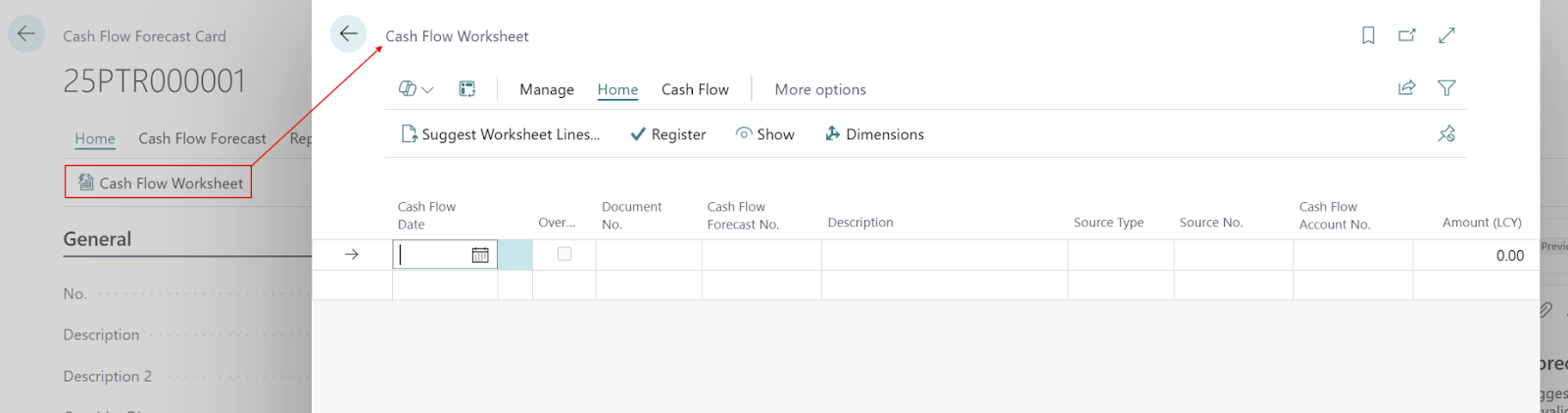
Main fields:
- Source type: Displays the origin of the data (e.g., Receivables, Sales Orders, Liquid Funds).
- Cash account number: Indicates the account in the cash accounting plan where the flow is recorded.
- Document number: Allows you to trace the original source document such as an invoice or order.
- Cash date: The date on which the receipt or disbursement is expected in the bank.
- Amount: The financial value of the cash flow, which can be manually modified to adjust the simulation.
Record action: The Register button in the Actions tab transfers the lines from the sheet to the final forecast entries and clears the sheet.
Manual entry management
Used for flows that the system cannot automatically extract (e.g., rents, salaries).
Fields to configure:
- Source Type: This field indicates the origin of the data, such as receivables, payables, sales orders, or liquid funds.
- Cash Flow Account No.: This specifies the account in the cash flow chart of accounts on which the flow will be recorded.
- Document No.: It allows you to identify and trace the original document (invoice, order, etc.) that generated the forecast line.
- Cash Flow Date: This is the expected date for the actual impact on the bank. It is calculated by the system based on the due date, any discounts, or specific treasury payment terms.
- Amount: This field displays the expected financial value of the cash flow. You can manually modify this amount directly in the spreadsheet to adjust the simulation based on field information.
- Analytical axes (Dimensions): the sheet allows you to view and modify the dimension codes (e.g., Department or Project) associated with the writing for a more detailed analysis.
- Description: Provides a textual explanation of the line, often taken from the source document or entered manually when adding directly to the sheet
Function "Suggest Worksheet Lines"
It is the calculation engine that automatically fills in the sheet.
Processing options and filters:
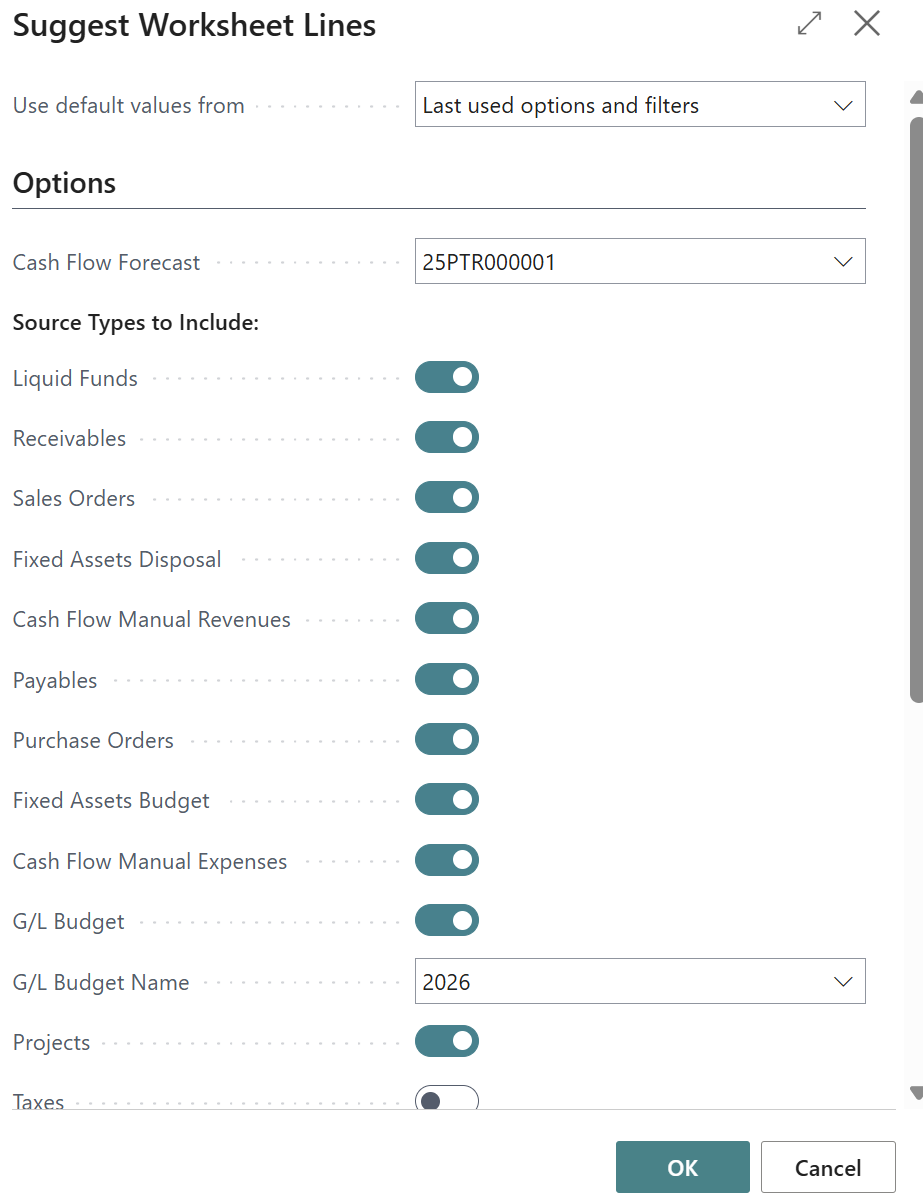
- Cash flow forecast: Select the forecast sheet code to work on.
- Sources to include: Checkboxes to decide which data to integrate (Accounting, Sales, Purchases, Service, Fixed Assets).
- Accounting budget name: Allows you to specify which general ledger budget should be read for long-term forecasts.
- Azure AI Forecasting: Option to include artificial intelligence-based predictions.[NT]Important note: Rerunning this function for the same forecast deletes and replaces all the lines present in the sheet.
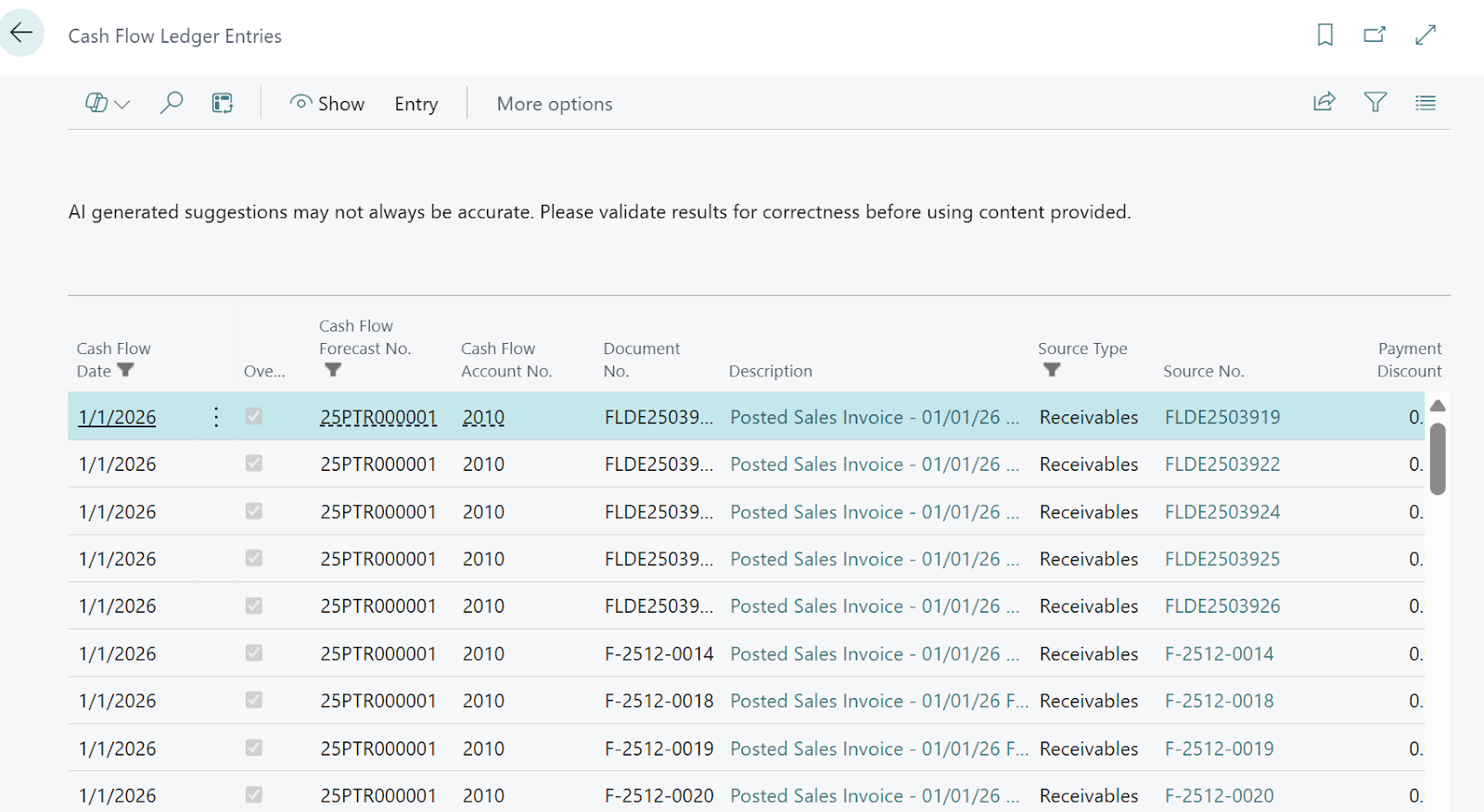
Once the cash flow statement has been filled in by the proposal function, you must use the Save action to validate the lines and clear the statement.
This step transforms temporary data into final cash flow forecast entries, making them viewable in the statistics, reports, and charts of your dashboard.
AI Warnings
Once the line calculation is complete, Business Central displays any statistical reliability warnings as alerts that can be viewed directly at the bottom of the cash flow statement page.
e warnings are a statistical safeguard againstAzure AIWhen artificial intelligence generates predictions, it calculates a confidence index based on the regularity of the accounting history. If the standard deviation between its calculations and your past habits exceeds the defined threshold (the fieldVariance %(In the cash flow settings), the system displays this alert to inform you that the data reliability for this period is deemed insufficient. This is a warning signal: the AI is alerting you that it lacks sufficient statistical data to provide a definitive figure, thus prompting you to manually verify the projected cash flows for this month.
Consult and analyze the liquidity trajectory
Once your cash flows are calculated and recorded, Business Central offers a multidimensional view of your financial health.
The most immediate entry point is the Role Center graph, which displays an interactive curve of your availability: you can hover over each point to see the details of incoming and outgoing flows.
If you need to reprocess the data, the Analysis Table allows you to cross-reference your forecasts with your analytical dimensions (by department or by international project), thus offering a customized view of your "Cash Burn".
Mastering the Availability by Period View
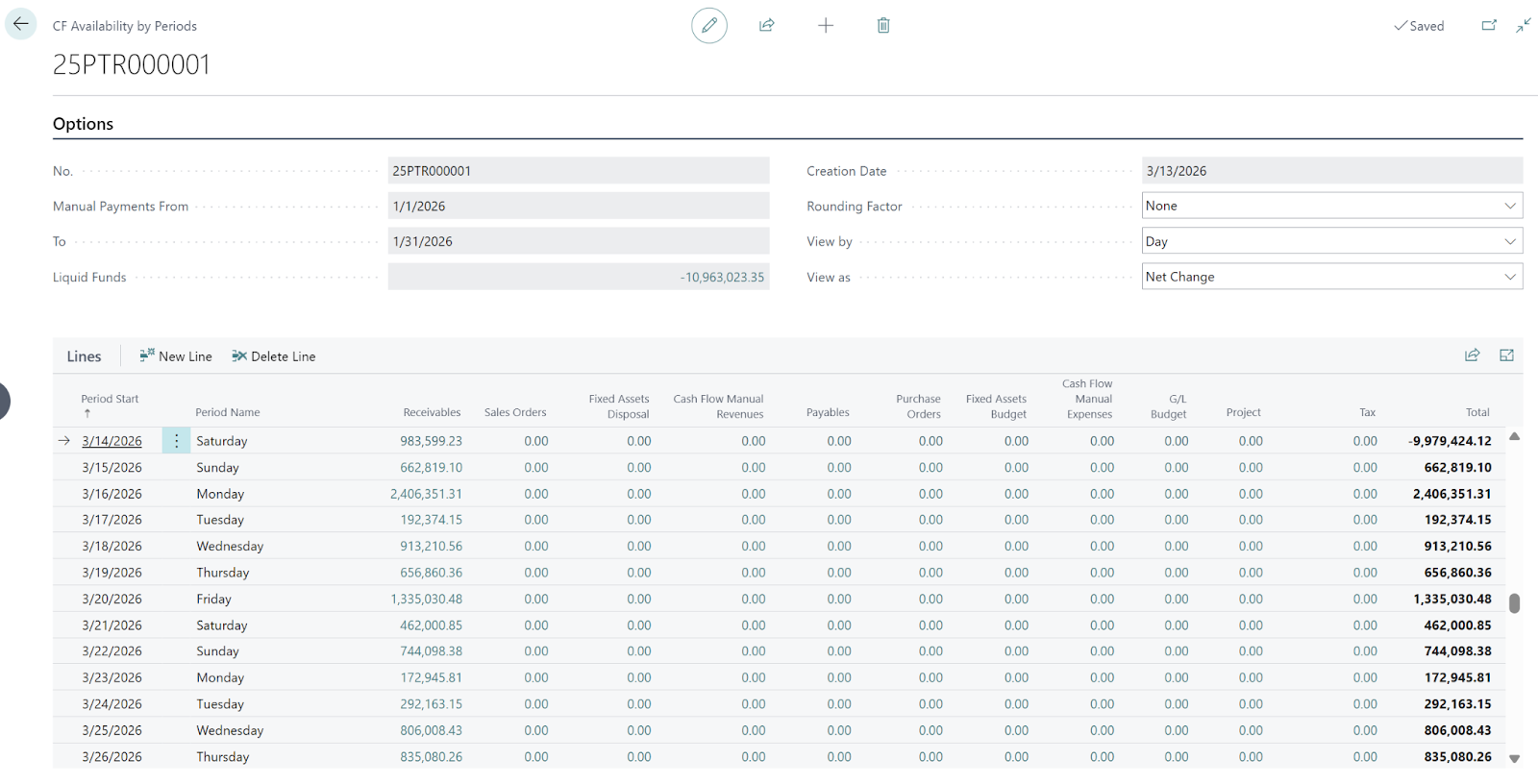
The Cash Flow by Period page is a structured analysis tool in the form of a pivot table that allows you to visualize the evolution of the company's cash flow. The rows represent time periods (days, weeks, months, quarters, or years), while the columns detail the different categories of cash flow.
Each column corresponds to a specific data source integrated into the forecast:
- Customers (Receivables): represents the expected cash receipts from sales invoices already recorded (open receivables).
- Sales Orders: displays the financial volume of open sales orders that have not yet been invoiced.
- Disposal of fixed assets (FA Disposal): tracks the expected financial proceeds from the planned sale of fixed assets.
- Manual cash income: includes manually entered cash inflows, such as rental income or capital contributions.
- Suppliers (Payables): represents the planned disbursements to settle purchase invoices already recorded (open debts).
- Purchase Orders: displays future debts related to purchase orders placed but not yet invoiced.
- Fixed Asset Budget (FA Budget): shows the budgeted acquisition costs for future asset investments.
- Miscellaneous negative cash transactions: includes recurring or one-off manual expenses, such as salaries or rent.
- Budget (G/L Budget): integrates budget entries from general accounting for management accounts.
- Project (Jobs): reflects the revenues and costs from the project planning lines.
- Taxes: indicates flows related to VAT or other tax payments, calculated according to the defined periodicity.
- Total: calculates the net change or cumulative balance for each period.
Dates used for orders
The system calculates the cash date of orders (Sales, Purchases, and Services) to determine which period line the amount should appear in. This date is determined according to the following rules:
- By default: the program uses the due date shown in the document header.
- If discounts are considered: the system uses the discount date specified in the document instead of the due date.
- If cash payment terms (CF Payment Terms) are used: the date is recalculated by applying these specific conditions to the document date shown in the header.
- If both options are enabled: the system calculates a new discount date based on the document date and cash payment terms.
For service orders, the logic is the same: the system relies on the due date in the header, which can be adjusted according to discount options or cash payment terms. These dates allow for more accurate forecasting by reflecting payment terms that are more realistic than standard conditions.
The cash flow forecast chart
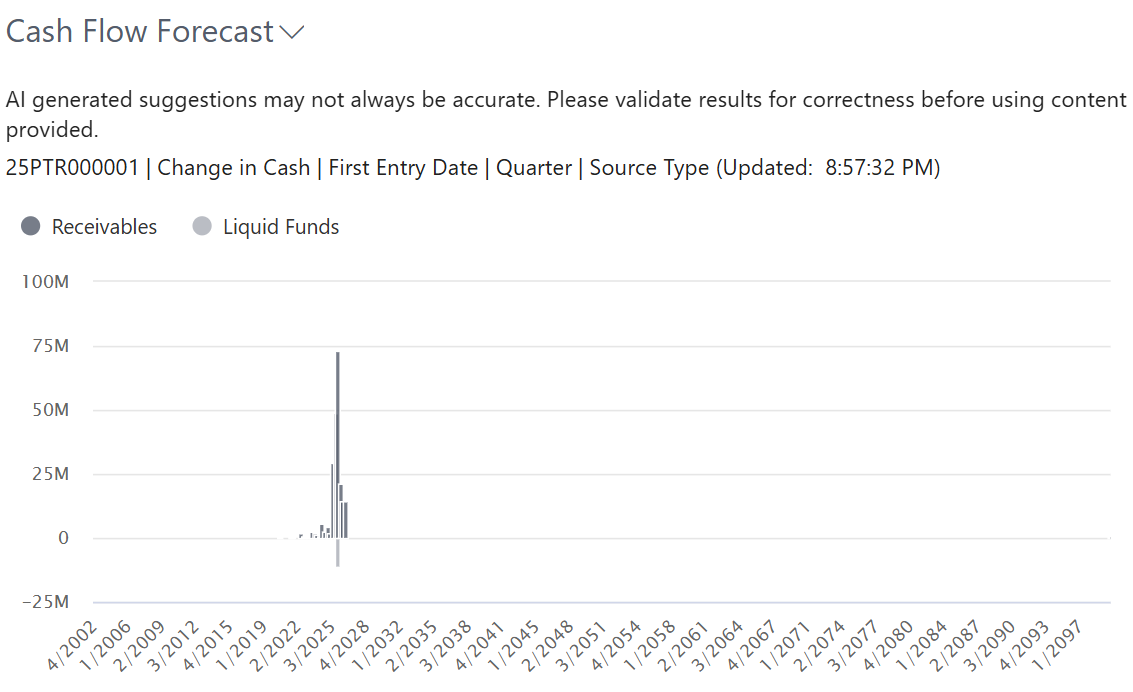
Available on certain dashboards (Role Center), such as the accountant's dashboard, this visual tool allows you to monitor the company's solvency in real time. To display a forecast, you must activate the "Show in dashboard chart" option on the relevant cash flow forecast record, noting that only one chart can be displayed at a time. This interactive dashboard allows you to switch between different views (cumulative, net, or combined) and filter data by period or source type. Users can click directly on chart segments to explore detailed entries and, if necessary, instantly refresh calculations using the "Recalculate forecast" action.
The cash flow analysis table
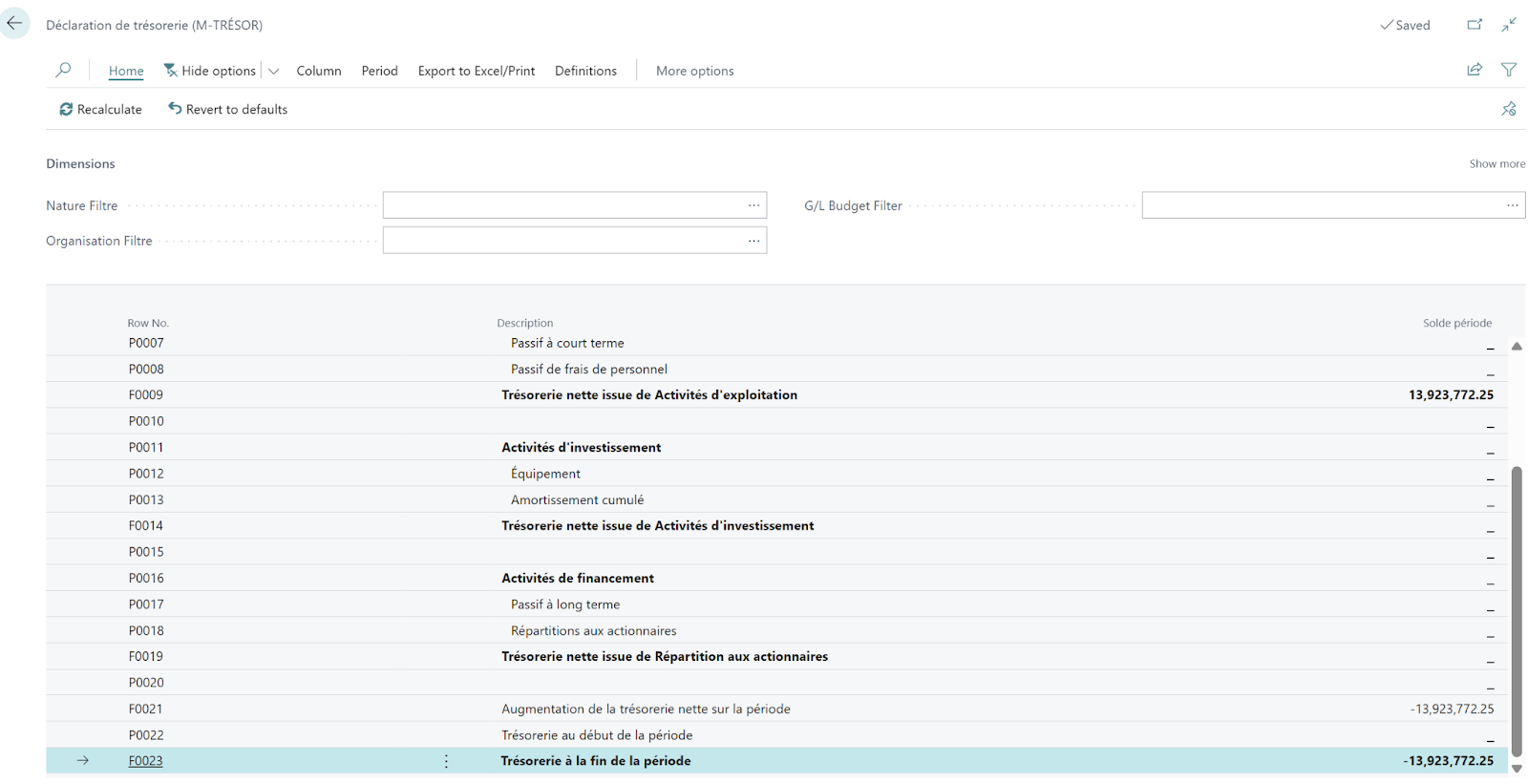
(often called a financial report or account schedule) is an advanced reporting tool that allows you to structure your forecasts with custom subtotals for cash inflows and outflows. Unlike simplified views, this tool can directly use cash flow forecast entries as a data source, providing a more detailed analysis of trends and overall solvency. It allows you to configure specific rows and columns to calculate, for example, the net change over different periods or to isolate certain strategic cash flows. The user benefits from a high degree of interactivity, as it is possible to click on the amounts in the table to drill down to the detailed entries that make up the figure.
I will return in more detail to the advanced configuration and use of analysis tables in a future article, in order to show you how to customize your international financial reports.
AI via Azure AI transforms treasury into a predictive tool.
It no longer simply relies on seized documents, but anticipates future flows to secure your financial trajectory.
AI at the heart of the system:
- Native data source: After activation in Cash Settings, the Azure AI Forecasting option becomes available in the "Suggest activity sheet lines" function of your cash sheet.
- Extended forecast horizon: by analyzing two years of history, machine learning projects your flows up to 4 months, filling the gap left by real data.
- Dynamic visualization: on the Role Center graph, segments identified as "Azure AI" display a probability range (often 80%), visually translating the statistical uncertainty.
- Intelligent period-based adjustment: AI uses models like ARIMA to allocate amounts. It automatically adjusts its predictions as soon as an actual order is entered within the same period to avoid any duplication in your analysis.
Anticipate to secure
Mastering cash flow in Business Central transforms your ERP into a strategic management tool. By combining the rigor of the cash flow chart of accounts with the predictive power of Azure AI, you move from observational management to real-time forecasting of international cash flows.
Key takeaways:
- Accuracy: reliability depends on the quality of your lettering and due dates.
- Comprehensiveness: integrate your budgets (salaries, taxes) for a complete cash-burn view.
- Innovation: AI secures your decisions by projecting data flows where real data is lacking.
When well orchestrated, your liquidity is no longer a bottleneck, but the engine of your export growth.






No comments yet.