








Declaration of Exchange of Goods, setup and execution in Business Central
Index 
In the first article, the regulatory fundamentals and obligations related to the Intrastat Declaration (DEB/EMEBI) were explained in detail. Automating these regulatory obligations is a cornerstone of operational efficiency within accounting departments. In Microsoft Dynamics 365 Business Central, managing the Intrastat declaration relies on a powerful extraction engine capable of analyzing transaction history to generate the files required by customs authorities. This guide details, step by step, the initial system setup, the monthly execution steps, and best practices for streamlining the generation of your declarations.
The role of Business Central in the reporting process
Business Central does more than simply export a list of invoices. The system leverages all item, resource, and ancillary expense entries generated during the validation of purchase, sales, return, and inter-warehouse transfer documents.
By centralizing this data, the ERP system can aggregate statistical values, associate customs classifications, and verify the consistency of intra-community VAT numbers before any export. Native support for this functionality eliminates the need for spreadsheet reprocessing and secures the entire process.
Phase 1: Setting up reference data
For automatic extraction to work without error, several base tables must be meticulously filled in.
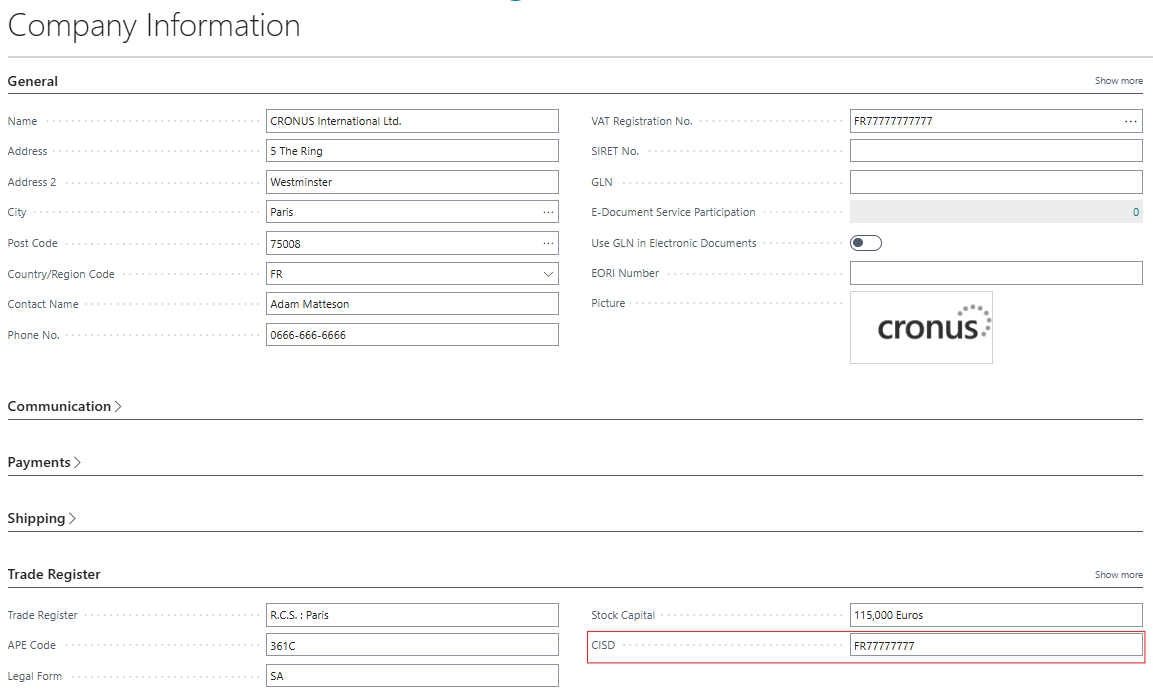
Configuring the company's customs identifier
The appearance of this error requires you to fill in the CISD field on the Company Information page, which corresponds to the customs identifier assigned to the company. In France, this code takes the form of a 14-digit identifier (identical to the SIRET number) or an intra-community VAT number preceded by the country code FR.
Country and region configuration
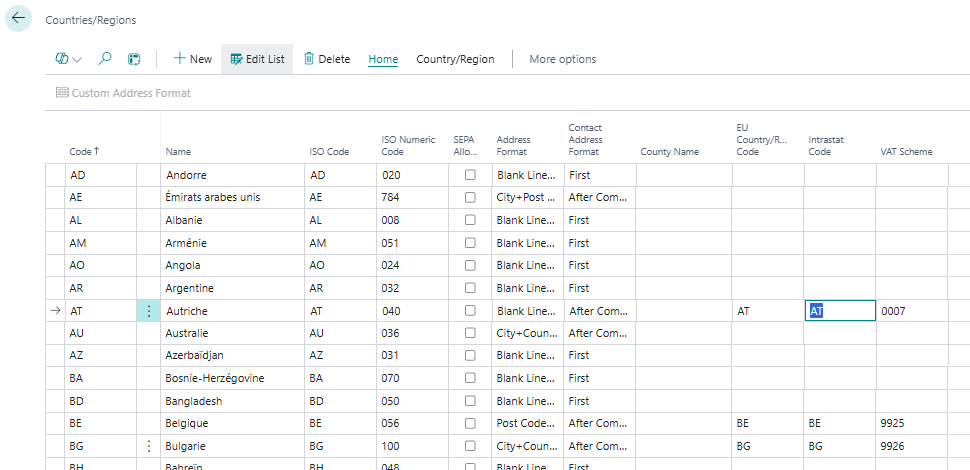
The distinction between national, intra-community and large export flows is based on the table of countries.
Accessing the list of country/region codes allows you to first ensure that the 2-letter ISO code is correctly entered for each country, before checking that the columnCountry/Region Code European Unioncontains the corresponding ISO code for all EU member countries, while leaving this field blank for third countries.
Qualification of customer and supplier records
The tax aspect requires the presence of your partner's VAT identification number.
- On each sheetClient And Supplierlocated in the EU, the fieldIntra-Community identification numbermust be completed and validated.
- TheCountry/Region CodeThe main address and delivery addresses must be perfectly consistent.
Product sheet structure
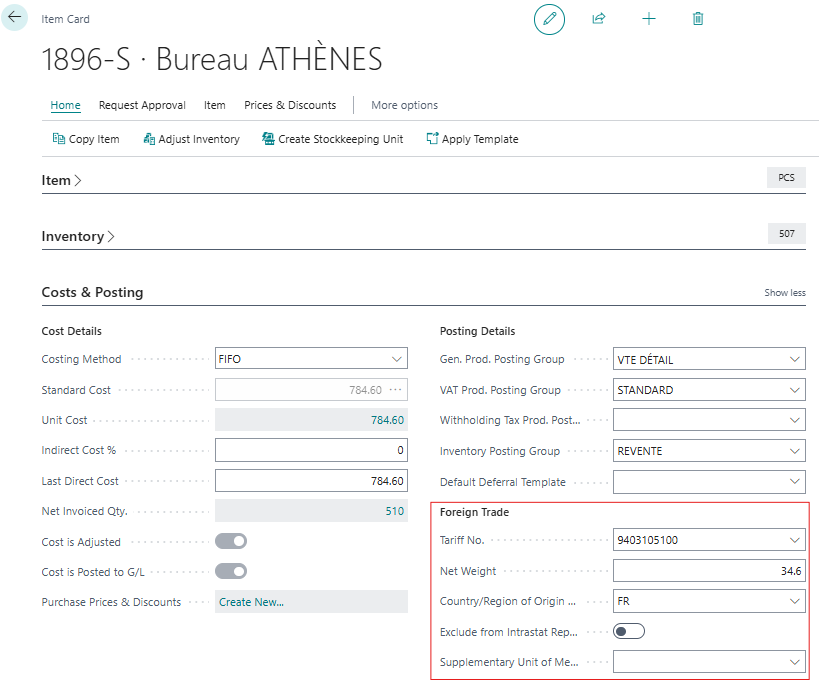
Customs export data is directly extracted from the product record during transactions. Within this record, the International tab groups together all the parameters necessary for generating the declaration flows.
The Product Nomenclature allows the item to be linked to the official eight-digit HS8 customs code, while the Net Weight guarantees the information of the unit net mass expressed in kilograms.
The origin of manufacture of the goods is identified via the Country/Region of Origin Code.
For certain types of items that should not be included in customs reporting (such as integrated services or specific charges), activating the Exclude from goods trade declaration status switch allows their extraction to be automatically blocked during monthly processing.
Finally, the Additional Unit field is used when the associated customs nomenclature requires tracking of a second unit of measurement (such as the number of pieces, liters or square meters), thus ensuring transmission in accordance with the administration's expectations.
💡Here are the official links to view and download the list of product nomenclatures (NC8 / SH8 codes):
To search for a code or download the Combined Nomenclature tables directly from the French Customs portal:Downloads area and RITA Encyclopedia - Customs.gouv.fr.
To consult the European database, updated daily with tariff classifications and statistics: Consultation TARIC Europa
To follow the annual revisions published by the administration:New features and updates to the Combined Nomenclature NC8 - Douane.gouv.fr.
Setting up specific Intrastat tables
In the search menu, access the Intrastat reference data tables to insert the official classifications provided by customs:
Types of transaction
Define the two-digit codes qualifying the transaction (e.g., 11 for a firm purchase/sale, 41 for a contract work).
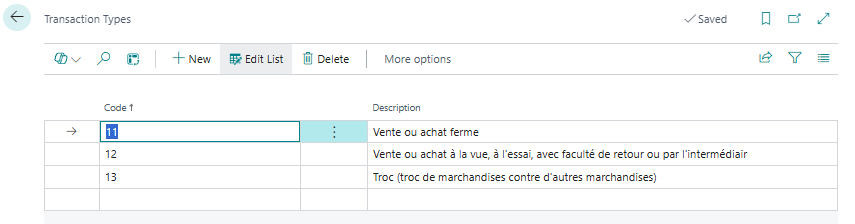
💡To consult the explanation of variables and transaction coding on the DGDDI website:How to complete your response to the monthly statistical survey on intra-EU trade in goods (EMEBI).
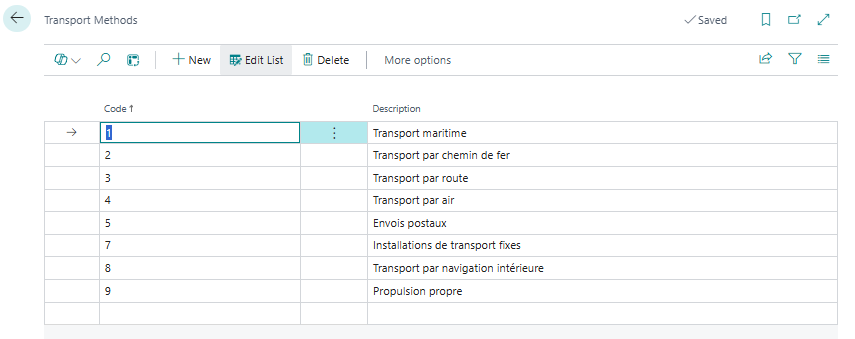
Modes of transport
Configure the transport codes to one digit (1 for sea transport, 2 for rail, 3 for road, 4 for air).
Delivery terms (Incoterms)
Enter the standard trade terms (EXW, FOB, CIF, DDP) used in your purchase and sale conditions.
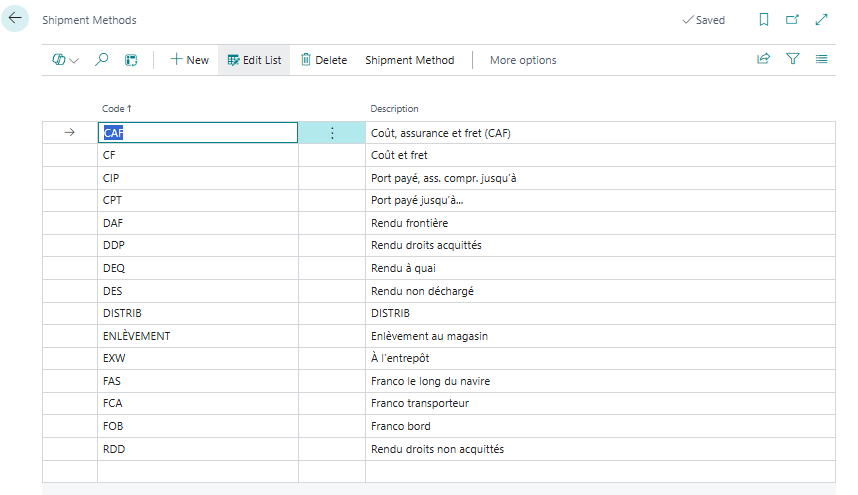
💡Here is the official French customs page detailing the list and operation of the Incoterms in force:The new Incoterms® 2020 rules and customs valuation - Douane.gouv.fr
This page reviews all 11 official rules (multimodal and maritime), their impact on customs value, and the allocation of costs and risks between seller and buyer.
Phase 2: Overall module configuration
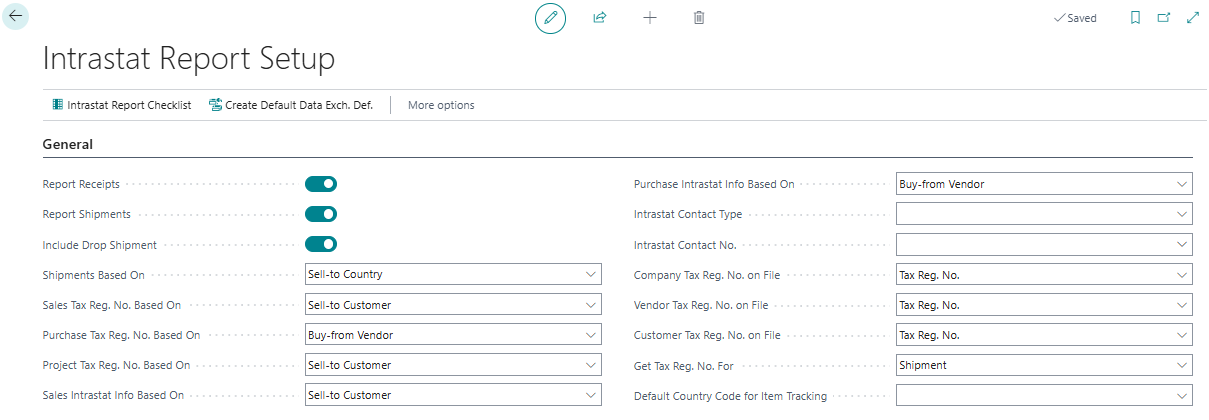
The centralization of business rules is done on the page dedicated to the module's global configuration. Search for and open the page.Configuring the declaration of exchanges of goods.
General Options
Le FastTab GeneralThis section groups together the module's fundamental operating parameters and defines the basic structure of data exchange. In particular, it allows you to specify whether the processing should include delivery and shipping data from third parties or only the companies' primary addresses. It is also in this sub-section that the strict validation option is activated, preventing file export when an error or omission is detected, thus guaranteeing the integrity of the information transmitted to customs authorities.
default transactions
The undermaskdefault transactionsThis function is used to predefine the values automatically applied when creating new business documents. By specifying a default transaction type for sales, purchases, or transfer orders, the system automatically assigns these codes when the documents are entered, without manual intervention. This automation significantly reduces the risk of omissions or errors in assignment when generating the monthly journal.

State generation
The section reporting. This section determines the sheet templates, default sheet names, and print or export objects used by the system. It is also where audit reports are configured to review the on-screen declaration before submission, as well as the processing units responsible for the physical creation of text or XML files for the DEBWEB portal.

Numbering
Le FastTab Numberingis dedicated to managing the traceability of declarations created in the system. It allows theNumber strainwhich automatically assigns a unique identifier to each new monthly tax return. This framework ensures sequential and uninterrupted numbering of tax return files across accounting periods.

Required fields
The panel Mandatory fields. This constitutes the engine for the declaration's management and audit rules. It allows users to individually select the data that must be entered for a line to be considered valid (such as net weight, customs code, transaction type, or intra-community VAT number). During the verification process, the system directly uses this grid to identify missing elements and block the export until the corrections are made.

💡For complete details in the manufacturer's documentation on advanced installation options, you can consult the guideConfigure and submit the declaration of exchange of goods - Microsoft Learn.
Settings in the "Checklist" of Business Central
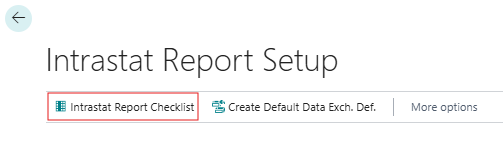
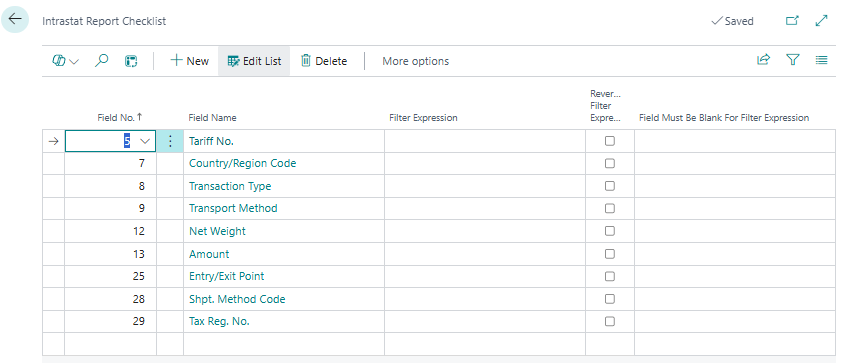
In the “State of Goods Trade Declaration Checklist” (or Intrastat Checklist) page, each field listed below can be added as a rule.
For each required field, the configuration allows you to activate the Required filter. Therefore, when running the Check process in the monthly journal, Business Central automatically blocks the statement update as long as one of these fields is empty or incomplete on any of the lines.
1. Mandatory fields related to articles and products
- Combined Nomenclature (HS8 Code): the 8-digit customs code identifying the goods.
- Net weight: the net unit or total mass expressed in kilograms.
- Country/region code of origin: the country in which the good was produced or manufactured.
2. Mandatory fields related to partners and third parties
- Intra-Community identification number: the valid intra-community VAT number of the purchaser (essential for the summary statement upon dispatch).
- Partner country/region code: the ISO code of the country of destination (shipping) or origin (introduction).
3. Mandatory fields related to the commercial transaction
- Nature of the transaction: the two-digit code specifying the economic nature of the operation (e.g., 11 for a firm sale/purchase, 21 for a return, 41 for contract work).
- Invoice amount / Statistical value: the amount excluding taxes shown on the invoice or the market value of the goods.
- Mode of transport: the code representing the means of transport crossing the border (e.g., 1 for maritime, 3 for road, 4 for air).
- Delivery terms (Incoterms): the 3-letter code identifying the allocation of costs and risks (e.g., EXW, FOB, DDP).
Definition of data exchange
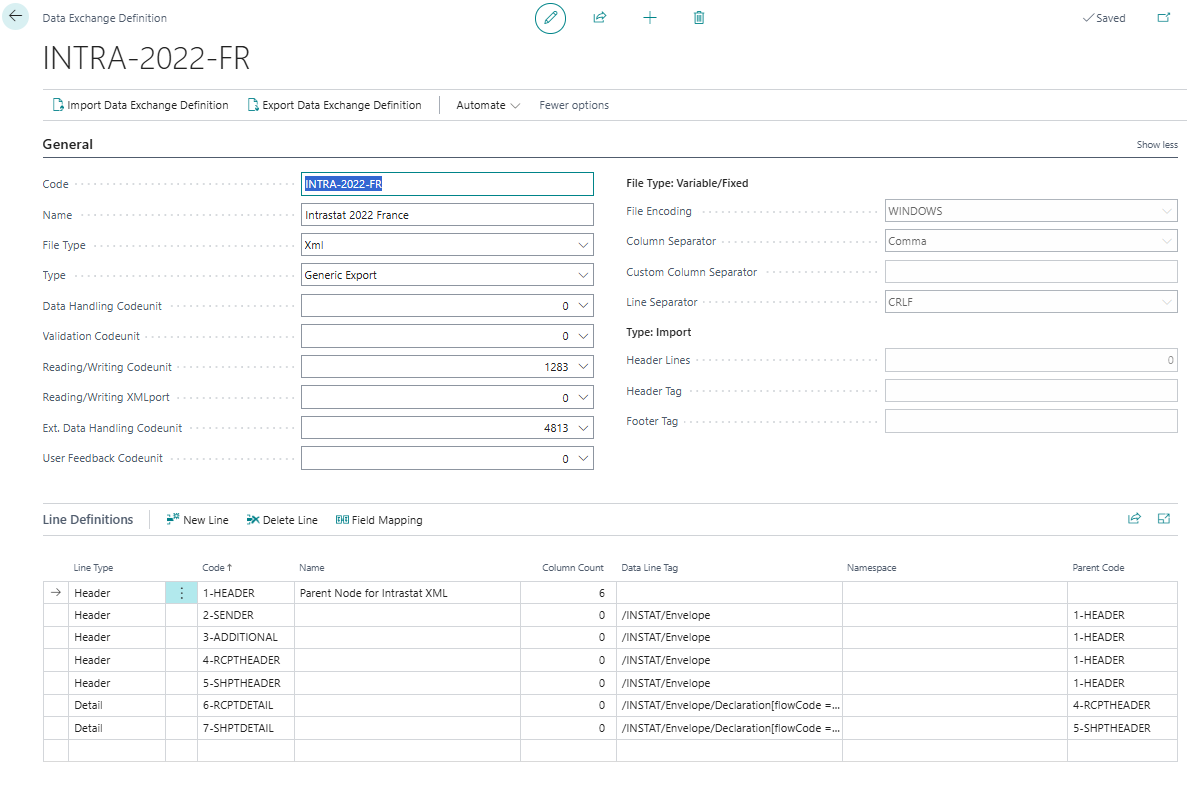
From the “Intrastat Setup” page, it is essential to click on the “Create Default Data exchange def.” action to automatically generate the required parameters of the export file.
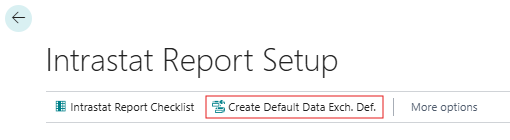
This action preconfigures all data exchange definitions and the structure of fields essential for processing, thus ensuring the creation of a file that complies with the administration's technical requirements without requiring complex manual mapping.
Phase 3: Step-by-step monthly processing and execution
Once the configuration phase is validated, the monthly operational management is structured around a clear sequence.
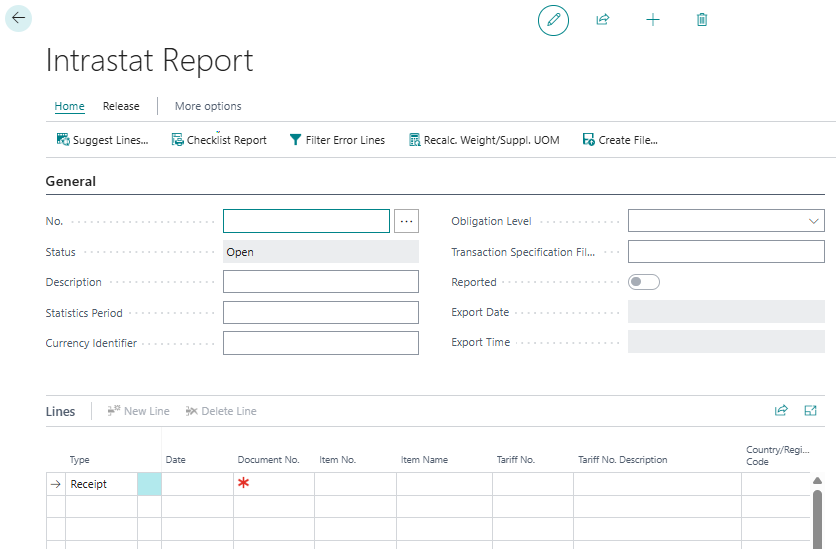
Step 1: Creating the declaration journal
to the pageDeclarations of exchanges of goods.
-Click onNewto add a line of declaration.
-Define the sheet name and indicate the reference period in the form YYMM (ex: 2607 to indicate the period of July 2026).
Step 2: Automatic extraction of entries
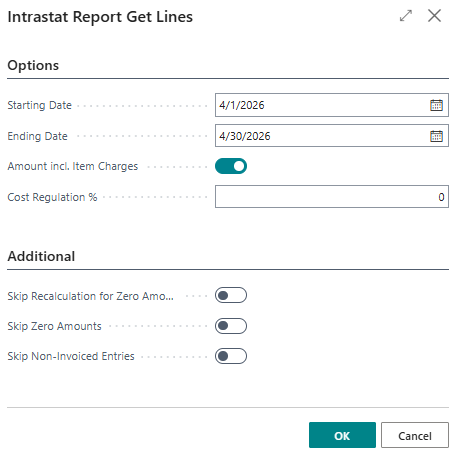
Automatic data extraction is performed by launching the dedicated process from the created log. A settings window then opens to define the system scan criteria.
In the Options section, you must specify the Start Date and End Date that correspond exactly to the desired monthly period (for example, from 01/03/2026 to 31/03/2026). The Include Additional Costs option allows you to include or exclude additional costs that impact the value of the goods, while the Cost Adjustment % field applies a percentage adjustment if a statistical revaluation is required.
In the Additional section, several filters allow you to refine the integration of the lines:
- Ignore recalculation of amounts…: retains the original values of the documents without automatic revaluation by the system.
- Ignore zero amounts: Filters and excludes from the journal transaction lines whose financial value is equal to zero.
- Ignore unbilled entries: allows you to exclude physical receipts or shipments that have not yet been billed for the period.[NT]Once these criteria are validated by clicking on OK, Business Central scans the database and extracts all the article and expense entries corresponding to the intra-community transactions of the month.
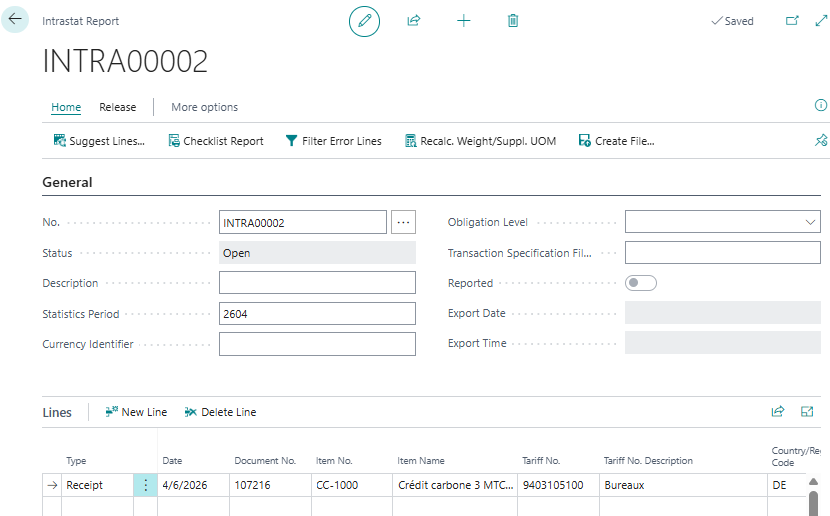
Once the processing is complete and the proposal is generated, the page automatically populates with all the item and expense entries identified for the period. It is then possible to analyze the details of each extracted line before performing consistency checks.
Step 3: Audit, verification and correction
Data verification is mandatory before any export to customs.
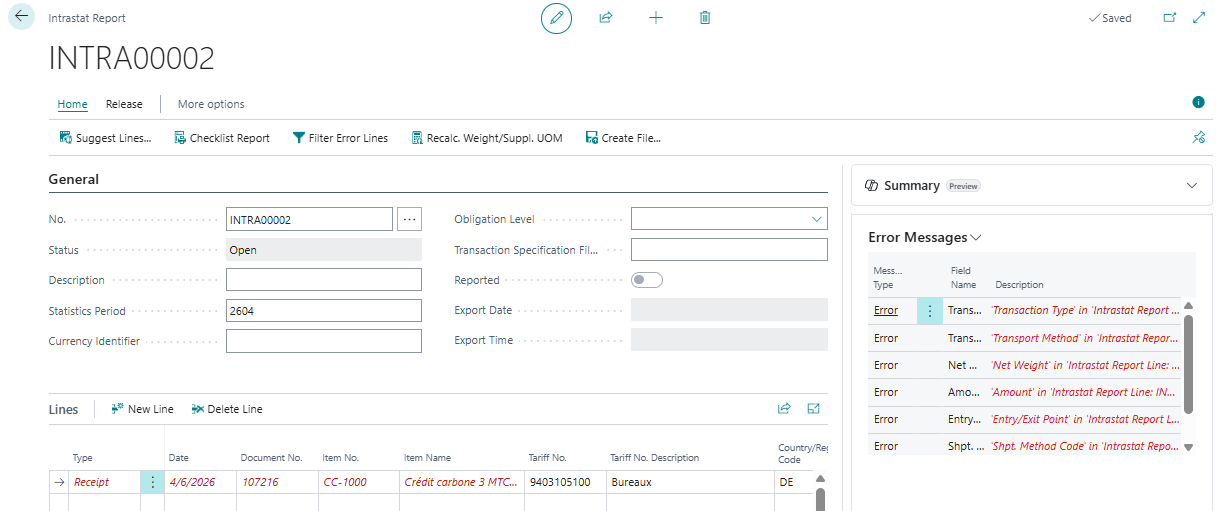
Click on the Checklist Status action.
-The system runs a battery of tests and displays an error log if it detects inconsistencies (e.g., item sold without net weight, absence of VAT number on a customer record).
-Correct the reported errors. It is strongly recommended to make the correction directly on the reference record (item record or customer record) so that the error does not recur in future months, and then run the verification again.
Step 4: File generation and closing
When the verification action no longer detects any anomalies, the document must be "launched" to change its status.
The export document is generated by selecting the function Create file.
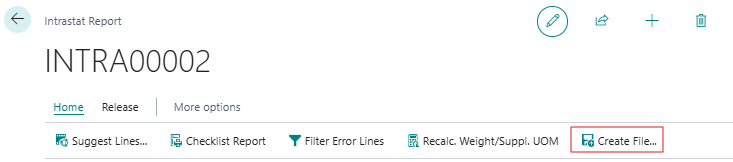
Unlike other processes, this action does not require choosing an export format on the fly: it relies directly on the data exchange definition configured upstream.
During this process, Business Central cochecks the presence and conformity of system identifiers, including the currency code of the declaring company (EUR) and the CISD customs identifier entered in the Company Information.If all validations are successful, an XML file is automatically generated and made available for download. Simply retrieve this file and upload it directly to the official customs portal.
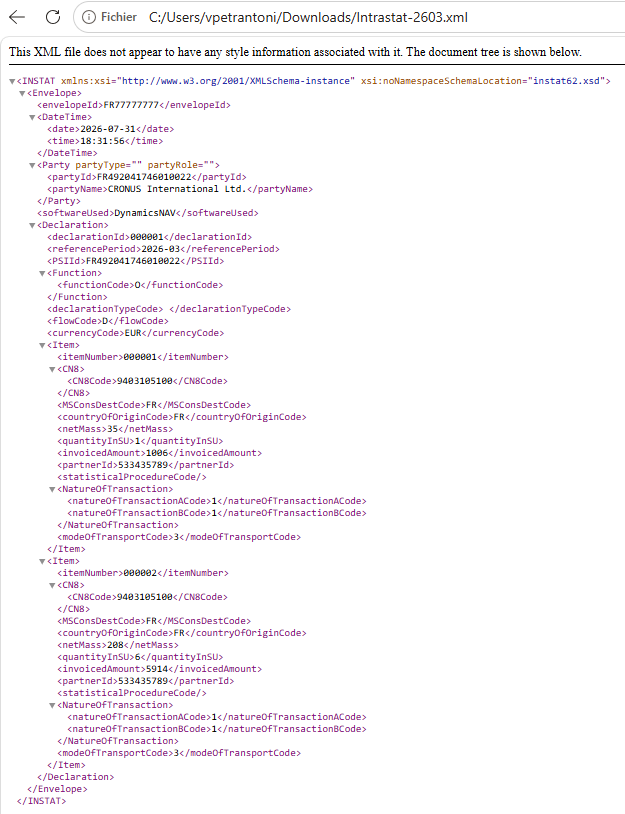
Once the file is generated and uploaded, the declaration is marked as “Declared” in the ERP in order to lock the period and prevent any risk of duplication during subsequent sessions.
Recommendations for frictionless management
- Raising awareness among data creation teamsMost of the problems encountered when generating the declaration stem from an incorrectly completed product record during its creation. Enforcing mandatory fields when creating a product in the ERP eliminates 90% of end-of-month errors.
- Anticipate annual revisions of the classificationsThe Combined Customs Nomenclature is updated annually on January 1st. Remember to update the customs code table in Business Central by the end of December to ensure compliance of your flows from the start of the year.
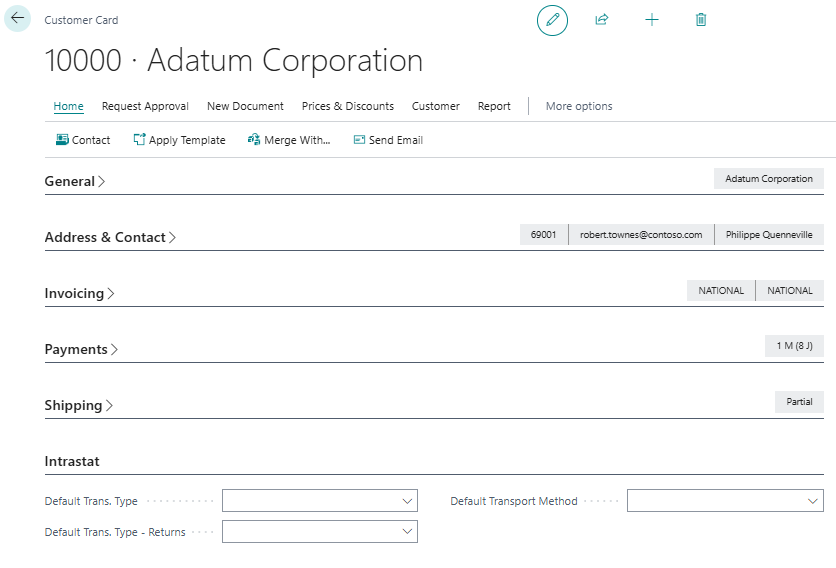
- Automate default transaction typesIt is possible to configure default transaction types on customer and supplier records. This prevents order entry operators from having to manually enter this information for each document.
Sources:
https://learn.microsoft.com/fr-fr/dynamics365/business-central/finance-how-setup-report-intrastat







No comments yet.
Feel like commenting on this article? sign up, it's free!