









Mastering project management in Business Central: from financial scoping to budget planning
Index 
Project management in an ERP depends on the ability to bring together financial scoping, operational structure and the preparation of commercial proposals. In Microsoft Dynamics 365 Business Central, the Projects module provides a set of tools for organising jobs from the prospecting phase through to the forecast budget. This article sets out the methodology and key features for laying solid structural foundations.
Scoping and core settings
A project starts with the creation of the project card, which brings together all the management rules, administrative references and accounting links.
The project card
The project card is the central record to which all budget data, commitments and actual consumption are attached.
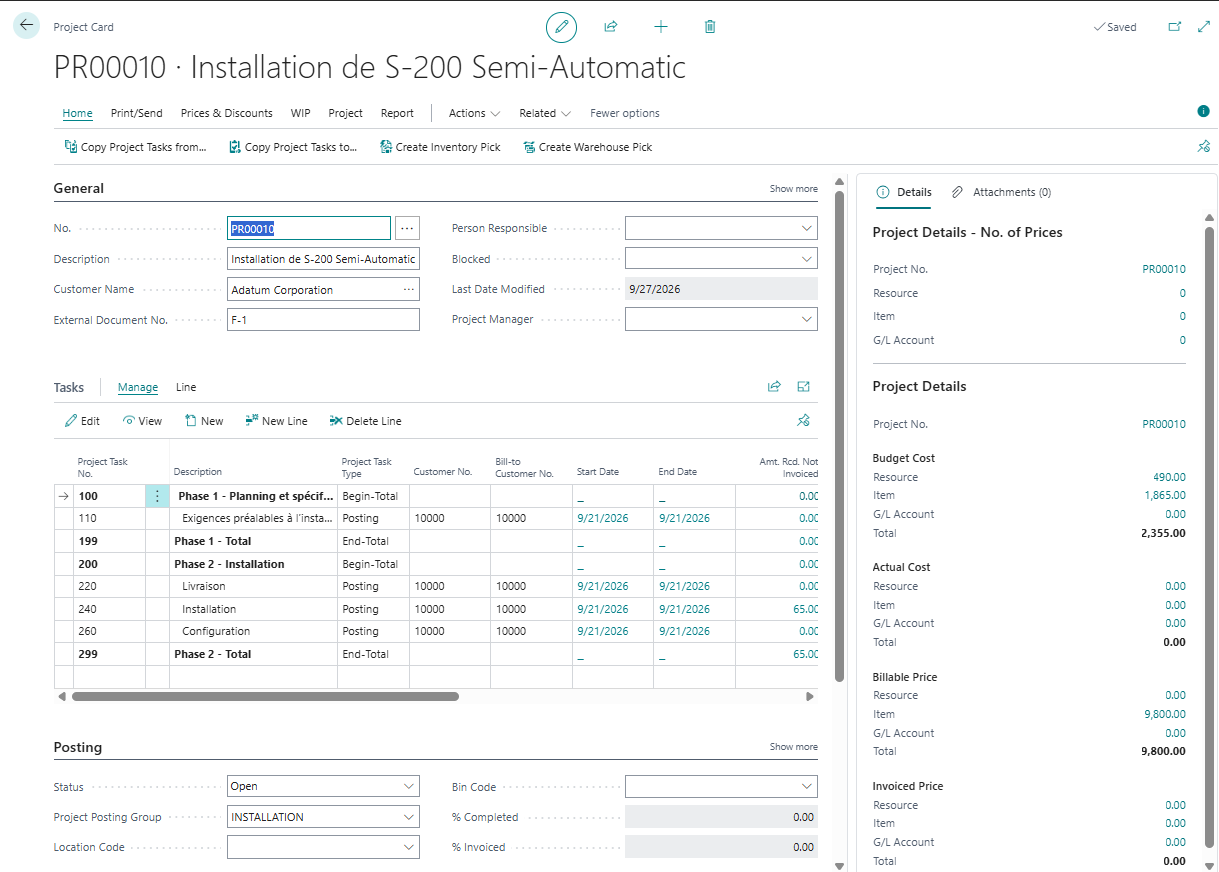
- Mandatory fields: the “Project Posting Group” is essential, because it creates the direct link between project transactions and the general ledger. The “Project No.” and the “Bill-to Customer No.”, although filled in by automatic number series, are the key identifiers of the scoping.
- Optional fields: the description, the project manager, the planned start and end dates (useful for currency management on international projects), and the work in progress (WIP) calculation method.
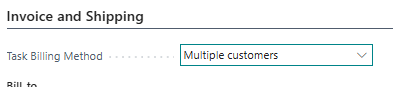
- Multi-customer management: Business Central can handle projects that are co-financed or invoiced to several entities. The Task Billing Method field on the project card defines whether the whole project is invoiced to a single customer or whether a different customer can be assigned to each task.
Project posting groups
These groups define how project transactions affect the general ledger and determine the accounting treatment of costs, inventory and revenue.

- Code (an identifier of up to 10 characters) is the only field strictly required to save the posting group card.
- WIP Costs Account: This is the balance sheet asset account (work in progress) in which the accumulated costs of unfinished projects are posted. French GAAP (PCG) example: 335000 (Work in progress – services) or 345000 (Work in progress – tenders / projects).
- WIP Accrued Costs Account: This balance sheet liability account records the debt corresponding to costs incurred, or estimated as payable, on the project's work in progress. French GAAP (PCG) example: 408100 (Suppliers – invoices not yet received) or 468600 (Accrued expenses).
- Job Costs Applied Account: This is the offsetting (credit) account used when posting costs and overall project usage to work in progress (WIP) when the WIP posting method is set at project level. French GAAP (PCG) example: 791000 (Transfers of operating expenses) or 708800 (Expense reallocations).
- Item Costs Applied Account: This is the offsetting account for the usage costs of items (inventory/materials) consumed in the project. It is used instead of the general Job Costs Applied Account when the WIP posting method is based on the ledger entries. French GAAP (PCG) example: 603700 (Change in inventory of goods / materials) or 791000 (Transfers of expenses).
- Resource Costs Applied Account: This is the offsetting account for charging resource usage costs (labour time, machines, contributors) to the project. It is used instead of the general account when entry-level detail is enabled for the WIP calculation. French GAAP (PCG) example: 791000 (Transfers of operating expenses) or 708500 (Shipping and incidental costs invoiced / Internal services).
- G/L Applied Costs Account: This is the offsetting/reallocation account used when posting project consumption and costs to the general ledger. French GAAP (PCG) example: 791000 (Transfers of operating expenses) or 708800 (Other income from ancillary activities / Reallocations).
- Job Costs Adjustment Account: This is the offsetting account (expense or change-in-inventory income statement account) for adjustments and corrections to project work-in-progress costs. French GAAP (PCG) example: 603700 (Change in inventory of services) or 713500 (Change in work in progress – services).
- G/L Expense Acc. (Contract): This account is used by default to record G/L account-type expenses linked to project tasks when the G/L account is not specified directly on the project planning line. French GAAP (PCG) example: 604000 (Purchases of studies and services) or 611000 (General subcontracting).
- WIP Accrued Sales Account: This balance sheet account records the accrued, calculated revenue/sales of the project that have not yet been invoiced to the customer. French GAAP (PCG) example: 418100 (Customers – invoices to be issued).
- WIP Invoiced Sales Account: This is a balance sheet accrual account (deferred income or invoices to be issued) used to offset or adjust calculated WIP sales/revenue that have not yet been recognised or definitively invoiced. French GAAP (PCG) example: 418100 (Customers – invoices to be issued) or 487000 (Deferred income).
- Job Sales Applied Account: This is the offsetting (credit) account: used when posting costs and overall project usage to work in progress (WIP) when the WIP posting method is set at project level. French GAAP (PCG) example: 791000 (Transfers of operating expenses) or 708800 (Expense reallocations).
- Job Sales Adjustment Account: This income statement account is used to offset/balance the WIP accrued sales account when posting revenue adjustments. French GAAP (PCG) example: 706000 (Services) or 713500 (Change in work in progress – services).
- Recognized Costs Account: This expense account definitively collects the actual, recognised costs of the project on completion or according to the WIP method. It records the actual cost of sales/services. French GAAP (PCG) example: 604000 (Purchases of studies and services), 601000 (Raw materials) or 621000 (External staff).
- Recognized Sales Account: This is the revenue account that records the value of sales and revenue definitively recognised in the income statement for the project. French GAAP (PCG) example: 706000 (Services) or 704000 (Works).
Quotes, commercial offers and customer reports
In the standard Business Central flow, a traditional sales quote is not converted directly into a project. It is the project structure itself that serves as the basis for building and presenting the commercial proposal.
The project as the basis for the quote
To prepare a financial offer, planning lines of type Billable (or Both Budget and Billable) are created on the project. This line type is specifically designed to set the prices and quantities offered to the customer, particularly for fixed-price contracts.
The "Get Project Planning Lines" action, used to link project lines to sales documents, cannot be used on sales quotes or sales orders. The recommended process is therefore to:
- Create the project card with the status Planning.
- Define the project task structure.
- Enter the billable planning lines detailing resources, items and expenses.
- Generate the offer document for the customer. Once the offer is accepted, the project status changes to Open to start execution.
Customer reports
To communicate the details of the offer or present a progress update, several built-in reports can be printed or sent as PDF:
- Projects per Customer (Report 1012): useful during account reviews, this report compares the scheduled price, the percentage of completion, the amounts already invoiced and the amount still to invoice.
- Project - Suggested Billing (Report 1011): explains the amounts suggested for the next billing milestone, task by task.
- Project - Planning Lines (Report 1006): details the planned items (resources, supplies, services) with their quantities and prices.
- Project Timeline (Power BI report): provides a visual representation of the task schedule as a calendar or Gantt chart.
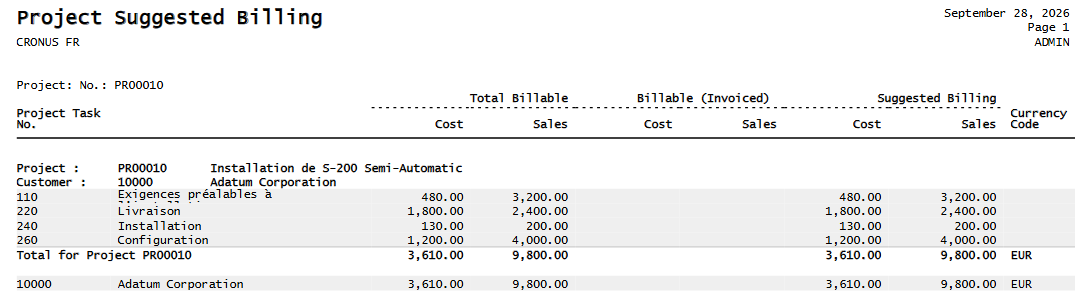
These reports can be accessed from the Role Center via All Reports, then under the Project heading, by selecting Explore.
Defining the project task hierarchy
Project tasks form the backbone of the project. Every project must have at least one Posting task so that transactions can be recorded.
Structuring the task tree
Tasks are organised using the Project Task Type field and the Indent Project Tasks function:
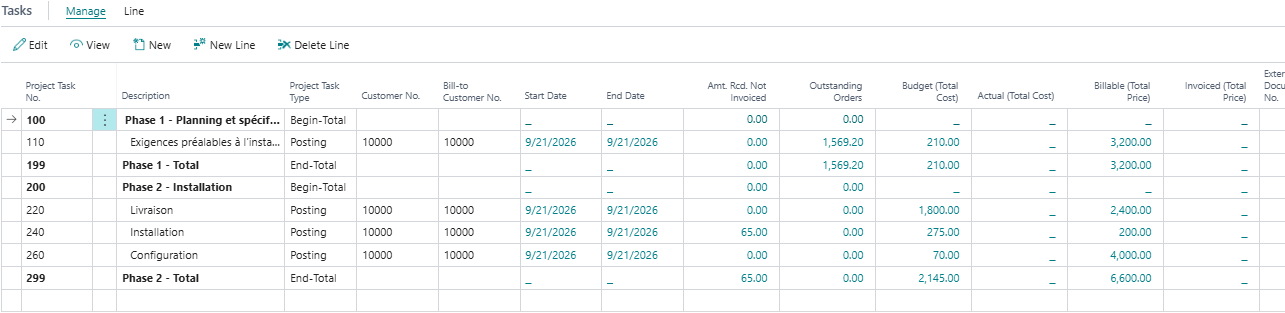
- Begin-Total / End-Total: these types frame a group or a phase. They receive no direct entries but automatically add up the amounts of the tasks beneath them.
- Posting: these are the only operational tasks to which budgets, consumption, purchase orders or invoices can be charged.
- Total: inserts a subtotal over a defined range of tasks.
Example of a functional task structure
| Project Task No. | Description | Task type |
|---|---|---|
| 1000 | PHASE 1: ANALYSIS AND DESIGN | Begin-Total |
| 1010 | Requirements analysis workshop | Posting |
| 1020 | Writing the specifications | Posting |
| 1090 | Total Phase 1 | End-Total |
| 2000 | PHASE 2: DELIVERY | Begin-Total |
| 2010 | Custom development | Posting |
| 2020 | Acceptance testing | Posting |
| 2090 | Total Phase 2 | End-Total |
Benefits of a structured breakdown
A well-designed breakdown brings decisive advantages across the whole project life cycle:
- Tracking budget variances: cost overruns are identified immediately, phase by phase.
- Accurate WIP: the work in progress calculation can be segmented task by task if revenue recognition varies with the nature of the work.
- Clarity for the customer: the invoices generated inherit this structure, making statements easier to understand.
- Detailed analytical reporting: assigning dimensions to each task allows precise performance analysis by area of expertise or responsibility centre.
Templates, copying and easier setup
To avoid re-entering data and to standardise practices, Business Central offers tools that automate project creation.
Templates and copy functions
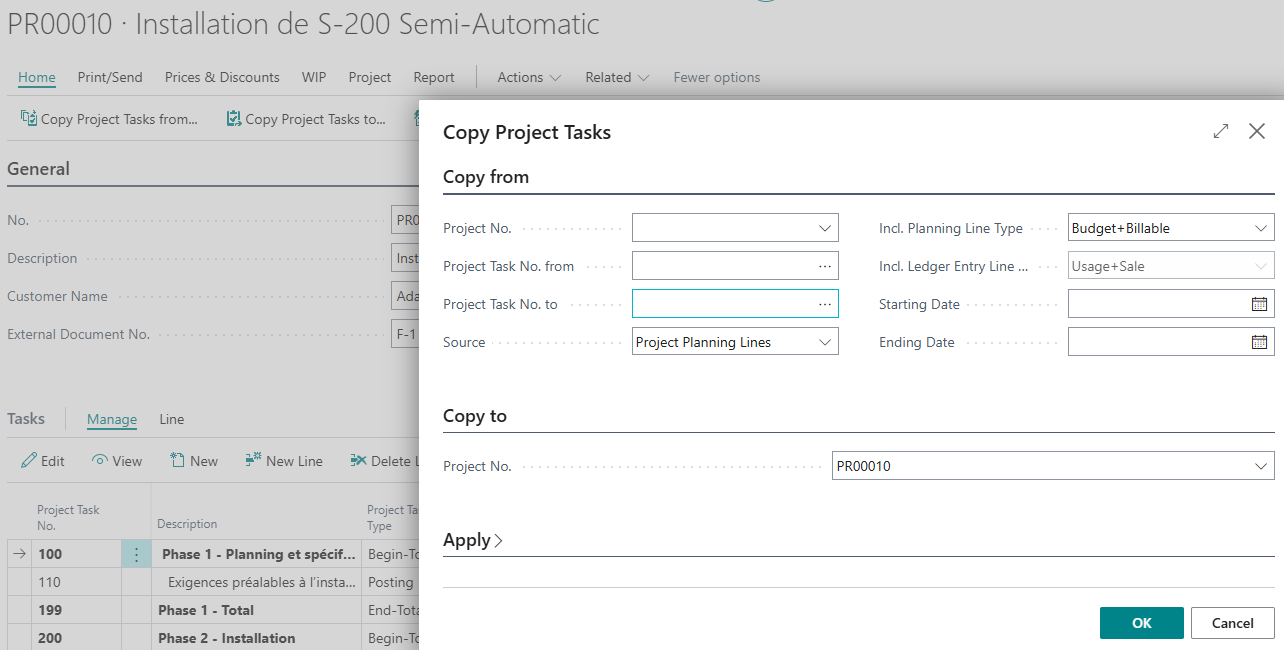
Although there is no button called "Template" as such, the recommended method is to create a model project, keep it in Planning status, and then use the copy function when creating a new job. Two main functions are available: Copy Project and Copy Project Tasks from.
- Data source: the copy can take the “Planning Lines” (original budget and sales price) or the “Project Ledger Entries” (turning the actuals of a past project into a new budget, ideal for building on lessons learned).
- Detail options: you can choose whether to copy quantities, specific price lists and dimensions.
Tools that help create projects and prepare offers
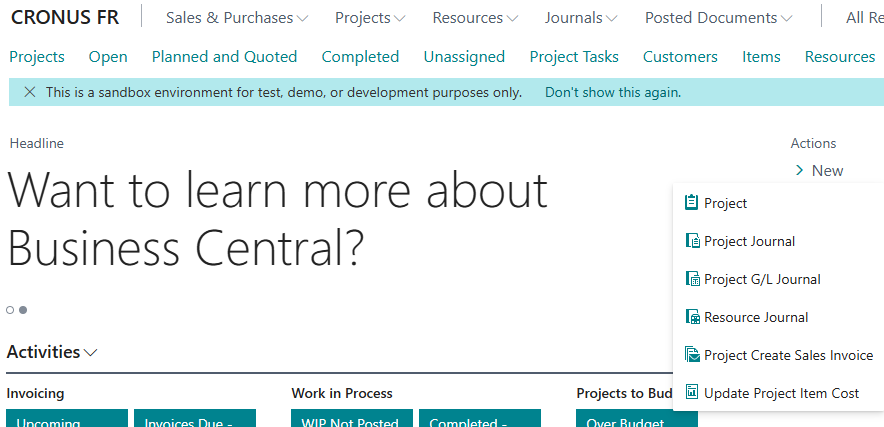
- Setup wizard: available from the Role Center via New Project, a step-by-step guide helps you build tasks and assign budgets.
- Default values: defining a location and a bin on the project card in advance automatically passes these settings on to the related tasks and lines.
- Excel import: integration with the Microsoft 365 suite lets you prepare planning lines in a spreadsheet and bring them in quickly.
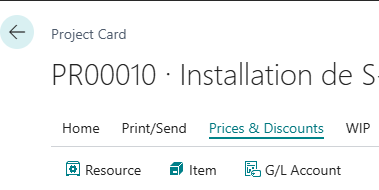
- Custom pricing: specific price lists (for resources, items or accounts) can be attached to the project card so that they take precedence over the company's general prices.
Setting the budget and sales prices
The final phase of structuring is building the detailed budget in the planning lines.
Project planning lines
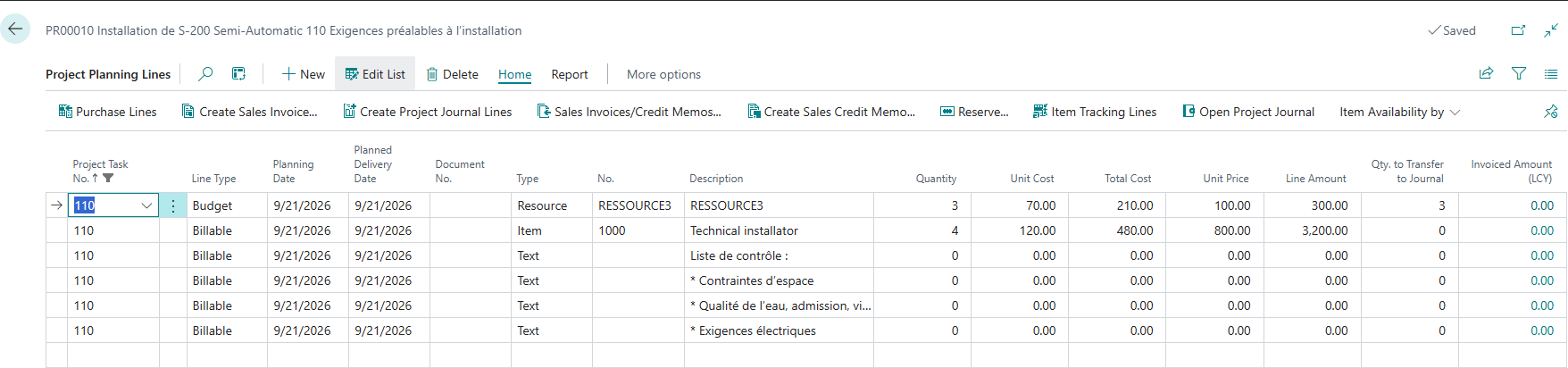
Attached only to Posting tasks, planning lines contain the detail of forecast costs and amounts to be invoiced.

Classification and type fields
- Line Type: Specifies the financial nature and purpose of the line:
- Budget: Amounts and costs planned for the project (used to estimate costs/budgets and calculate WIP, not transferred to invoices).
- Billable: Amounts planned to be invoiced to the customer.
- Both Budget and Billable: The costs are budgeted and the price will be invoiced.
- Type: Specifies the type of account/resource linked to the line:
- Resource
- Item
- G/L Account
- No.: Specifies the exact number of the selected resource, item or G/L account.
- Description: Specifies the name or description of the resource, item or G/L account.
Date and scheduling fields
- Planning Date: Specifies the planned date for the planning line.
- Planned Delivery Date: Contains the planned posting or execution date.
💡Note: The Start Date and End Date fields of the related project task take the earliest and latest dates of the planning lines, respectively.
Quantity and location fields
- Quantity: Specifies the planned volume or number of units. Filling in this field automatically calculates the total cost and price amounts.
- Unit of Measure Code: Specifies the unit applied (e.g. hours, days, pieces).
- Location Code: Specifies the warehouse/storage location that the selected item comes from.
- Bin Code: Specifies the code of the exact storage bin from which the item will be consumed.
Cost and price fields
- Unit Cost (LCY): Specifies the unit cost in local currency (LCY).
- Total Cost (LCY): Specifies the total cost of the line in local currency (Quantity x Unit Cost).
- Unit Price (LCY): Specifies the unit sales price in local currency applied to the line.
- Line Discount %: Specifies the discount percentage granted on the line.
- Total Price (LCY): Specifies the total billable price after any discounts, in local currency.
Conclusion and outlook
Structuring a project in Business Central is the essential foundation for a successful job. With precise scoping, a clear task structure, sensible use of the copy functions and a rigorously built budget in the planning lines, the company has everything it needs to prepare well-controlled commercial offers that are easy for its customers to read.
Once the operational and budget framework is in place, the project moves into its execution phase. The next instalment of this series will cover day-to-day operations: recording actual consumption (time spent and supplies), managing direct procurement, handling orders for external contributors, and processing receipts as they arrive and supplier invoicing.







No comments yet.
Feel like commenting on this article? sign up, it's free!