









Business Central: Configuration Packages for Effective Data Migration
Index 
Introduction
In my previous article, I detailed the global data migration methodology, explaining why this phase constitutes an indispensable step for any successful ERP implementation. I presented the principles of planning, source auditing, and dataset validation in order to ensure a reliable migration without loss of information.
In this article, I focus more specifically on the use of Microsoft Dynamics 365 Business Central configuration packages.
After laying the methodological foundations, we will explore how to create, set up, and deploy these packages to effectively transfer master tables, localization parameters, and functional settings.
This approach allows not only for the standardization of data migration but also considerably reduces installation time and risks linked to configuration inconsistencies.
In summary, data migration remains an unavoidable step to fully exploit the ERP's capabilities; configuration packages today offer the most practical and secure means to materialize this crucial stage.
Configuration Worksheet
In Microsoft Dynamics 365 Business Central, the configuration worksheet, also known as the Configuration Worksheet, constitutes a device intended to prepare and organize the initial implementation or data migration within the system. Its role revolves around several essential functions.
First, it centralizes all tables and parameters to be configured, thus offering a single view of the elements to be set up (customers, vendors, items, accounts, etc.) and allowing the order of data importation or configuration to be defined. This centralization facilitates visibility and global management of the configuration process.
Next, the configuration worksheet authorizes the importation of data coming from Excel or other systems. Before definitive integration into Business Central, it ensures the control of information consistency, for example by verifying that required accounts exist prior to the importation of G/L entries.
Furthermore, it handles the management of dependencies between different tables. Certain entities, like an item, depend on other elements, such as a posting group; the worksheet therefore organizes the importation sequence in order to respect these hierarchical relationships.
Finally, each line of the worksheet indicates the progress status of the configuration (completed, in progress, or to do), which constitutes valuable monitoring during deployment or migration projects.
In summary, the configuration worksheet represents a planning and execution tool dedicated to initial configuration and data importation in Business Central, widely used by consultants and project managers to structure and steer their initiatives.
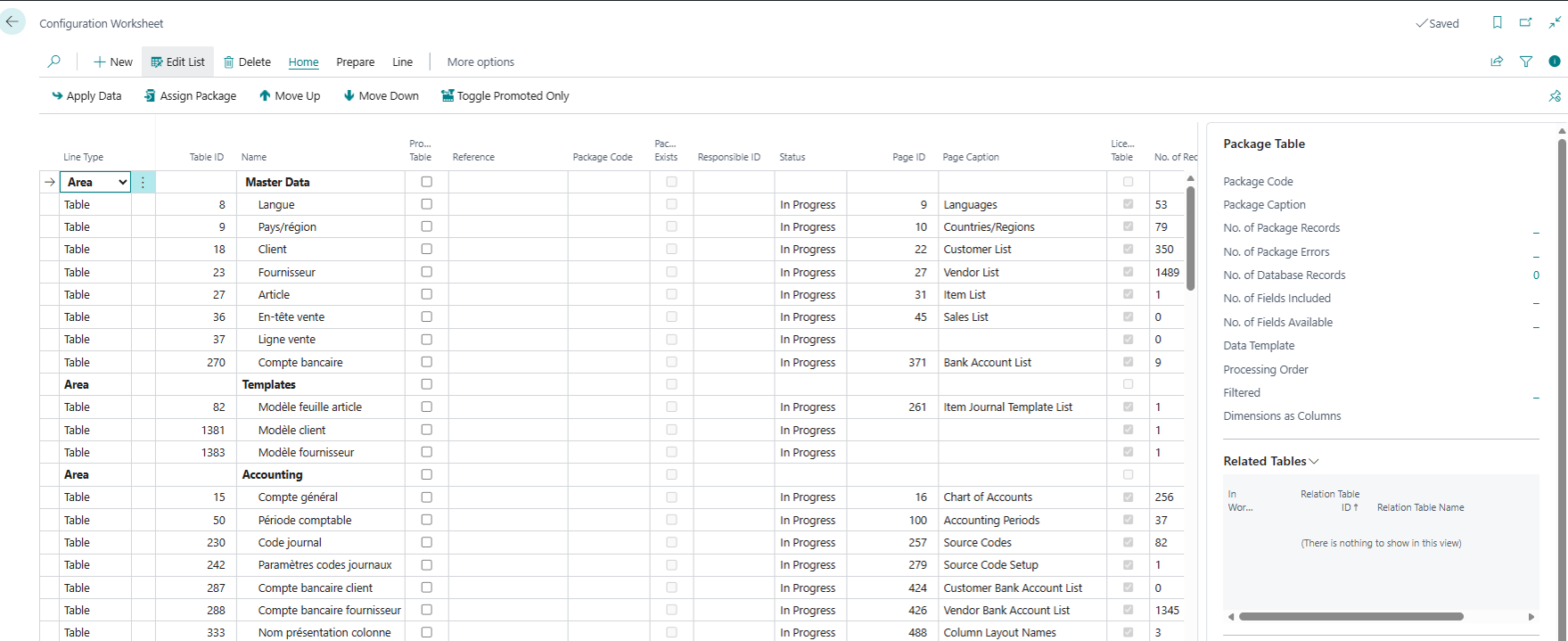
The fields available in the worksheet are as follows:
- Line Type: Indicates if the line concerns a table, a field, or a relationship.
- Table ID: Unique number of the table in Business Central (e.g., 18 = Customers).
- Name: Descriptive name of the table (e.g., Customers, Items).
- Promoted Table: Marks if the table is prioritized or recommended for configuration.
- Reference: Serves to link the table to another or to a configuration package.
- Package Code: Identifier of the configuration package to which the table belongs.
- Package Exists: Indicates if a package has already been created for this table.
- Status: State of the configuration (Not Configured, In Progress, Completed).
- Page ID: Interface page associated with the table (to enter or view data).
- Licensed Table: Indicates if the table is authorized for configuration in the current context.
- No. of Records: Number of lines present in the table.
- Dimensions as Columns: Option to display analytic dimensions in the form of columns.
- Copy Available: Indicates if a copy of the data is available for import/export.
- Page Licensed: If the page linked to the table is accessible for modification.
Configuration Package
Configuration packages in Microsoft Dynamics 365 Business Central constitute an important instrument to simplify and accelerate the implementation, migration, and update phases of an ERP environment. By grouping tables, fields, and key parameters within a portable file, they allow technical and functional teams to prepare, test, and deploy consistent datasets without resorting to tedious manual entries.
This approach favors the standardization of configurations, reduces the risks of human error, ensures respect for dependencies between entities (for example, items and posting groups), and offers clear visibility on the project's progress status thanks to integrated status indicators.
In short, configuration packages are a planning and execution tool that makes the transition to Business Central more reliable, faster, and more manageable.
Configuration Package List
The list allows viewing all configuration packages present in the company on which the user is positioned.
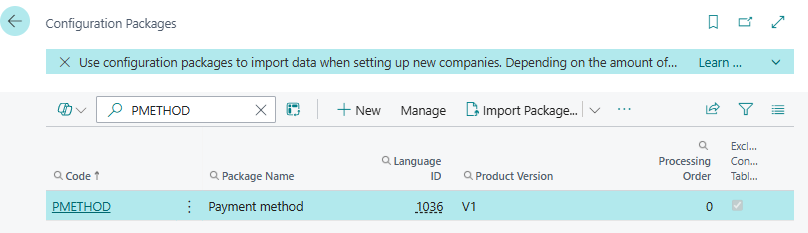
The following fields are available:
- Code: Unique identifier of the configuration package.
- Package Name: Descriptive name of the package (e.g., "General Ledger Setup").
- Language ID: Language used for the package (e.g., FR: 1036, EN: 1033, IT: 1040).
- Product Version: Business Central version for which the package is designed, or version of the package itself.
- Processing Order: Execution priority of packages (useful if multiple packages are applied).
- Exclude Config. Tables: Indicates if certain tables are excluded from the package.
- No. of Tables: Total tables included in the package.
- No. of Records: Total data lines in all tables of the package.
- No. of Errors: Number of errors detected during validation or application of the package.
Configuration Package Card
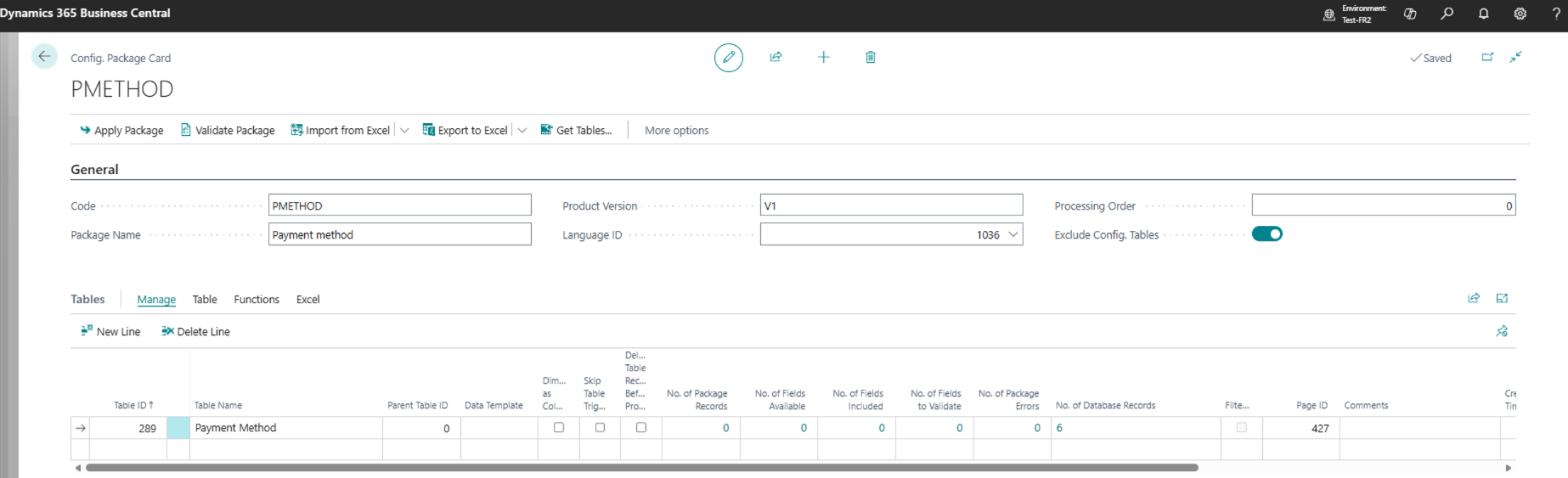
To be able to import/export data into and from Business Central, it is necessary to create a new configuration card by specifying the following fields:
- Code: Unique identifier of the configuration package.
- Package Name: Descriptive name of the package (e.g., "General Ledger Setup").
- Language ID: Language used for the package (e.g., FR: 1036, EN: 1033, IT: 1040).
- Product Version: Business Central version for which the package is designed, or version of the package itself.
- Processing Order: Execution priority of packages (useful if multiple packages are applied)
The lines constitute the list of tables to be processed:
- Table ID: Unique number of the table (e.g., 18 = Customers).
- Table Name: Descriptive name of the table.
- Parent Table ID: Parent table if the table is hierarchically linked.
- Data Template: Data template used for configuration. Useful for completing the imported record using standard values defined in the template.
- Dimensions as Columns: Indicates if analytic dimensions are displayed in columns.
- Ignore Table Triggers: If activated, triggers (automatic actions coded in OnInsert and OnModify events) do not execute during import.
- Delete Table Records Before Processing: Empties the table before inserting new data. (Warning, this option eliminates all records from the table before consolidating the package data).
- No. of Package Records: Number of records included in the package for this table.
- No. of Fields Available: Total fields existing in the table.
- No. of Fields Included: Fields selected for the package.
- No. of Fields to Validate: Fields requiring validation before import.
- No. of Package Errors: Errors detected for this table in the package.
- No. of Database Records: Number of records already present in the database.
- Filtered: Indicates if a filter is applied to the table.
- Page ID: Associated page to view or edit data.
- Comments: Notes or remarks on the configuration.
- Created Date and Time: When the line was created.
- Created by User ID: User who created the line.
- Imported Date and Time: When the data was imported.
- Imported by User ID: User who performed the import.
- Delayed Insert: Indicates if data insertion is delayed (batch).
Table Fields
The field definition function in a configuration package allows precise control over how data is imported and validated. It serves to indicate which fields of a table are included, whether they are selectable or not, validatable or not, and in what order they must be processed. This step is essential to ensure data consistency, respect dependencies between fields, and optimize the integration process into Business Central.
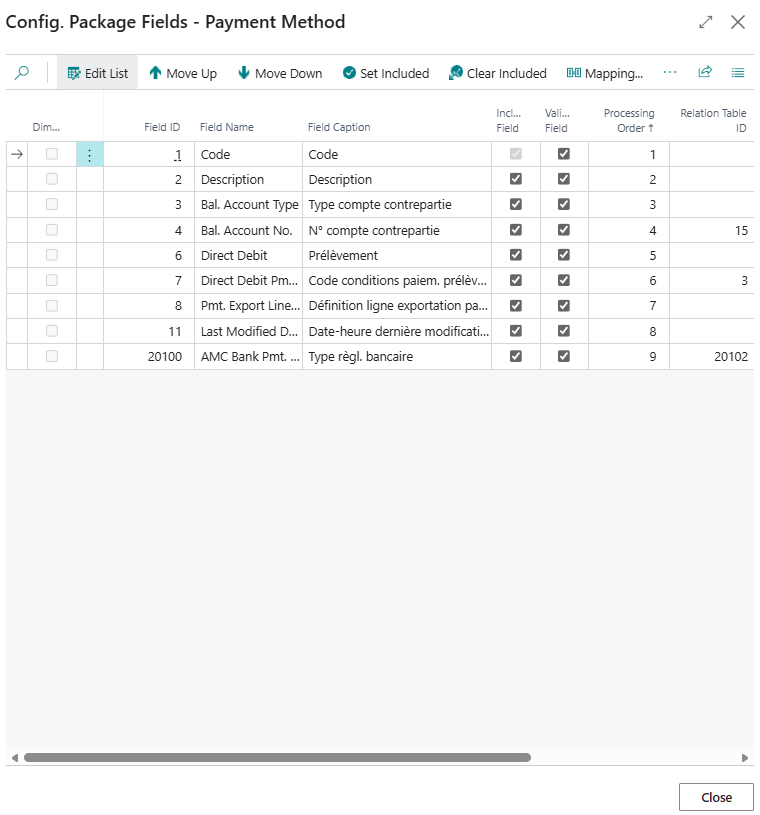
- Dimension: Indicates the axis or analytic dimension to which the field is attached (e.g., cost accounting, project, cost center).
- Field ID: Unique identifier of the field in the configuration. Serves as a technical key for the system.
- Field Name: Label or functional name of the field as it appears in the interface or reports.
- Include Field: Boolean or indicator (Yes/No) specifying if the field must be included in the processing or export.
- Validate Field: Indicates if the field must be validated before processing (quality control or data consistency).
- Processing Order: Number defining the sequence in which fields are processed (execution priority).
- Relation Table ID: Identifier of the table linked to the field (useful for relationships between tables or references).
- Relation Table Caption: Description or explanatory label of the linked table, to facilitate understanding.
- Create Missing Codes: Option allowing automatic generation of non-existent codes in the reference during processing.
- Mapping Exists: Indicator specifying if a mapping (correspondence between values) is already defined for this field.
Fields constituting the primary key cannot be deselected.
Set Included and Clear Included Functions

The "Set Included" functionality allows marking a field as included in the package processing.
In practice, this means that this field will be taken into account during operations (import, export, validation) defined by the configuration.
The "Clear Included" functionality serves to remove the inclusion status of a field, meaning it will no longer be taken into account in the package processing.
Move Functions

Move Down: Allows moving the field down one level in the processing order.
Move Up: Allows moving the field up one level in the processing order.
It is important to note that the processing order of fields conditions their validation. In other words, if a value presence check in field B is performed upon validation of field A, on the same record, for the data to be imported without errors, field B must be processed before field A.
Filters
The "Filters" functionality allows refining the selection of records by applying selection criteria (for example, displaying only included fields or those linked to a specific analytic dimension).
It will suffice to select the field on which to apply a filter in the "Field ID" column and specify the filter value in "Field Filter".
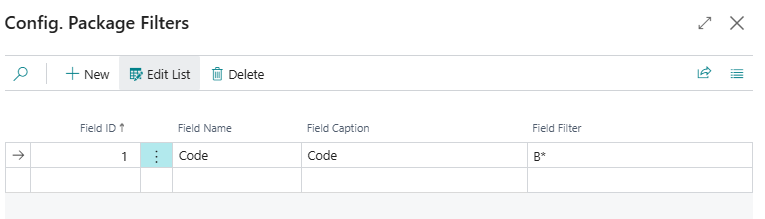
Table Processing Rules
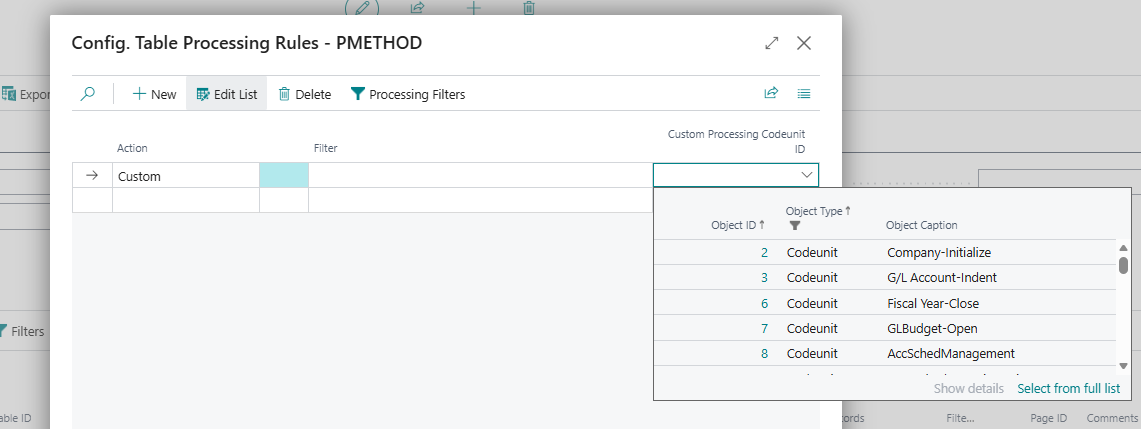
The Config. Table Processing Rules page allows associating an action with each table that defines what the system must do during the import or processing of package data.
These actions can be standard or custom.
For the Custom action, it is necessary to enter the ID of the codeunit containing the specific logic. Actions are executed after data insertion into the table, respecting the configured processing order.
Available actions and their role:
- Custom: Allows executing a codeunit or custom logic to process the table. Useful for specific needs not covered by standard actions.
- Post: Triggers post-processing (e.g., posting, entry generation). This action is often used to finalize documents (invoices, orders).
- Invoice: Performs invoicing of concerned documents (e.g., converting an order into an invoice).
- Ship: Launches the shipping process for items or orders.
- Receive: Triggers the receipt of goods in the system (e.g., purchase receipt).
Package Concept and Single File
A configuration package is a container that groups multiple tables, each representing a specific data type. It functions as a staging area, where data must first be imported into the package before being consolidated in the system's destination tables. This mechanism guarantees control and validation before definitive integration. The package can be exported in the form of a single file, which includes both the structure and the data, and which can be re-imported into the system to reproduce the configuration or transfer information.
There can be two to three stages:
-Import of data from an Excel file in the correct format, into the package
-Processing of package data by consolidating them into the table
-Execution of processing rules specified for the table
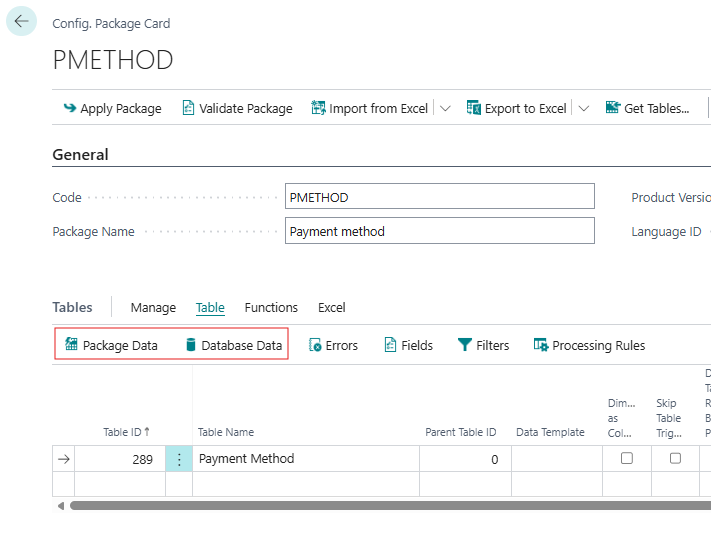
Two actions allow consulting the data associated with a table, either those contained in the package or those present in the destination table. They are accessible from the line action ribbon.
Exporting the package into a single file is done from the header action "Export Package"; the file size is determined by the quantity of tables, fields defined per table, and associated data.

This same file can be imported into the system through the "Import Package" button.
Errors
For each of the steps mentioned in the previous point, the system may encounter errors. Several types of errors then appear:
Data Import Step into the Package
- Excel file not recognized by the system
- Bad column mapping
Data Processing Step
- Field length, data type not respected
- Value referenced in another table not found
- Custom validation error
Processing Rule Step
- Controls on business flows
All errors are recorded in the dedicated table and accessible via the "Errors" button located in the line action ribbon. A numeric indicator also displays the number of errors associated with each line, corresponding to a table.
Data Export
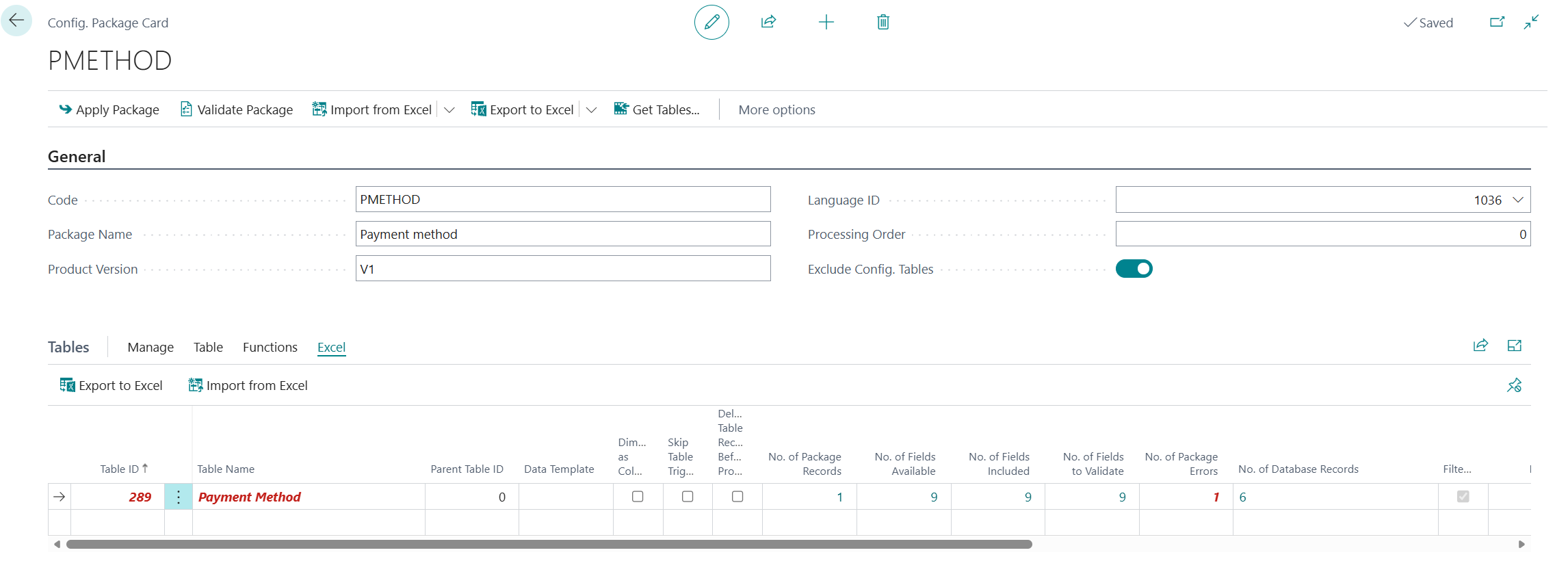
There are two simple methods to export data from a configuration package in Business Central:
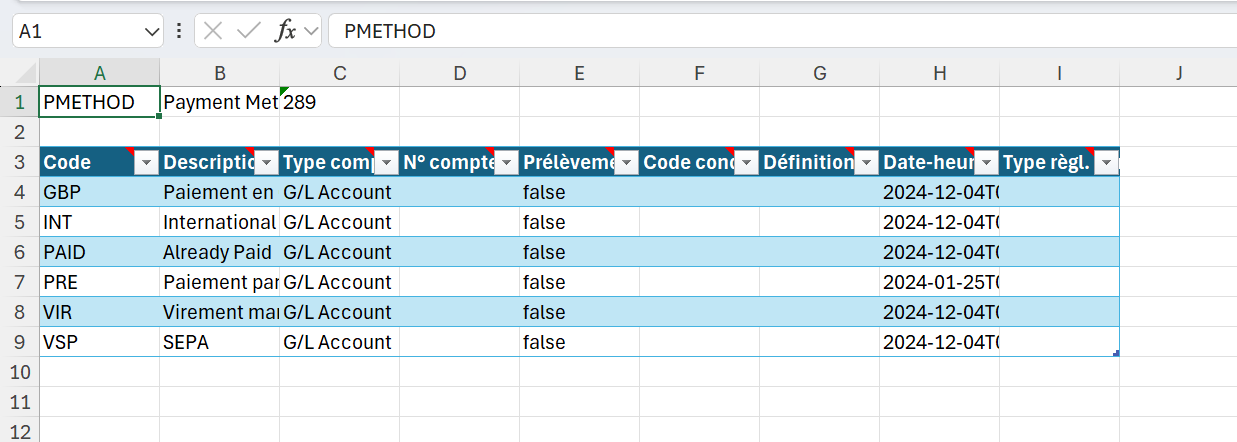
- From the header ribbon, the "Export to Excel" button generates a single workbook containing all tables defined in the package; each table appears in its own tab, which facilitates global consultation of the dataset.
- From the line function ribbon, the same "Export to Excel" button concerns only the selected table; it then creates a single-tab Excel file, dedicated solely to this table.
These two options thus offer flexibility adapted to global or targeted export needs.
Data Import
In the same way, Business Central proposes two symmetric ways to import data from an Excel file: the "Import from Excel" button available in the header ribbon (to load all tables contained in the workbook) and the same button present in the line function ribbon (to import only the displayed table). In both cases, once the button is activated, the command prompt asks you to choose the Excel file; the system then reads the workbook sheets and injects the records into the corresponding package table(s), respecting the mappings already defined.
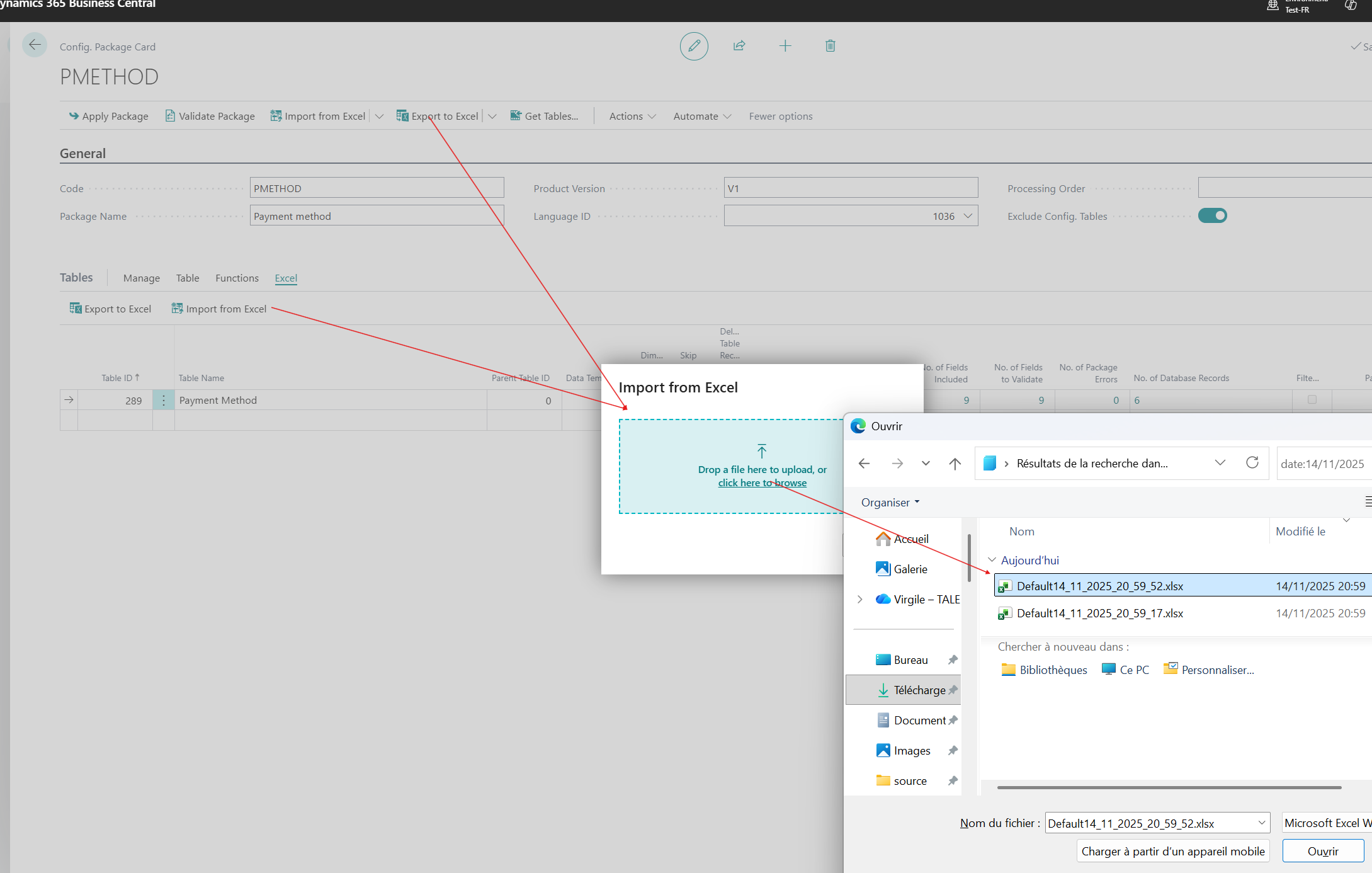
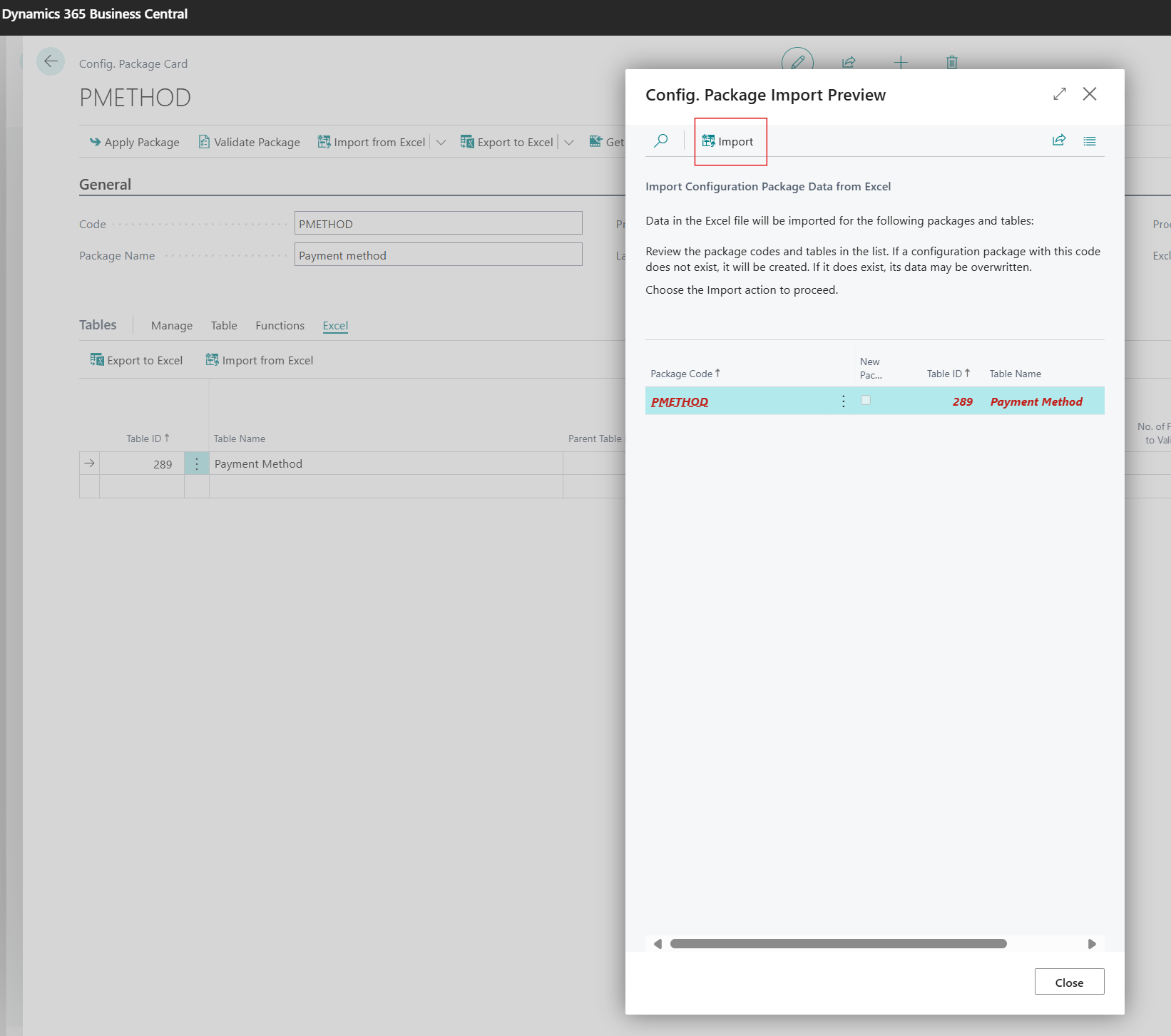
Once the Excel file is chosen, Business Central transmits it immediately to the server, where it is analyzed: the application extracts the package name indicated in the workbook as well as the identifiers (ID) and labels of the tables present in each sheet. This information is displayed on the screen in the form of a summary, allowing the user to verify that the file content indeed corresponds to the package target tables. After this verification, simply click on "Import" to launch the import operation, which then loads the data into the concerned package tables.
When the import process finishes, Business Central updates the package and displays, for each concerned table, the number of imported records. This counter appears directly in the package view, thus offering immediate visual confirmation of the integrated data volume.
By clicking on the figure indicating the number of imported records, Business Central automatically opens a List type page: it lists, line by line, all records composing this batch for the concerned table, thus allowing visualization, filtering, or consultation of each imported datum directly from the package interface.
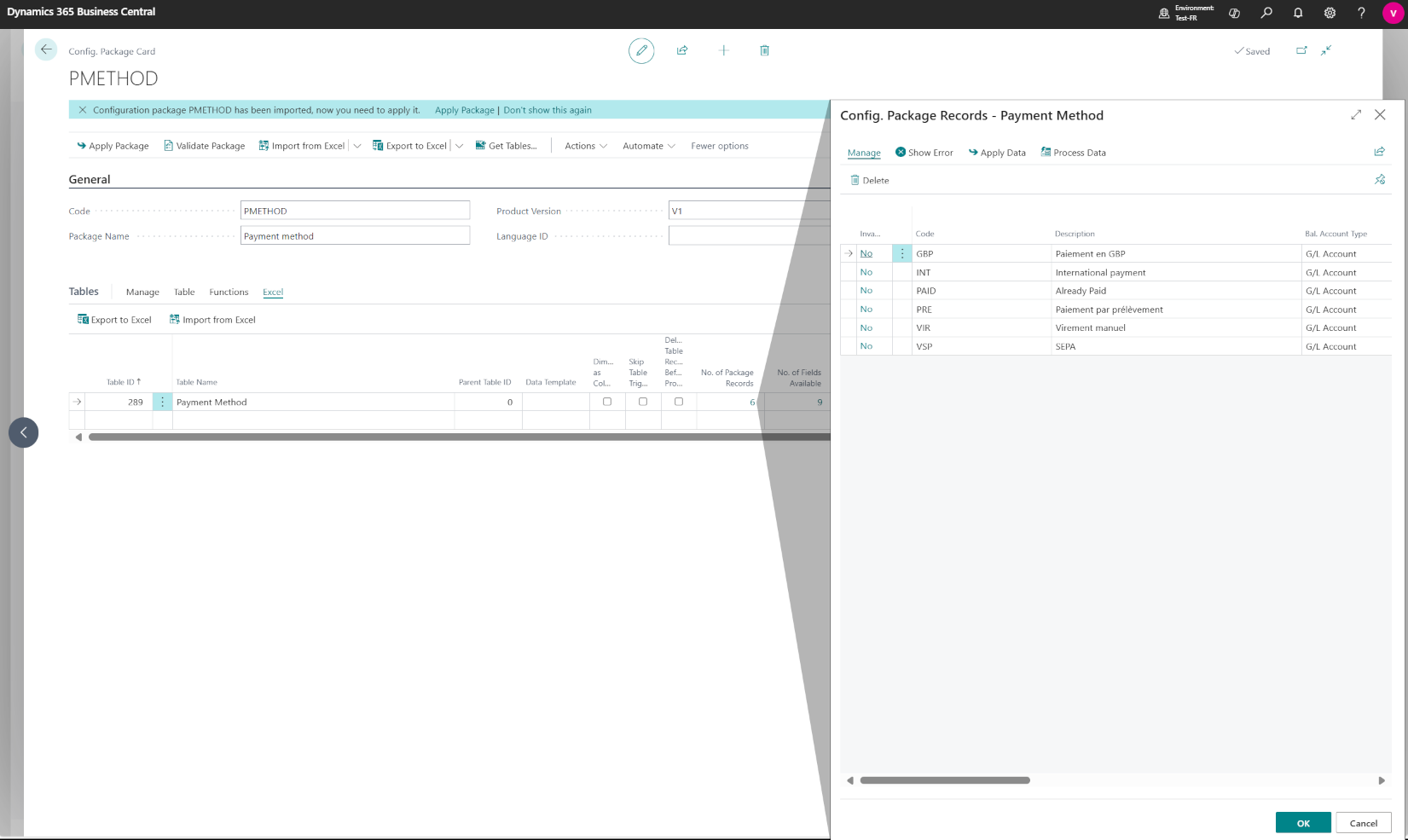
At this stage, the records displayed in the List type page are not yet transferred into the Business Central destination tables. They reside solely in the configuration package. This buffer zone allows validating content, correcting potential anomalies, and ensuring the format corresponds to system requirements.
It is only after this verification, during the next step – generally triggered by the "Apply Package" or "Import to Database" button – that the data will essentially be inserted into the destination tables, provided no error is detected.
Data Consolidation
To launch the effective transfer of package records to the destination tables, simply use the "Apply Package" button:
- At the header ribbon level, the same button applies the package to all tables it contains, thus realizing a global import in a single operation.
- At the line function ribbon level, the "Apply Package" button concerns only the selected table, allowing data import in a targeted manner.
Once clicked, Business Central executes the copy process from the configuration package to the target tables, provided no error is detected during prior validation.
At this point, when you click on "Apply Package", Business Central begins transferring package records to destination tables. Before inserting each line, the engine performs:
- reference checks: it verifies that foreign keys indeed point to existing records in linked tables;
- validation logic defined on each field: length constraints, formats, authorized values, triggers (OnValidate), and other custom business rules.
If one of these verifications fails, the error is captured and logged in the error list associated with the concerned table. This list groups error messages, the incriminated line, and the problem detail, allowing the user to correct data before relaunching the package application operation.







No comments yet.
Feel like commenting on this article? sign up, it's free!