








Should you adopt ClickUp? A complete analysis for project managers
Index 
The proliferation of work management applications within organizations poses a recurring challenge for IT managers and project managers. The main stumbling block is balancing ease of adoption with functional depth.
On the one hand, solutions seamlessly integrated into existing office ecosystems, such as Microsoft Planner, facilitate immediate onboarding for tracking simple tasks. On the other hand, highly configurable platforms like ClickUp promise to centralize the entire value chain of a project, from milestones to documentation.
This article offers a detailed analysis of ClickUp, from its hierarchical structure to its economic model, in order to determine whether this solution provides real added value for the management of IT and business projects.
1. ClickUp's philosophy: understanding hierarchy
One of ClickUp's key features lies in its nested architecture. Unlike Microsoft Planner, which is primarily based on individual Kanban plans, ClickUp relies on a strict five-level hierarchical model.
Workspace > Spaces > Folders > Lists > Tasks
The Workspace
This is the highest level of scope, representing the overall organization or company. All data, users, and licenses are associated with it.
The Spaces
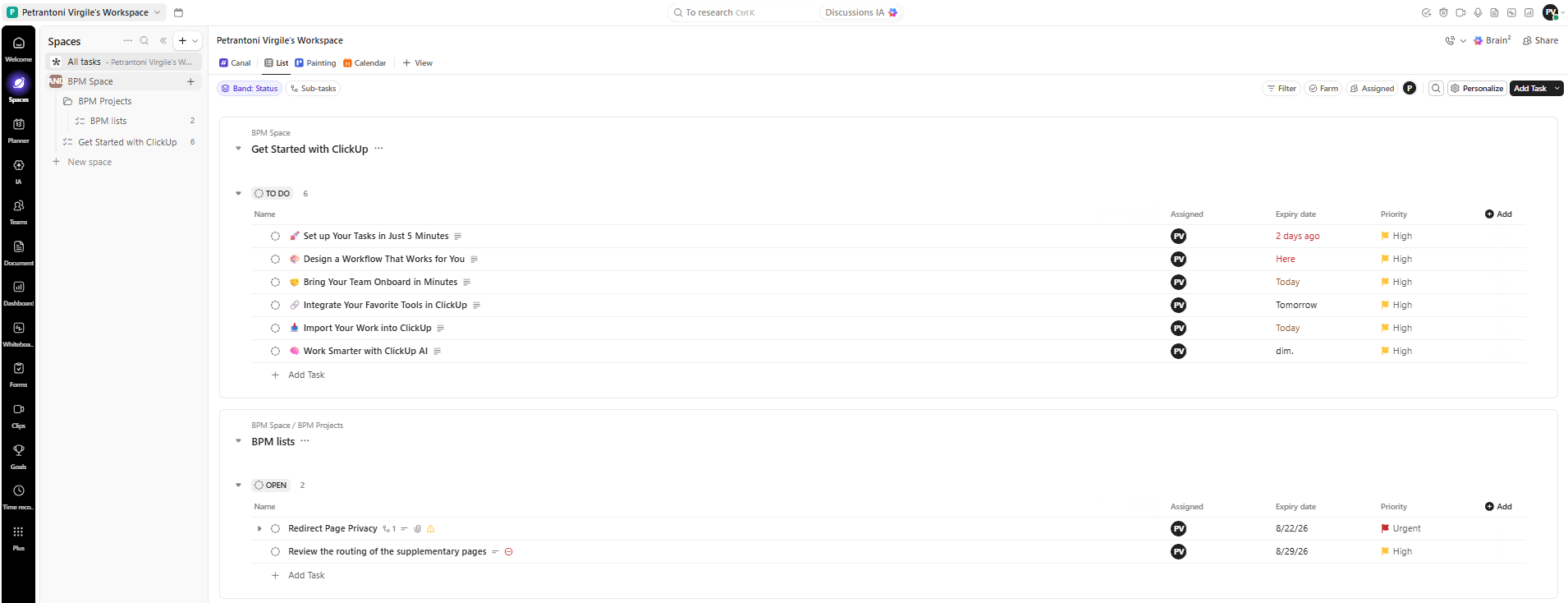
Positioned just below the “Workspace”, the “Spaces”serve to compartmentalize major areas of activity, departments (e.g.:Information Systems Department, Human Resources, Marketing) or very large programs. Each “Space” can have its own privacy rules, customized workflows, and activated features (namedClickApps).
The Files (Folders)
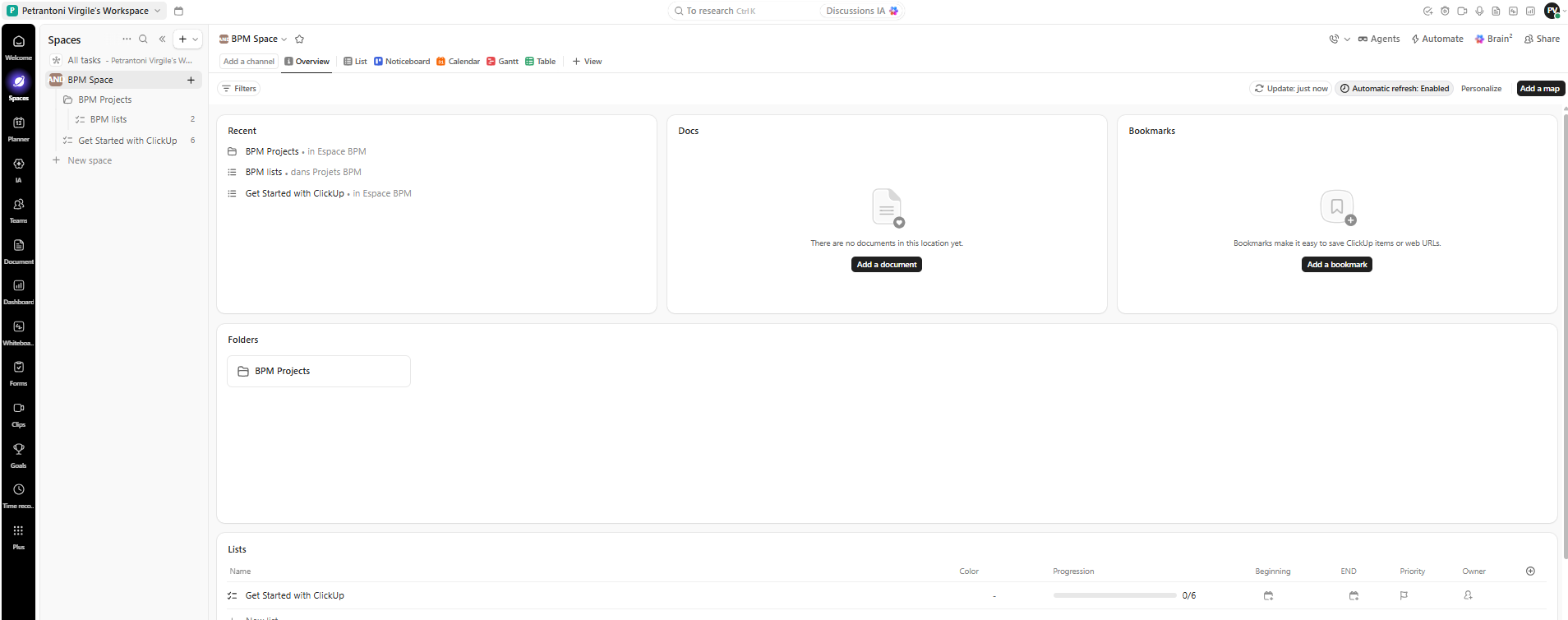
Optional containers located within a Space, the folders allow for the accommodation of a group of projects with a common theme. For example, within the Space “BPM”, a file “Project BPM”can be created.
Lists
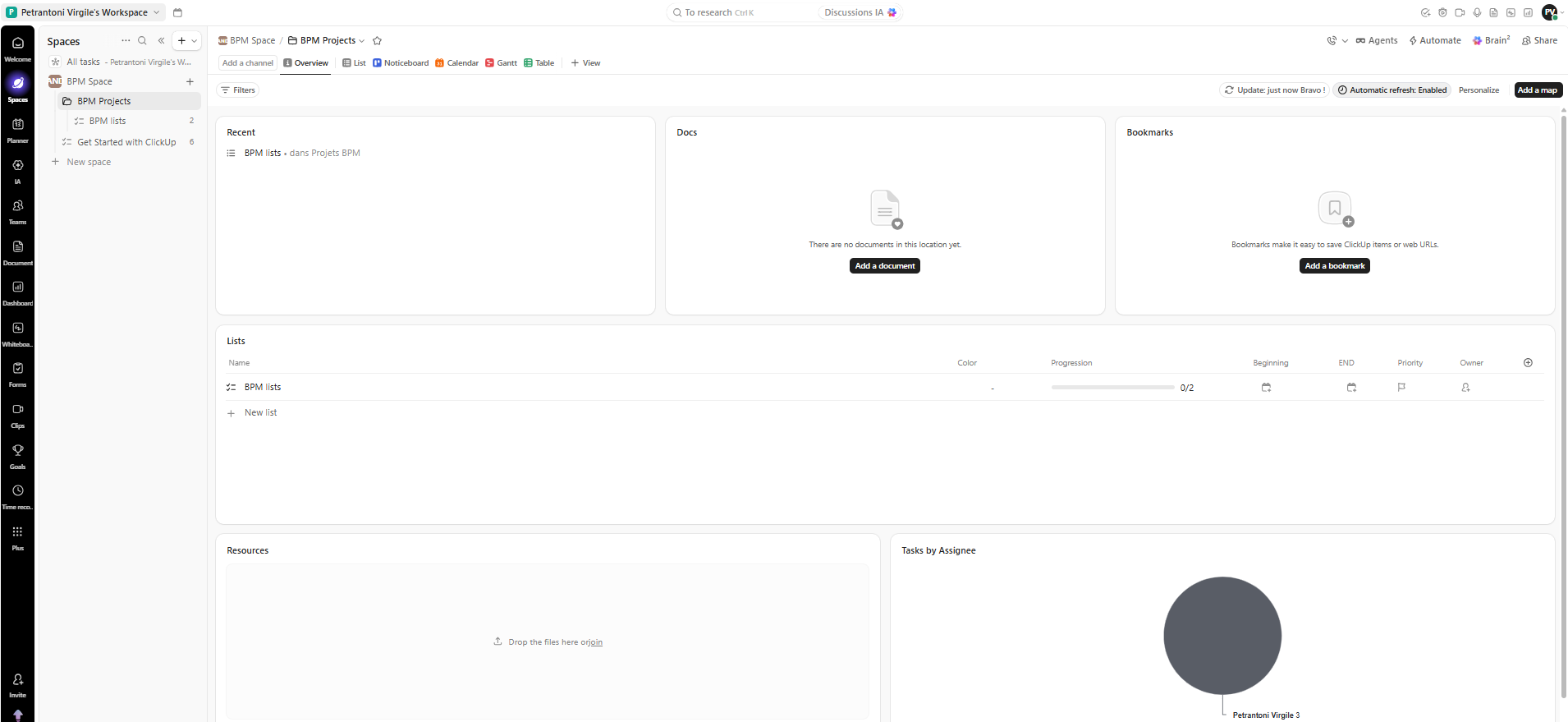
The list is the primary operational repository where tasks reside. In project management, a list can represent a specific project, phase, or sprint.

Tasks and Subtasks
At the most granular level are the tasks, accompanied if necessary by subtasks or checklists. Each element constitutes an attributable, datable, and measurable unit of work.
💡This "Russian doll" structure offers great flexibility, but it carries the risk of initial overcomplication. Without clear governance established from the outset, the proliferation of folders and lists can disorient users.

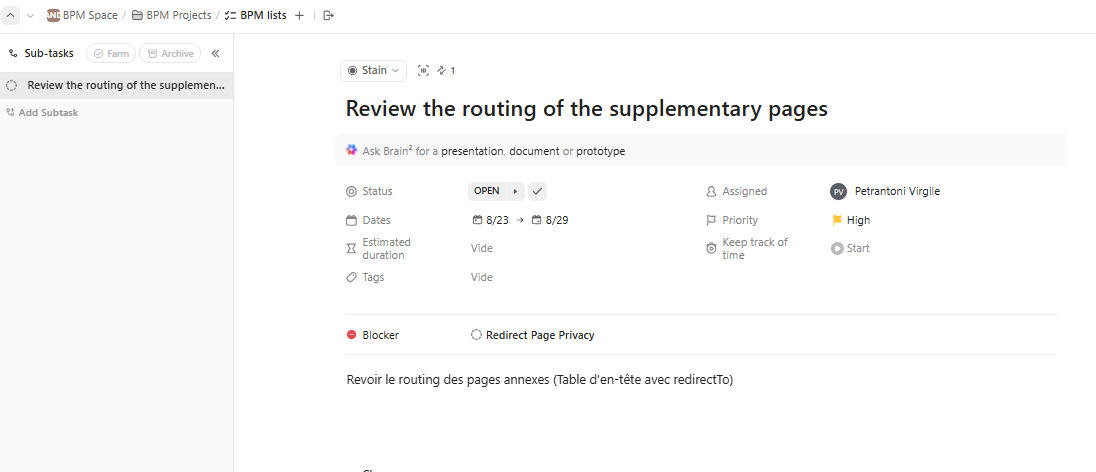
The task window, the operational heart of ClickUp
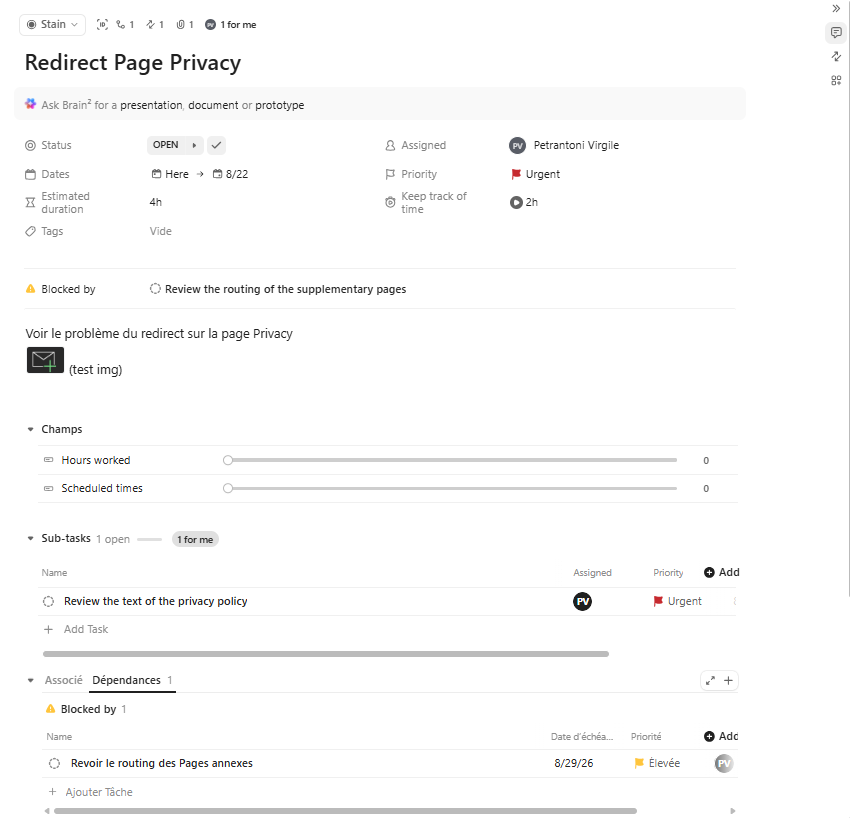
Opening a task displays a detailed view structured in two complementary areas to centralize execution and monitoring.
On the left, the main section groups together all the key attributes of the task to be completed: status, assignees, due date range, priority level, estimated duration, and time tracking. This space also allows you to enter a detailed description, add custom fields, attach files, and link subtasks, checklists, and dependency relationships with other tasks.
On the right, a dedicated side panel for activity and communication offers complete traceability. It records the history of changes made to the task and allows communication between colleagues via comments, direct mentions, or attachments, thus avoiding the use of internal emails.
2. Key features and added value in the field
In addition to its hierarchical structure, ClickUp's differentiation lies in the diversity of its reporting and monitoring tools.
The versatility of views
In Microsoft Planner, the Kanban view (columns) remains the default representation, although the calendar or grid view offers a complementary option. ClickUp allows you to instantly switch the same source data between multiple representations:
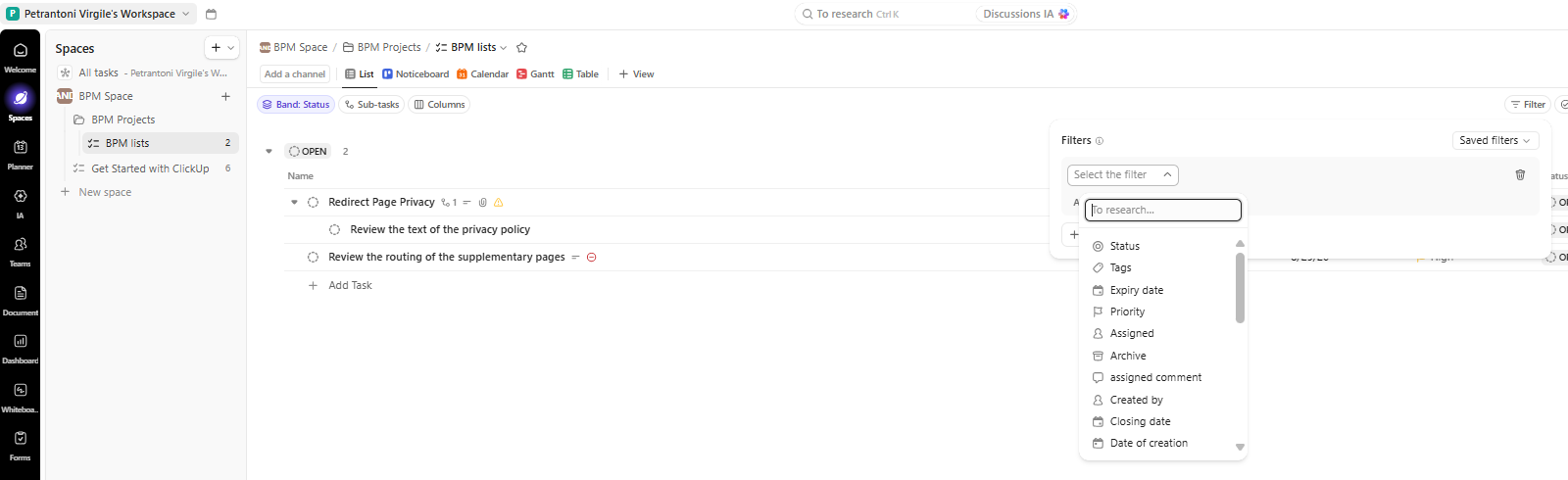
List View
For fast data entry and tabular sorting.
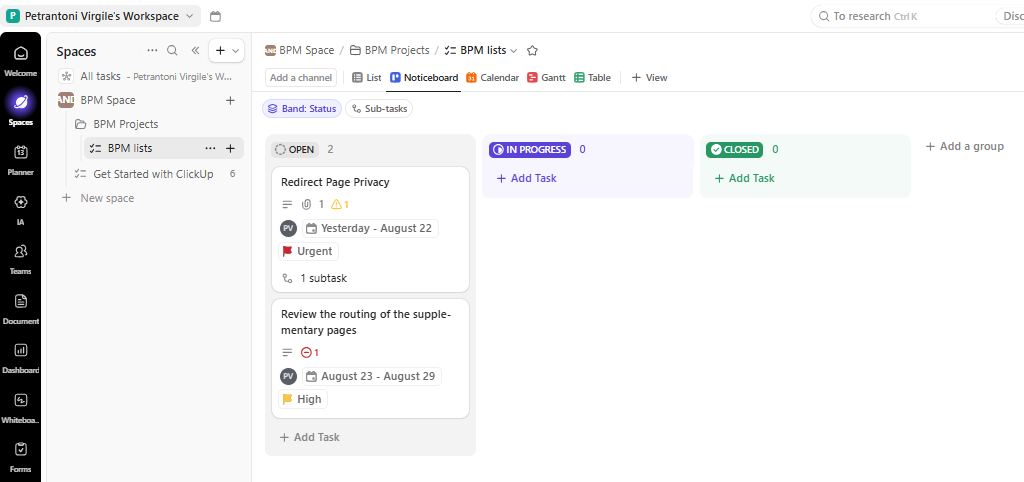
Board View
For managing workflows by status.
Gantt View
Essential for traditional project management, allowing visualization of the overall schedule, milestones and identification of the critical path.

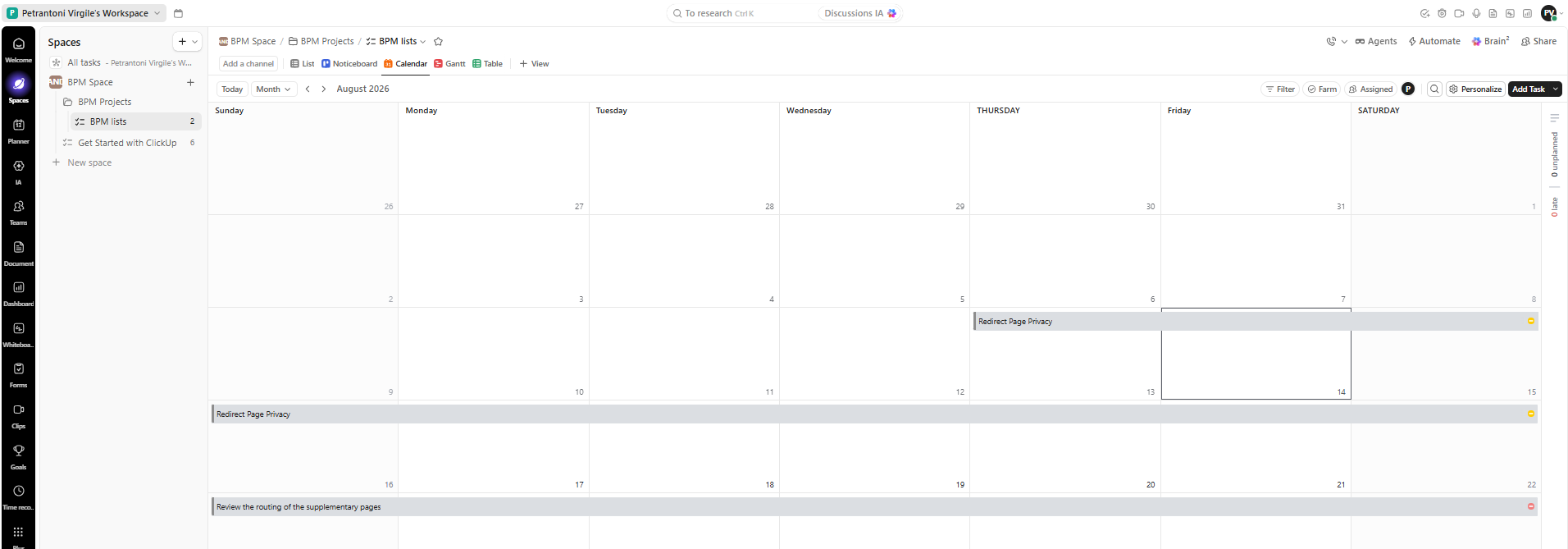
Calendar & Timeline View
For anticipating the time load.
Custom Fields
Metadata customization is a key strength. It's possible to add fields of various types, including numeric, text, dropdown menus, mathematical formulas, and currency.
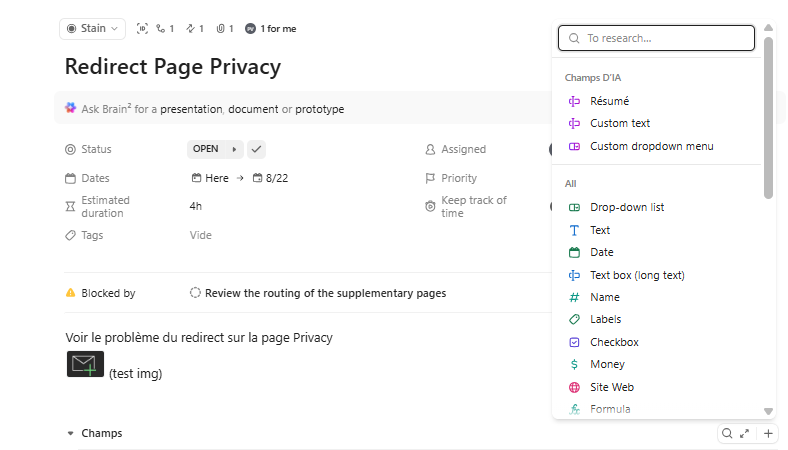
This capability allows you to track committed budgets, risk level or technical priority directly at the task level.

Dependencies management
Unlike basic task management tools, the materialization of dependency links ("must be done before", "blocked by") is integrated.
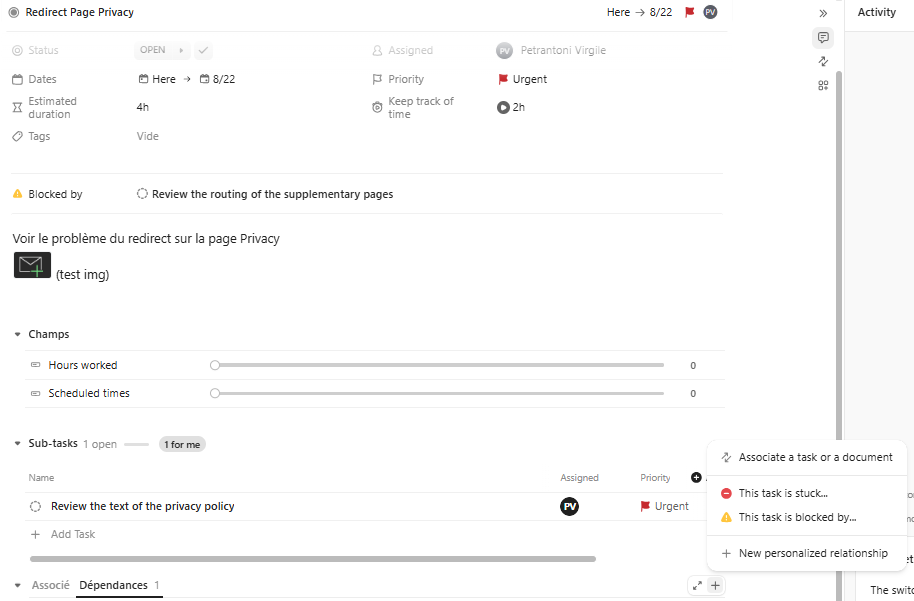
This feature helps to anticipate bottlenecks when managing complex IT projects.
The centralization of documents (Docs & Wikis)
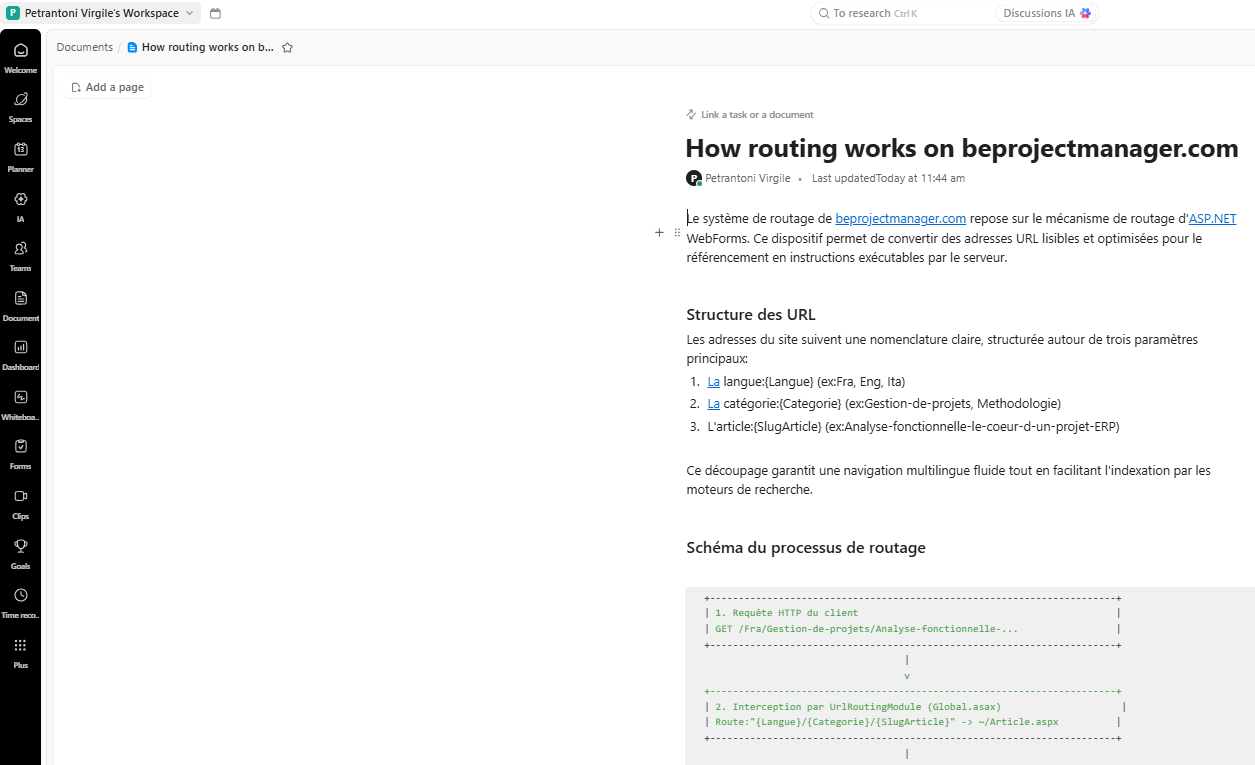
ClickUp includes a comprehensive document creation module, similar to an internal wiki. These documents can be directly associated with projects or linked to specific tasks, thus avoiding document fragmentation across multiple third-party tools.
3. Analysis of the business model and licenses
Although ClickUp promotes its formula “Free Forever”A rigorous analysis of paid offers is essential to consider a professional deployment.
The reality of the free version (Free Forever)
The free version allows the creation of an unlimited number of tasks and the invitation of an unlimited number of members, which is attractive at first glance. However, several technical limitations quickly become apparent in a production environment:
- Storage space limited to 60 MB:This quota significantly restricts the uploading of attachments or technical documents.
- Restrictions on advanced views:Access to the Gantt view, Timeline view or Dashboards is restricted to a limited number of uses (credit system).
- Limited automation:The volume of automation executions is capped at 100 actions per month.
Paid plans: Unlimited vs Business
For regular professional use, switching to a paid subscription becomes inevitable. Two main plans stand out:
The Unlimited plan (~$7 per user per month)
This plan unlocks unlimited storage, removes usage restrictions on Gantt charts and dashboards, and allows for more granular read/write permissions. It is suitable for small organizations or teams managing simple projects.
The Business plan (~$12 per user per month)
This formula is the recommended standard for CIOs, consulting firms, and structured project teams. It provides essential advanced features:
- Advanced Workload Management:visualization of employee capacity to adjust resource allocation.
- Agile & Sprint Features:complexity point management (“Sprint Points”) and generation of progress graphs (“Burndown / Burnup charts”).
- Advanced automation rules:up to 5,000 monthly actions including conditional logic.
- Security and authentication:possibility to configure single sign-on (SSO via Google or Microsoft) and to apply fine-grained management of private access rights.
4. Comparison: ClickUp vs. Microsoft Planner
To help inform the decision on which tool to choose, the table below summarizes the fundamental differences between the two solutions.
Philosophy of use
- Microsoft Planner: Simple and visual task tracking
- ClickUp: A complete work management platform
Getting started
- Microsoft Planner: Immediate access, no training required
- ClickUp: Moderate to high learning curve
IT Integration
- Microsoft Planner: Native integration with Teams, Power Automate, and M365
- ClickUp: Via REST API, Webhooks and third-party connectors
Functional depth
- Microsoft Planner: Limited to essential features
- ClickUp: Very comprehensive (Gantt chart, time spent, workload, documents)
Business model
- Microsoft Planner: Included in Microsoft 365 licenses
- ClickUp: Freemium with dedicated subscription per user
Preferred target
- Microsoft Planner: Small teams, simple activity tracking
- ClickUp: IT project teams, complex processes, PMO
5. Recommendations based on organizational maturity
The choice between these two solutions should not be based solely on a comparison of features, but on an assessment of real needs and the capacity to support change.
When is Microsoft Planner the best choice?
The use of Planner is recommended when the organization is deeply embedded in the Microsoft 365 ecosystem and the needs are limited to the distribution of simple tasks within a team. Its lack of additional cost (when included in the overall license) and its ease of access ensure a high adoption rate without significant training effort.
When should you choose ClickUp?
Adopting ClickUp becomes relevant when projects require rigorous time planning (dependencies, milestones), accurate time tracking, and consolidated multi-project visibility. The tool perfectly meets the needs of IT teams or consulting firms looking to consolidate task management, technical documentation, and activity tracking in a single environment.
Conclusion
ClickUp stands out as an extremely powerful solution, capable of replacing a combination of several tools (task manager, Gantt chart tool, wiki, time tracking). However, this power comes with a level of configuration complexity that should not be underestimated.
For an organization wishing to overcome the functional limitations of Microsoft Planner, switching to “ClickUp” represents a significant productivity gain, provided that the structure of the spaces is defined from the outset and that the cost of paid licenses (ideally the Business plan) is anticipated to benefit from all the management capabilities.






No comments yet.
Feel like commenting on this article? sign up, it's free!