









Mastering Volume in Business Central: How to Configure Retention Policies
Index 
The accumulation of historical data within Microsoft Dynamics 365 Business Central can eventually impact system performance and saturate allocated storage space. Retention and archiving strategies must be implemented to reconcile legal data retention requirements with the operational efficiency of the ERP system.
Visualizing table volumes
Before deploying a retention policy, it is essential to accurately identify the tables that are filling up storage space. Business Central offers a built-in auditing tool accessible directly from the user interface.
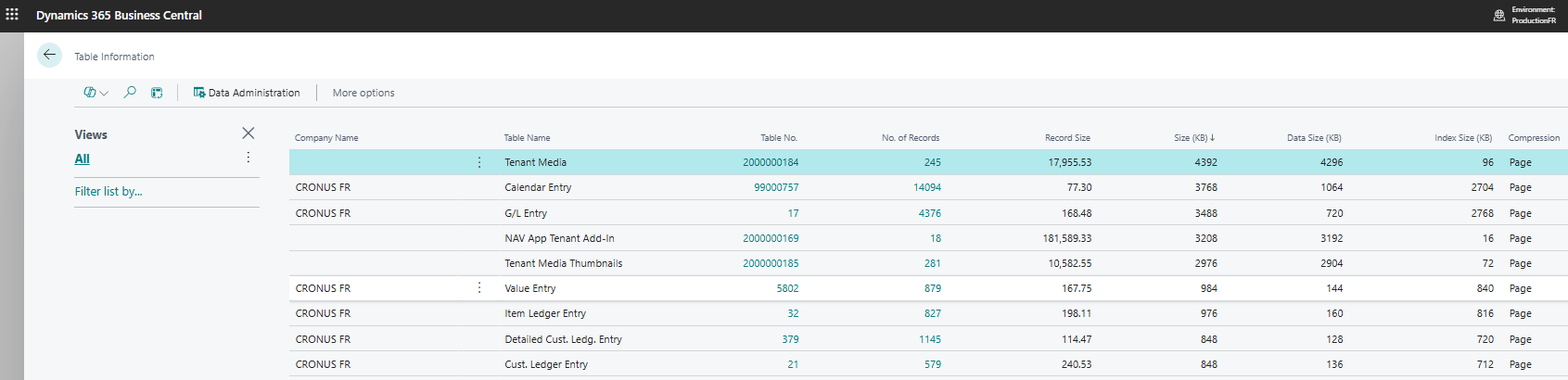
Access to the “Table Information” page: by searching for the page"Informations table"(Table Information), the administrator accesses a real-time overview of the database.
Key indicators of volumetric analysis
Company Name: This column indicates which legal entity (tenant or company) the data belongs to. Some tables are shared globally across the system (leaving the column empty), while others, such as accounting entries, are segregated by company.
Table Name and Table No: These fields display the technical identifier of the object and its standard or specific label (for example, table 17 for "G/L Entry" accounting entries).
Number of records: This refers to the total number of rows in the table. A high number does not necessarily indicate a critical size in KB, but it helps identify tables with high transaction traffic.
Record size: This indicator expresses the average size, in bytes, of a single row in the table. A table containing BLOB fields (such as images or large text files) will have a particularly large record size.
Size (KB): This column represents the total size occupied by the table in the SQL database. It corresponds to the sum of the size of the raw data and the size of the indexes. This is the priority column for sorting when performing a search to optimize space.
Data size (KB): This indicator isolates the memory space consumed solely by the actual data stored in the table fields, excluding indexing structures.
Index Size (KB): This value indicates the space required to maintain the SQL keys and indexes necessary for fast searches. In some cases of heavily indexed history tables, the size of the indexes may be larger than the data itself.
Compression: This column indicates the type of compression applied by Microsoft's cloud infrastructure to the SQL table (usually the "Page" level). This reduces the physical footprint on disk without affecting data availability.
Native retention policies
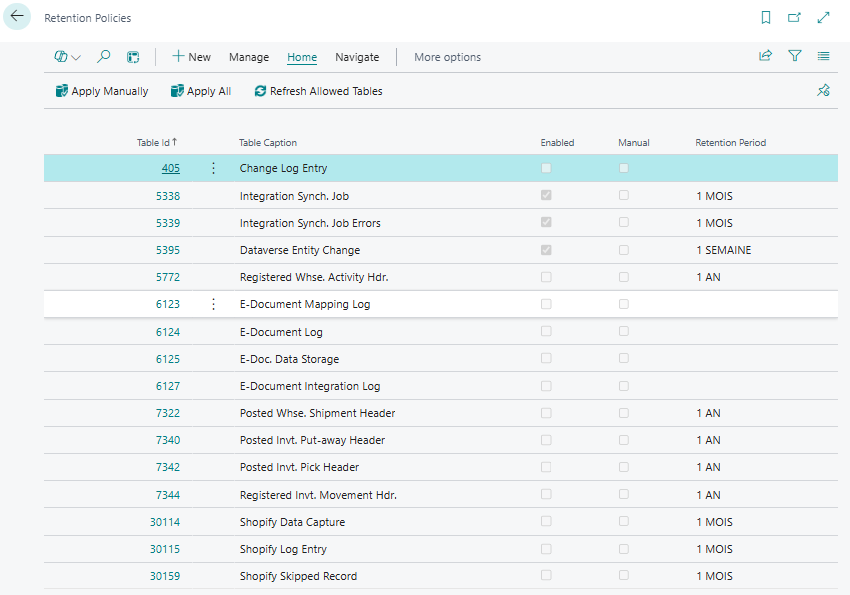
The Business Central standard includes a powerful tool called "Retention Policies". This tool allows you to define how long data is kept in specific tables containing log data or temporary files.
- Functionality role: Automatic rules are configured to specify how often obsolete data should be deleted.
- Affected tables: This feature primarily applies to register tables, integration logs, workflow histories, and change log entries. Master financial data tables are not directly impacted by this tool.
- Execution process: Once the policy is defined, a write operation is created in the job queue. Deletions are performed in the background without interruption for users.
Here is the technical description of the configuration sheet, written using the same structure as your article:
Configuring a retention strategy sheet
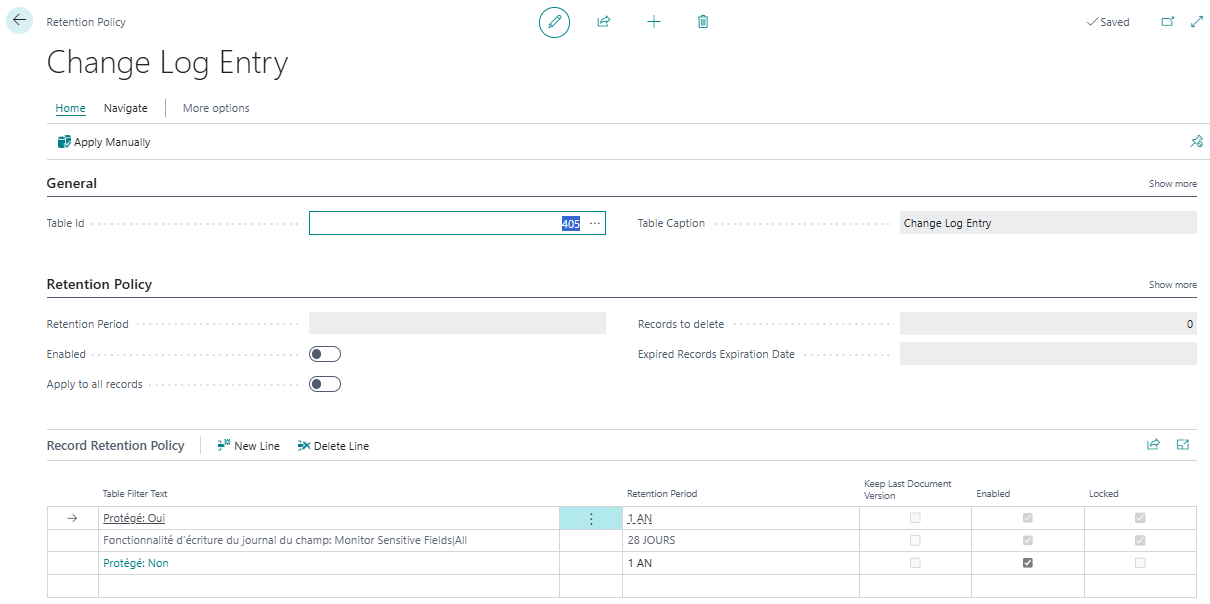
The retention strategy sheet contains the fields that define the retention policy, allowing for precise configuration of the data lifecycle for each selected table. The screen is structured into several complementary sections.
General Section and Retention Strategy
This upper section defines the overall cleaning perimeter for the targeted table:
- Table ID and Table Legend: these fields identify the technical object to which the rule applies (for example, table 405 representing the entries in the "Change Log Entry").
- Retention period: This setting defines the default retention period before data is considered obsolete (e.g., 1 YEAR, 28 DAYS or Never).
- Enabled: This switch enables or disables the retention policy. When this button is not enabled, no automatic deletion processing is performed by the job queue.
- Apply to all records: when this option is checked, the retention policy applies uniformly to all rows in the table without distinction.
Record Retention Strategy Section
When the global option is not checked, this table allows you to refine the system's behavior by defining advanced filtering rules:
- Table filter text: This field allows you to isolate subsets of data based on specific criteria. The image illustrates segmentation according to data status (Protected: Yes or Protected: No) or according to specific features such as monitoring sensitive fields.
- Retention period (line): A separate retention period can be assigned to each filter. Unprotected data can thus be deleted after one year, while change logs for critical fields can be cleaned after 28 days.
- Keep last version of document: this option ensures that, even if the validity period has expired, the very last recorded change for a given record is not deleted in order to maintain a minimal audit trail.
- Enabled and Locked: These checkboxes indicate whether the specific filter row is active. The "Locked" status indicates a predefined or mandatory system rule that cannot be arbitrarily modified by the user.
Performing the cleaning
LThe process of deleting obsolete data can be triggered immediately by a user action via the button."Apply manually"on the relevant page.
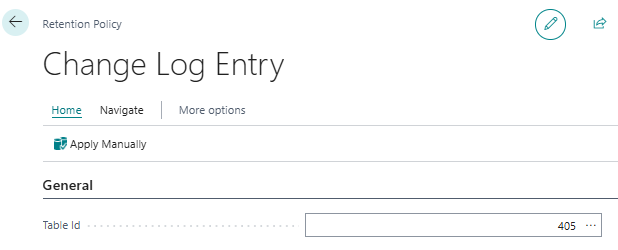
It can also be automated periodically by scheduling the execution of thecode unit 3997within the Job Queue.

Technical implementation of the retention framework
Integrating a custom table into the native framework relies on the use of interfaces and events provided by the Microsoft system application.
LThe configuration logic is centralized in the codeunice"Retention Policy Setup" (ID 3900).This codeunit raises the event that allows new tables to be saved.
Example AL code
A specific codeunit must be created to encapsulate this logic. The following code illustrates how to register a custom table (named here "Custom Log Entry"):
codeunit 50100 "Custom Retention Subscriber"
{
Access = Internal;
[EventSubscriber(ObjectType::Codeunit, Codeunit::"Retention Policy Setup", 'OnRegisterExtensionTableFilterList', '', false, false)]
local procedure OnRegisterExtensionTableFilterList(IDataClassificationMgt: Codeunit "Data Classification Mgt."; var TableFilterList: List of [Integer])
VAR
CustomLogTable: Record "Custom Log Entry";
{
// Adding the specific table to the list of allowed tables
if not TableFilterList.Contains(Database::"Custom Log Entry") then
TableFilterList.Add(Database::"Custom Log Entry");
// Mandatory definition of data classification for table fields
IDataClassificationMgt.SetTableFieldsToNormal(Database::"Custom Log Entry");
}
}
How the application works during installation
The retention framework requires that the rules be initialized as soon as the extension is deployed to the environment.
- Initialization via an installation codeunit:a codeunit of type Installmust be configured to automatically call the framework on first startup or during application updates.
- Using the "Reten. Pol. Allowed Tables" codeunit: the codeunit"Reten. Pol. Allowed Tables" (ID 3905)This is used during installation to force immediate registration of the table without waiting for a user to open the configuration page. This ensures that the table is ready to receive a retention policy as soon as the deployment is complete.
- Interface behavior: Once the installation process is complete, the table instantly appears in the list of available tables on the "Retention Policies" page. The functional administrator can then configure filters and date criteria to schedule automatic cleanup.
Outsourcing of attachments and cloud storage
A large part of the database saturation comes from the ancillary documents (supplier invoices PDF, photos of items, technical data sheets) stored directly in the ERP.
- SharePoint integration: Attachment storage can be moved to SharePoint Online. This strategy drastically reduces the size of the SQL database while maintaining direct access to documents from the Business Central card via secure links.
- Using Azure Blob Storage: For industrial volumes of documents or external technical logs, using Azure Blob Storage is recommended. Storage costs are significantly lower than those of Business Central database space.
Best practices for implementation
A retention strategy should not be deployed without prior validation. Several key steps must be followed:
- Capacity analysis: Examining the "Storage Capacity Information" page in the Business Central admin center helps identify the largest tables.
- Legal compliance: the tax and accounting laws of each country must be verified before any compression or permanent deletion. Accounting data must often be retained for ten years.
- Sandbox testing: Any bulk deletion or compression strategy must be validated in a sandbox environment. The impacts on financial reporting and system performance must be measured before production deployment.
In conclusion, reconciling technological performance and compliance
Managing data volume within Microsoft Dynamics 365 Business Central should not be seen as a mere technical constraint, but as an essential strategic approach to ensuring the long-term viability of the information system. The uncontrolled accumulation of historical data inevitably degrades ERP response times and generates unnecessary storage costs.
Implementing native retention policies, combined with integrating specific tables via AL code and offloading large documents to SharePoint or Azure Blob Storage, provides a comprehensive and structured solution. The success of this approach relies on close collaboration between the technical teams, responsible for configuration and development, and the functional departments, which ensure compliance with legal data retention obligations. Proactive database maintenance remains key to preserving the organization's agility and operational efficiency.







No comments yet.
Feel like commenting on this article? sign up, it's free!