








Microsoft Planner: Optimizing collaborative management within the 365 ecosystem
Index 
In a professional environment characterized by accelerating decision-making cycles, mastering workflows has become a strategic priority for organizations. Microsoft Planner positions itself as an agile solution, enabling the structuring of teamwork without the cumbersome nature of traditional planning software. As a tool integrated into the Microsoft 365 suite, it facilitates the transition to visual and transparent project management.
A Kanban structure: the engine of visibility
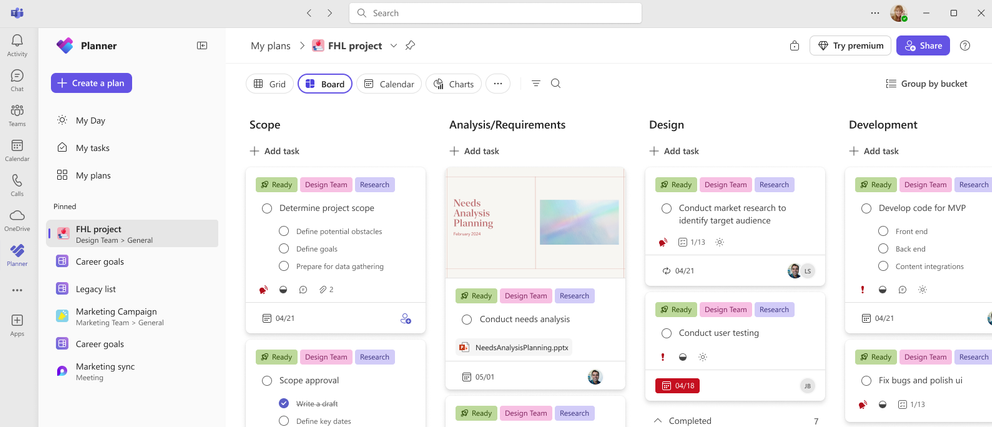
Microsoft Planner's effectiveness relies on a graphical interface where each project is broken down into task cards, organized within compartments. This approach, inspired by Kanban methodologies, allows for smooth manipulation of work items while offering a granular level of detail for each action undertaken.
Personalization and categorization by labels
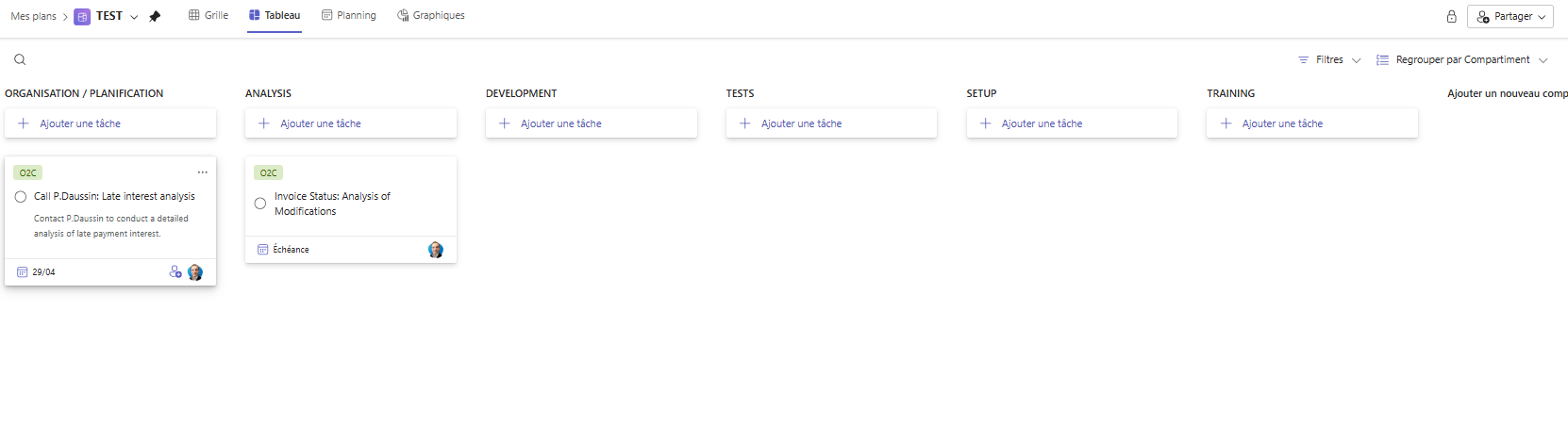
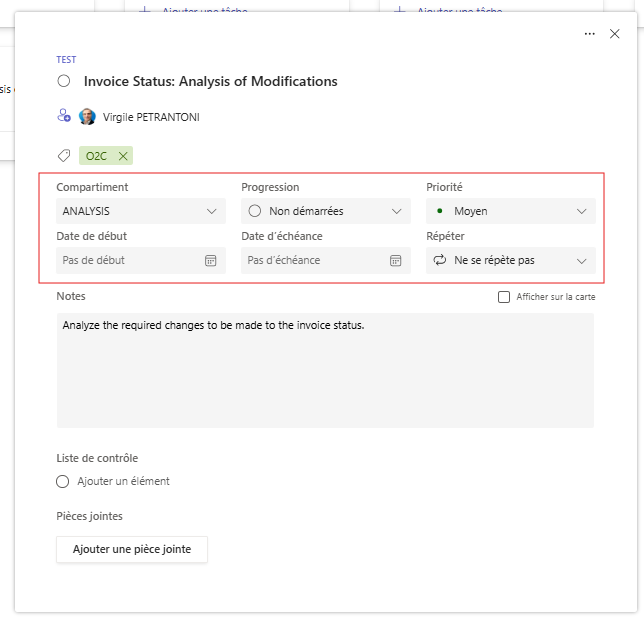
Task classification is facilitated by the use of twenty-five different colored labels. These labels are fully renameable to precisely match the project's internal nomenclature: for example, labels such as "Accounting Validation," "Compliance Risk," or "Audit in Progress" are frequently used. Assigning one or more labels to a task allows for dynamic filtering and immediate visual identification of cross-cutting issues within the overall picture. This segmentation is essential for extracting relevant information from a large volume of data.
Assignment and management of stakeholders
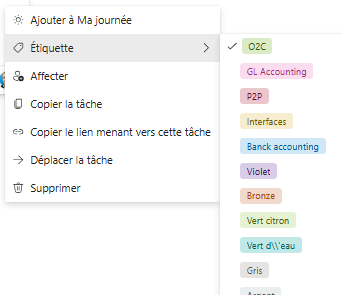
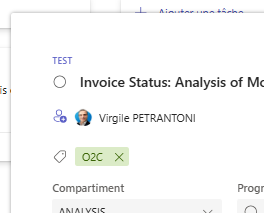
Responsibilities are distributed through a simplified assignment function. One or more users can be assigned to the same task, ensuring that each stakeholder is aware of their scope of involvement. This collaboration is further enhanced by displaying member avatars directly on the task's front panel, making the workload distribution clear to the entire group.
Scheduling and priority settings
To ensure that commitments are met, each task is framed by time milestones and criticality indicators:
- Calendar tracking:A start date and an end date are systematically defined to structure the implementation schedule and anticipate potential delays.
- Prioritization:Four priority levels are proposed (Urgent, Important, Medium, and Minimum). This scale allows teams to focus their efforts on high-value activities or those with an immediate deadline.
- The life cycle:Progress tracking is standardized via three statuses (Not Started, In Progress, Completed). This standardization provides a consolidated view of the remaining work during coordination meetings.
Centralization of information and communication flows
The task card acts as a single repository for all technical and administrative documentation related to a mission:
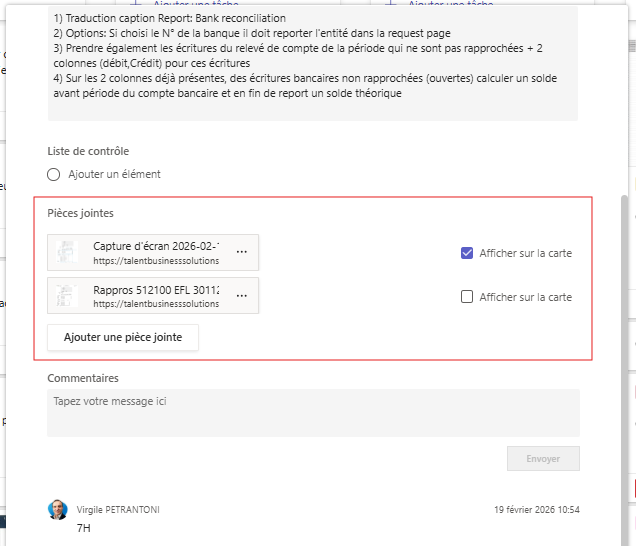
- Document management:Files from local sources, SharePoint, or OneDrive are directly attached to the task. This centralizes access to information, eliminating the time wasted searching for scattered documents.
- Notes and comments:A dedicated notes section allows for recording methodological instructions. Additionally, a discussion thread is open for each task, enabling the recording of exchanges between collaborators. Each comment adds a notification, ensuring complete traceability of decisions without cluttering email inboxes.
Analysis and management: summary views for decision-making
Beyond simply entering information, Microsoft Planner offers analytical tools that allow operational data to be transformed into management indicators.
Table view and data analysis in Excel
For users accustomed to manipulating structured data, the table (or grid) view offers a rigorous alternative to Kanban. Tasks are presented as a comprehensive list, facilitating quick review of each task's attributes. This interface is particularly well-suited to project review sessions, as it allows for bulk modifications to dates, priorities, or assignees without having to open each card individually. It bridges the gap between the flexibility of agile methodologies and the precision of database management. Furthermore, an advanced extraction feature is available: from the project name located in the top left corner of the interface, the "Export to Excel" option instantly generates a spreadsheet file. This document summarizes all tasks, dates, and stakeholders, providing a usable basis for offline analysis or periodic archiving.

Flexibility in filtering and grouping
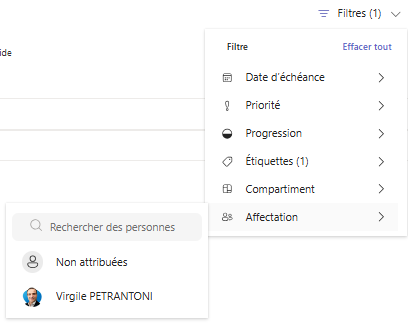
Effective project management relies on the ability to quickly isolate critical information. Whether in Kanban or grid view, a powerful filtering system is integrated. Items can be filtered according to several combinatorial dimensions: due date, priority level, progress status, color labels, buckets, or even name assignment. Additionally, the "Group by" function allows you to instantly reorganize the board not by buckets, but by responsible party or due date. This flexibility offers different perspectives, essential for identifying overdue tasks or assessing the real-time availability of a specific collaborator.
The graphs dashboard
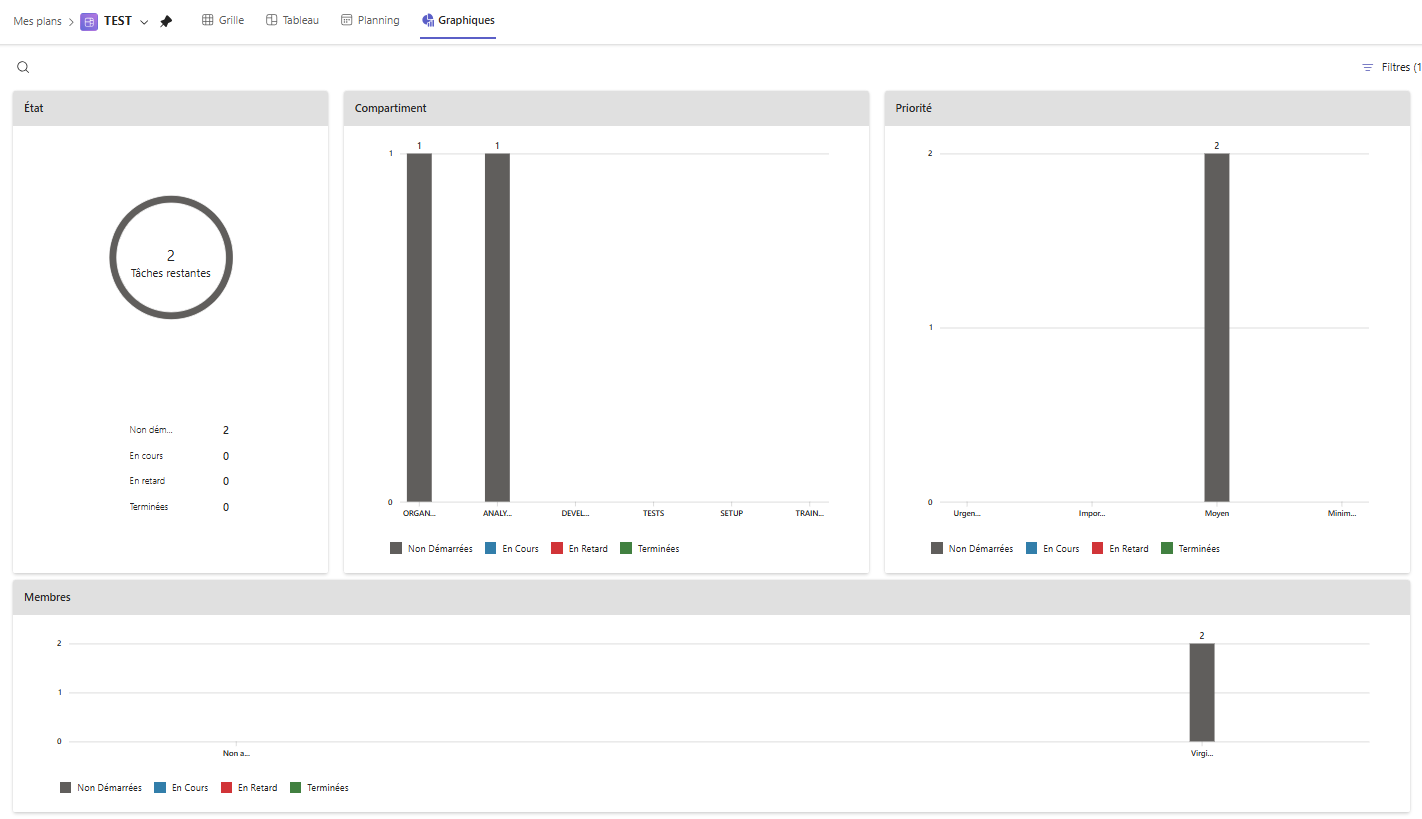
The "Graphics" section serves as the visual control center for the plan. Automatically generated pie charts and histograms provide an at-a-glance assessment of the project's health. Overall progress, task allocation by department, and, most importantly, workload per collaborator are all displayed. These graphs allow for the immediate identification of bottlenecks or overloaded resources, enabling proactive rebalancing of activities.
Synergy with Azure DevOps: between business agility and technical rigor
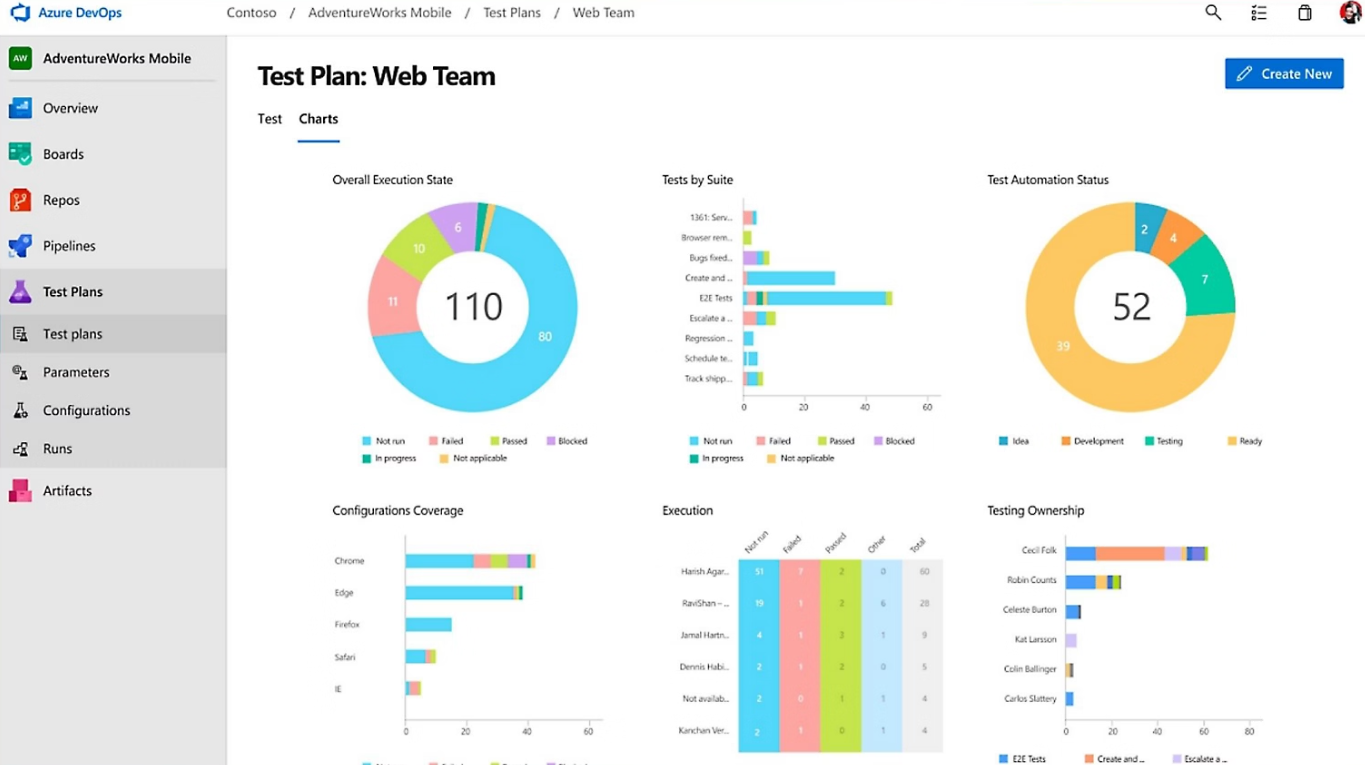
Although Microsoft Planner and Azure DevOps share common workflow management concepts, their operational purposes are distinct. Azure DevOps is specifically designed for software engineering, offering complete traceability from requirements gathering to code deployment. Conversely, Planner is preferred for operational, administrative, and marketing management.
However, creating a bridge between these two environments is a recommended practice to ensure data consistency. Using Power Automate, automation workflows are configured: for example, creating aUser StoryAzure DevOps can automatically generate a mirror task in Planner for communication or training teams. This interconnection ensures perfect synchronization between technical development and change management, without requiring tedious double manual entry.
Budget management in Planner: approaches and workarounds
A recurring question concerns the tool's ability to handle the financial aspects of a project. It's important to clarify that Microsoft Planner does not natively include modules dedicated to budgeting or cost accounting. The tool is focused on managing human effort and time, rather than tracking financial costs.
However, for finance experts and consultants, adaptation methods are being implemented:
- Custom fields (Premium versions):In advanced versions linked to Microsoft Project, numeric columns can be added to enter financial amounts or projected budgets per task.
- Exportation et Reporting BI:Planner's raw data is frequently extracted to Power BI. This integration allows Planner's progress indicators to be cross-referenced with cost data from an ERP or accounting software, thus generating comprehensive financial dashboards.
- Tactical use of labels:Budget codes or cost envelopes are sometimes integrated via the labeling system to provide visual signage on the consumption of allocated credits.
Integration as a factor of productivity
The real strength of Microsoft Planner lies in its integration with Microsoft Teams. A plan can be added as a tab within a chat channel, merging the space for conversation and the space for action. This centralization drastically reduces attentional fragmentation among collaborators. Furthermore, Planner tasks are aggregated in the "Tasks by Planner and To Do" app, giving each user a consolidated view of their personal and professional commitments.
Conclusion: A tool at the service of organizational potential
In conclusion, Microsoft Planner is considered a fundamental tool for structuring daily operations. While it doesn't replace project portfolio management (PPM) software for purely accounting purposes, its ease of adoption ensures high usage rates among teams. By promoting transparency and individual accountability, it actively contributes to optimizing internal processes. The tool's ability to scale to more complex solutions, such as Microsoft Project or Azure DevOps, makes it an ideal stepping stone for any organization looking to enhance its project management capabilities.





No comments yet.
Feel like commenting on this article? sign up, it's free!