









Fixed asset record, main assets & budgeting in Dynamics 365 Business Central
Index 
Following the initial module configuration and mapping of accounting groups, the operational management of assets relies on master data management. Within the Fixed Assets module of Microsoft Dynamics 365 Business Central, the fixed asset record serves as the central repository for the data required for accounting, operational, and analytical asset tracking. Proper control of its segmentation, breakdown by component, and integration of budgeted assets ensures the accuracy of financial information and compliance with regulatory reporting requirements.
1. Structure and segmentation of the Fixed Asset Record
Each asset is uniquely identified through its fixed asset record. The information is structured around several main shortcuts, supplemented by specific regulatory attributes.
A. General Tab: Taxonomy and Location
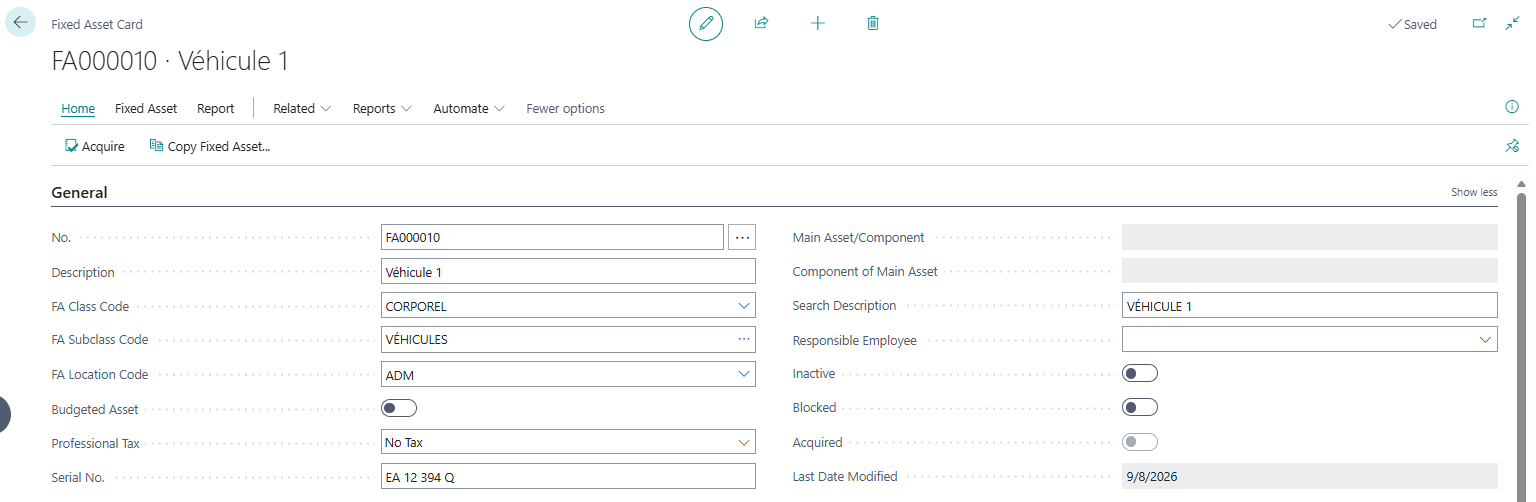
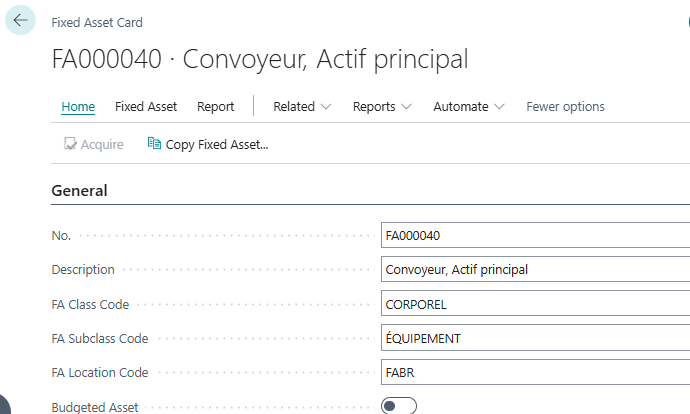
- Property class code / Property subclass code:The asset is assigned to a class (e.g., BODILY) and a subclass (e.g., VEHICLES). When a subclass is selected, the associated default accounting group is automatically populated on the asset's Depreciation Method shortcut.
- Property location code:The geographical or organizational connection of the asset (building, site, service) is recorded to facilitate physical inventories and filtering in financial statements.
- Budgeted real estate:This option is activated when the record represents an anticipated future acquisition outside of general accounting.
- Main Property / Component:These indicators are automatically updated as soon as a grouping into parent and child elements is established.
B. Amortization Law Shortcut: Financial Rules

This shortcut defines the calculation and financial tracking rules for the asset. Adding a depreciation method is done by clicking the dedicated button in the subform, with the option to associate as many methods as needed with the same fixed asset record.
Using multiple depreciation methods allows for the simultaneous management of different valuation objectives for the same asset, such as monitoring economic accounting, applying specific tax rules, or preparing adjustments for group reporting. It is also at this level that the fixed asset accounting group is defined, determining whether the cash flows should impact the General Ledger. The details of how these methods work and interact will be discussed in the next article.
C. Maintenance Shortcut: Operational Tracking

The maintenance and warranty information is recorded there:
- Supplier ID and Maintenance Company ID: These two fields select a record directly from the company's list of suppliers. Difference between the two fields: The Supplier ID designates the original seller or the entity from which the equipment was acquired (often linked to the warranty contract), while the Maintenance Company ID identifies the external service provider or subcontractor specifically responsible for maintenance interventions and recurring technical monitoring of the asset.
- Warranty Date: This field is filled in to keep the equipment warranty expiry date within the system.
- Other indicators: The “Under Maintenance” status, the “Next Service Date,” and the “Warranty End Date” allow for planning overhauls. The “Insured” indicator is dynamically updated as soon as an insurance entry is validated for the asset.
D. Excise Tax
This shortcut is entered when the fixed asset is subject to excise taxes regulated by local legislation (equipment operating with specific fuels or regulated products).
Within the application logic of Business Central, these fields play a central role in purchasing:
- Master Data and Automatic Inheritance: The Excise Tax Type field points to a legal parameter table. When entering a purchase document (order or invoice) targeting the fixed asset, the system automatically inherits the tax type, quantity, and unit of measure, avoiding any manual re-entry.
- Calculation Trigger: The Excise Tax Type acts as a filter to apply the corresponding tariff schedule. Upon validation, the calculation engine executes the formula:
💡Excise tax amount = Quantity * Rate of the schedule
If the field is empty, the asset is ignored and no rights are applied.
- Accounting allocation: Depending on the tax configuration, the procedure directly integrates the tax into the acquisition cost of the asset (Class 2) if it is capitalizable, or records it in a dedicated expense account if it is not.
Examples of use:
- Hydrocarbon storage tanks and cisterns: Monitoring of volumes of fuel or professional heating oil (e.g., non-road diesel) subject to TICPE/TICGN taxes according to the capacity and units of measurement declared.
- Wine or brewing production equipment: Racking systems, still tanks or industrial barrels intended for the processing and storage of spirits and alcoholic beverages.
- Heavy energy generators and installations: Industrial generator sets or high-capacity boilers consuming taxable energy products.
Required attributes and information:
- Type of excise tax: The regulatory code for the tax applicable to the equipment is selected here.
- Quantity for excise duty: The volume or physical quantity used as the basis for taxation is indicated here.
- Unit of measurement for excise duties: The legal unit associated with the calculation of the tax (e.g., litres, kg) is assigned here.
- Tax considerations: The combination of these attributes allows the system to assess the tax burden of excise duties attached to the asset.

Configuring input types (Subjection rules)
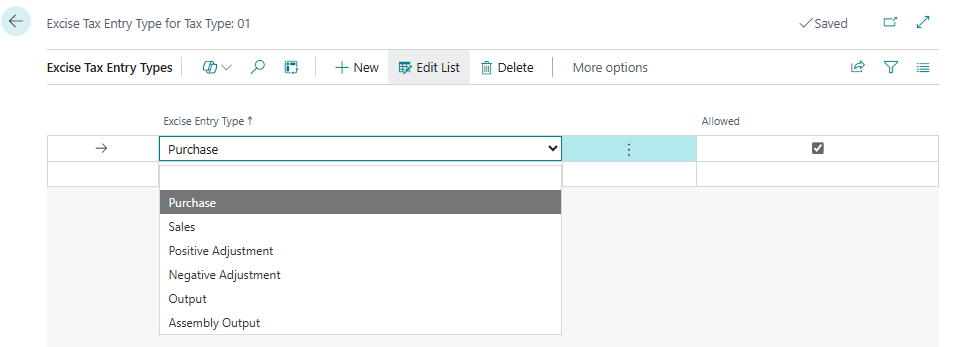
The Configure Entry Types action allows you to map tax behavior according to the nature of the transaction:
- Definition of flows: Creation of separate lines for each type of operation (direct purchases, entries, transfers or reclassifications).
- Application Rules: For each type of entry, the “Subject to tax” box is checked for taxable transactions. Conversely, the “Exempt” box is checked if the transaction benefits from a regulatory exemption (e.g., agricultural uses or professional exemptions).
Tariff schedule and historical data (Excise duty rates)
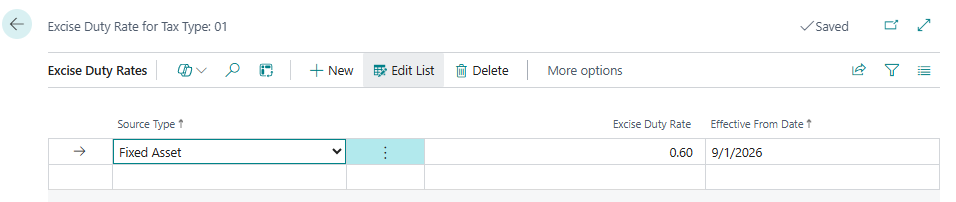
Access to the Excise Duty Rates page allows you to manage the evolution of the rates over time:
- Source type: Definition of the scope of application (e.g., Fixed assets to directly target equipment).
- Excise duty rate: Entry of the unit monetary value of the tax (e.g. 0.60).
- Effective date: Indication of the tariff start date (e.g., 01/09/2026). This date-based management ensures traceability of tax changes and preserves the history of past transactions.
Linking with the Immobilization and Triggering Sheet
Once the card is saved, the attributes are attached to the equipment record (storage tank, vehicle) in the Excise Tax shortcut:
- Excise tax type: 01
- Unit of measurement: LITER
- Quantity: Input of the reference capacity or volume.
When validating a purchase invoice linked to this asset, the calculation engine cross-references the document date with the tariff schedule to apply the applicable rate to the declared volume.
E. Declaration of exchange of goods (Intrastat / DEB)
Providing information in the tab relating to trade in goods is mandatory to ensure the monitoring of cross-border movements of tangible fixed assets within the European Union.

The required information is as follows:
- Code douanier (Tariff No.) :The 8-digit code in the EU Combined Nomenclature identifies the customs nature of the equipment.
- Net weight:The total net weight of the asset is expressed in kilograms to avoid any blockage during the generation of Intrastat files.
- Additional unit:The additional unit is entered if the customs nomenclature requires it.
- Exclude from the DEB / Intrastat:This box allows the immobilization of statistical flows to be excluded when the transaction does not fall within the scope of application.
The automatic extraction of a fixed asset entry in the Intrastat report is subject to the following rules:
- Currently being acquired:The writing must be of the typeAcquisition costand originate from a purchase invoice.
- For sale:The writing must be of the typeProceeds from saleand originate from a sales invoice.
Operational processing in the DEB/Intrastat declaration
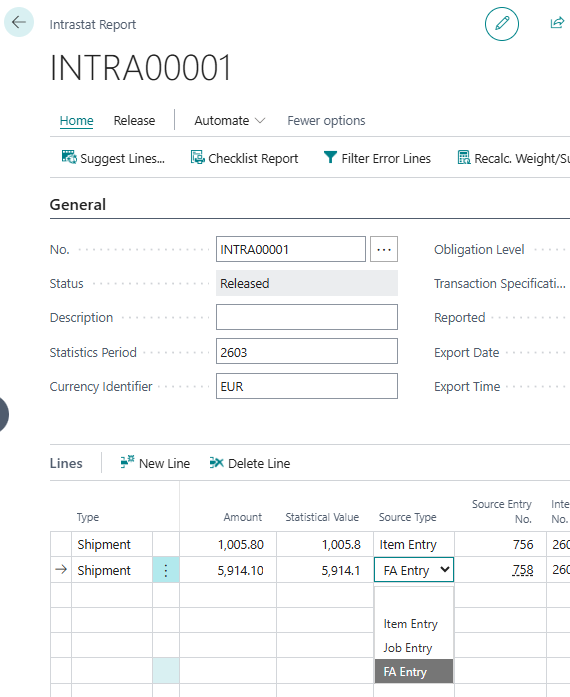
The integration of fixed asset flows into the statistical declaration is carried out via batch processingSuggest lines (Get Entries) from the DEB sheet:
- Extracting the data streams:The system scans all eligible fixed asset accounting entries over the selected period.
- Line typology:When the row is automatically created in the sheet, the fieldOriginal type (Source Type) takes the valueImmobilization (Fixed Asset), distinguishing it from type trade flowsArticle (Item).
- Resuming attributes:The declarative data entered during the purchase invoice — customs nomenclature code, net weight, additional unit and acquisition cost — are automatically injected to populate the declaration.
2. Modeling of Primary Assets and Components
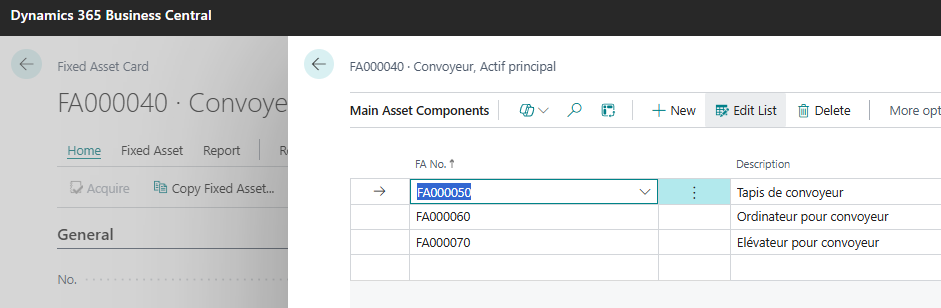
For the management of complex equipment (production lines, building complexes), a division into main assets and components is configured. Each sub-element has a separate record, linked to the parent asset via the “Main fixed asset components” action.
Consulting the “Main Real Estate Statistics” page provides a consolidated view of the tree structure:
- The breakdown of attached and transferred components.
- The aggregation of acquisition costs, accumulated depreciation, amortization and net book values of the entire structure.
- The extreme dates of acquisition and disposal of the components.
3. Management of Budgeted Fixed Assets
Anticipating investments and developing financial forecasts (balance sheet, income statement and cash flow plan) are based on the creation of budgeted fixed assets.
Activating the “Budgeted Asset” toggle on the record locks the asset to prevent any direct validation in the general ledger.
This status allows:
- Calculation and projection of future depreciation through simulation states (e.g. Fixed Assets - Projected Value).
- The transfer of forecast entries to a general accounting budget via the “Copy fixed asset entries to budget” function.
When the asset is actually acquired, the actual cost is recorded by entering the number of the budgeted asset in the “Budgeted asset no.” field of the purchase line or accounting sheet, ensuring the clearing of forecasts and avoiding any duplication in budget analyses.
Conclusion
The Fixed Asset Record is the cornerstone of asset management in Microsoft Dynamics 365 Business Central. Rigorous categorization, combined with component modeling and budgeted asset tracking, ensures an accurate asset view and secures tax and customs declarations.
In the upcoming articles on fixed asset management in Business Central, flow operations will be covered in detail: asset acquisition, depreciation calculation and validation, revaluations, and the accounting treatment of disposals and write-offs.







No comments yet.
Feel like commenting on this article? sign up, it's free!